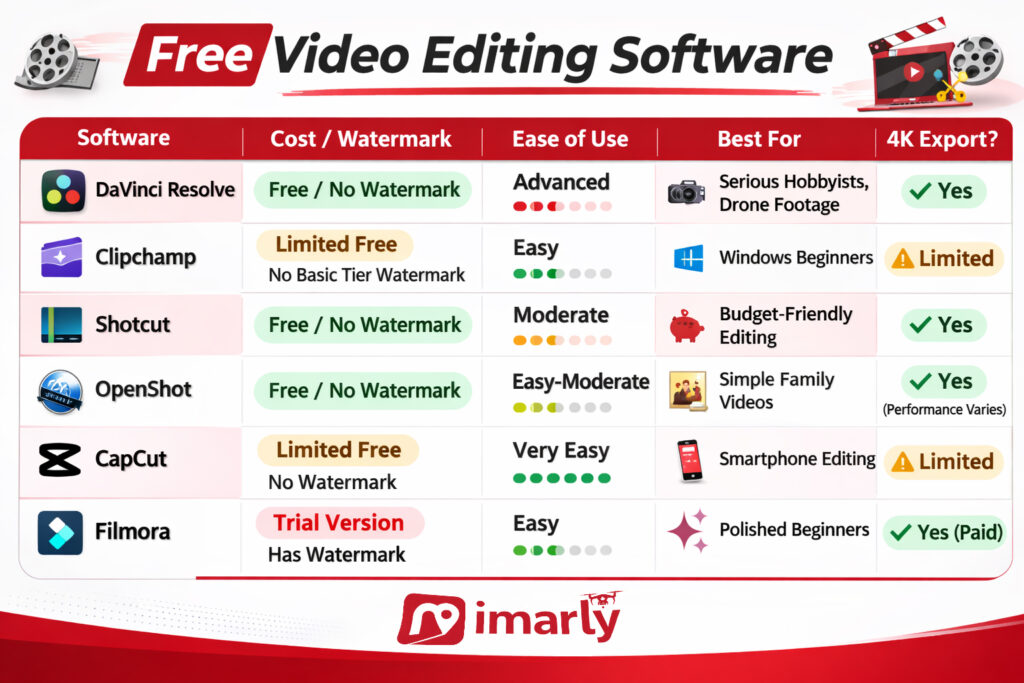
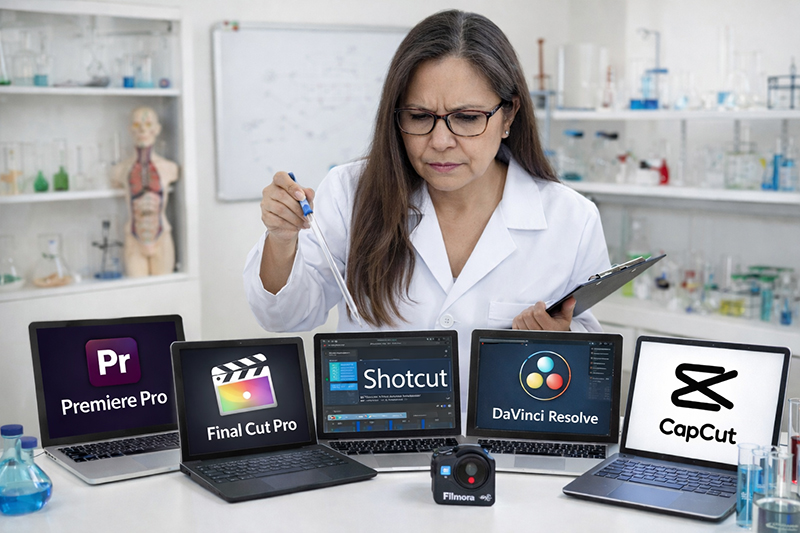
Finding the best free video editing software can be tricky; not all free options are truly free. I’ve reviewed 6 popular programs and created a comparison guide that brings everything together in one place.
⚠️ Important Download Warning
Have you ever worried that the software you download might not be safe? Video editing tools are among the most impersonated online. These impostors copy trusted logos, duplicate entire sites, and even purchase legitimate ads to lure you in.
Your protection checklist:
Use official links.
Never search for free downloads and click the first link; this is a common way to get tricked by malicious sites.
Stay away from cracked or unlocked versions.
If a website address appears to look slightly different, stop!
If nothing else, your takeaway from this should be “Your Safety Matters” more than free software.
Why Free Is Not Always Really Free
There are three main “free” models:
Truly Free (Open-Source or Strategic Free)
Shotcut
OpenShot
DaVinci Resolve
Freemium (Free with Limits)
Clipchamp
CapCut
Filmora
Free Trial (Temporary)
Many professional tools
Free often means:
Watermarks
Export limits
Feature restrictions
Subscription nudges
It can be confusing.
And confusion is where scams thrive.
How to Choose the Right One
If you want:
Professional-level editing and no watermark → DaVinci Resolve
Simple Windows editing → Clipchamp
Completely free without corporate accounts → Shotcut or OpenShot
Phone editing and social media templates → CapCut
Polished and easy but willing to pay → Filmora
There is no “best” editor.
There is only the right one for your comfort level and computer.
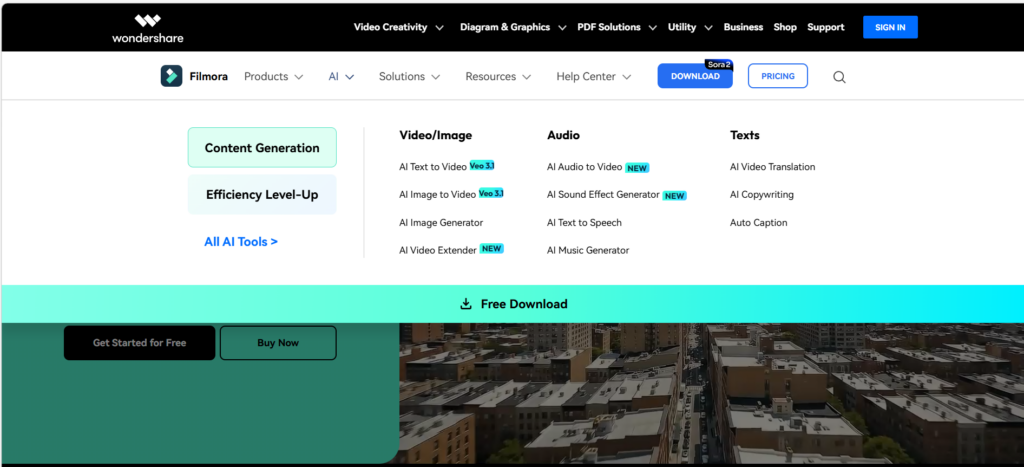
Filmora video editor review searches are extremely common because this program advertises itself as beginner-friendly and free. It promises simple drag-and-drop editing, built-in effects, and fast results — all without a steep learning curve.
But when something says “free,” we need to slow down and read carefully.
Let’s walk through it clearly.
⚠️ Important Download Safety Warning
Filmora is widely searched, which means fake download sites often try to copy it.
To stay safe, I always recommend downloading Filmora only from the official Wondershare website, never using “cracked” or “unlocked” versions, steering clear of third-party free software sites, and double-checking the web address before you hit download.
If the website address looks slightly different, stop immediately.
I personally verify all download links before sharing them.
What Is Filmora Video Editor?
Filmora is:
A beginner-focused video editor
Designed for ease of use
Available for Windows and Mac
Built with templates and visual effects
When you open Filmora, you’ll notice something immediately:
It looks modern.
Large buttons. Clean timeline. Drag-and-drop functionality. Built-in effects and transitions are ready to use.
Compared to DaVinci Resolve, it feels lighter.
Compared to OpenShot, it feels more polished.
Compared to CapCut, it feels more “desktop professional.”
That’s intentional.
Is Filmora Video Editor Really Free?
Here’s the big thing you need to know: Filmora lets you download and use it for free, which sounds great—until you get to the export stage. If you’re using the free version, any video you make will have a watermark slapped right across it.
If you want to get rid of that watermark, you’ll need to pay for a license or a subscription. Many beginners only notice after editing.
Pros and Cons of Filmora Video Editor
✅ Pros
Filmora is great for beginners. A clean and modern interface that is easy to just drag and drop clips, and you get built-in effects and music right away.
Plus, it works smoothly on both Windows and Mac. In my experience, it’s way less intimidating to learn than, say, DaVinci.
❌ Cons
Here’s the not-so-great stuff: the free version puts a big watermark on everything you export, so if you want clean videos, you’ll have to pay. Updates only come with a subscription, there are some upsells sprinkled in, and if you’re looking for all the bells and whistles of pro-level software, Filmora just isn’t quite there—but for most folks starting out, that’s usually not a dealbreaker.
It’s designed to feel simple — and it does.
But long-term use usually requires payment.
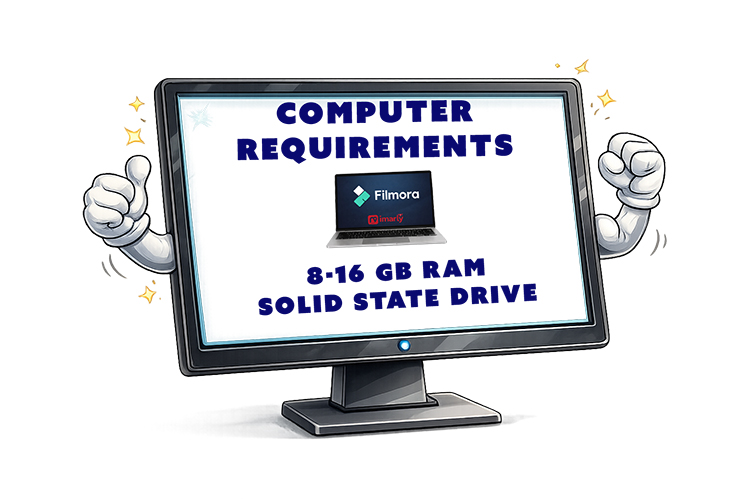
What Computer Do You Need to Run Filmora video editor?
Filmora runs on:
Windows
Mac
It does not require extremely powerful hardware like DaVinci Resolve.
Most modern computers with:
8–16GB RAM
Solid-state drive
Will handle HD editing comfortably.
For heavy 4K drone footage, performance depends on your system.
Who Should Use Filmora?
Best for:
If you do not want complicated menus and prefer a polished, modern interface, Filmora may be for you. It works great for quick video projects.
Not ideal for:
Filmora probably isn’t the best fit if you need something totally free, want advanced tools for cinematic color grading, or just don’t like dealing with subscriptions.
My Honest Recommendation
To me, Filmora is kind of like the “training wheels” of polished video editing—it takes away a lot of the intimidation and just makes things easier, but it’s not truly free if you want to export without a watermark.
If you’re okay with paying for convenience, it’s a super comfortable choice. But if you’d rather not spend anything, Shotcut or OpenShot will do the trick, and if you want to grow your skills with pro-level tools, DaVinci Resolve could be worth the learning curve. For quick phone edits, CapCut is hard to beat.
There’s no single “best” video editor out there. The best one is the one that fits your comfort, your computer, and what you actually want to do.
📊 Not Sure Which Editor Is Right for You?
This review is part of my complete guide to Free Video Editing Software.
If you’d like to see all six programs compared side-by-side — including what’s truly free and what has limits — visit the full comparison guide here:
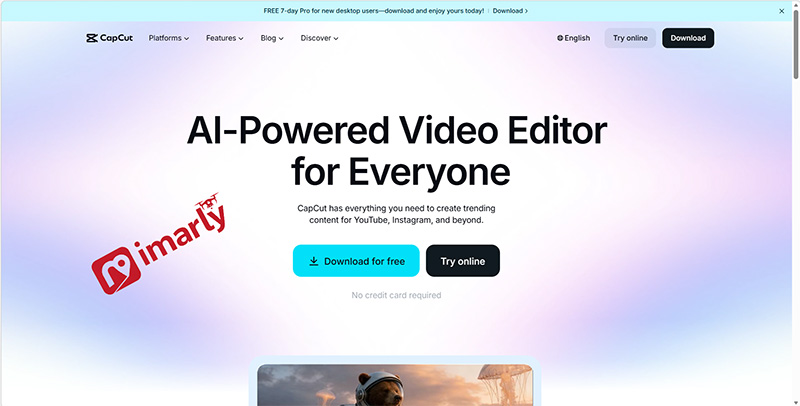
CapCut video editor review conversations have exploded in recent years because this free editing app makes it incredibly easy to create polished videos on a smartphone. With built-in templates, music, and effects, CapCut feels modern and powerful — especially for social media.
But when something is free and wildly popular, it’s worth slowing down and looking carefully.
⚠️ Important Download Safety Warning
Because CapCut is so popular, there are many fake download websites pretending to offer it.
To stay safe, I always recommend downloading CapCut only from the official website or directly through the Apple App Store or Google Play Store. Never trust random “APK” sites or pop-up ads that promise unlocked premium versions—those are almost always scams.
If the site name looks slightly different, stop immediately.
I personally verify all links before sharing them.
What Is CapCut Video Editor?
CapCut is a free video editing app, and it’s actually owned by ByteDance—the same company behind TikTok. That means it’s designed with social media in mind from the very start. You can use CapCut on your iPhone, Android device, or desktop, so it’s super accessible no matter which platform you prefer.
One thing I notice is that, unlike editors like OpenShot or Shotcut, CapCut is really built around templates. This makes the whole editing process much faster and more approachable, especially if you’re new to video editing.
Personally, I love how easy it is to pick a template, drop in your video clips, and then just add automatic captions or music. You can export your finished video really quickly, and the results look modern and polished.
Is CapCut Video Editor Safe to Download?
Here’s where we need to think clearly.
CapCut itself, when downloaded from official app stores or the official website, is legitimate.
However:
Some features require an account sign-in.
It collects usage data (like most modern apps)
Some features require internet access.
CapCut isn’t dangerous, but it’s important to remember it’s a cloud-connected app, so if you’re like me and sometimes feel weird about creating accounts or managing privacy settings, that’s totally normal—it can definitely feel a little overwhelming. Just a heads-up: those “CapCut Pro unlocked” downloads you see on sketchy sites are never safe, so I always stick to the official stores and recommend you do the same.
Pros and Cons of CapCut Video Editor
Let’s simplify.
✅ Pros
What I really like about CapCut is that it’s super easy for beginners, works great on smartphones, and comes with built-in templates and music. The automatic captions, fast export, and modern interface are all huge pluses for me, too.
❌ Cons
On the downside, you’ll need an account to unlock a lot of features, and like most apps these days, CapCut does collect some of your data. There are also some premium features that require payment, and you’ll need an internet connection to get the full experience. Plus, if you’re hoping for a super powerful desktop editor, CapCut doesn’t quite measure up to the pro options out there.
If your goal is quick social media content, CapCut shines.
If your goal is cinematic drone films with deep color grading, it’s limited.
What Devices Does CapCut Video Editor Work On?
CapCut works on:
iPhone
Android
Windows desktop
Mac desktop
It performs best on smartphones and tablets.
The desktop version is improving but still focuses heavily on social content.
Is CapCut Really Free?
Yes — but partially.
The basic editing tools are free.
However:
Some templates require payment.
Some advanced features require a subscription.
Cloud storage may have limits.
For casual users, the free version is enough.
But always read before upgrading.
Who Should Use CapCut?
Honestly, I think CapCut is best if you’re comfortable with your smartphone and like sharing on social media, or if you want to whip up quick vacation highlight reels and fun TikTok or Instagram videos.
To be real, CapCut just isn’t going to be your thing if working offline is a must, not a fan of signing up for new accounts, or you’re hoping to dive deep into advanced cinematic editing. It’s made for quick, social-friendly edits, not for folks who want a ton of technical control or pro-level features.
My Honest Recommendation
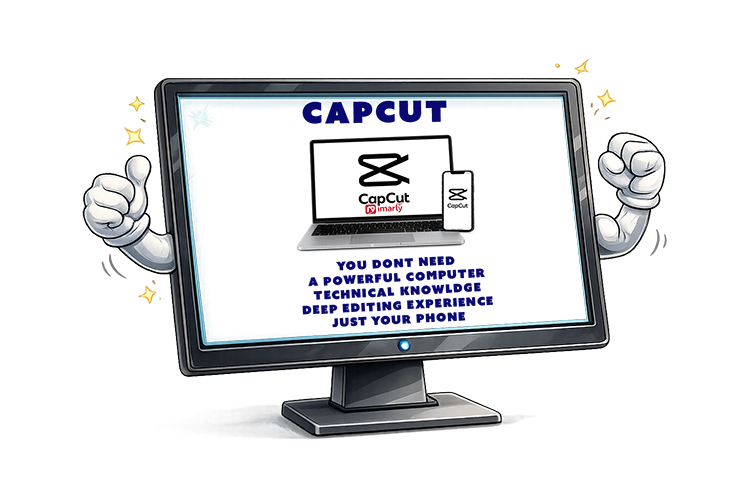
CapCut dramatically lowers the barrier to editing.
You don’t need:
A powerful computer
Technical knowledge
Deep editing experience
You just need your phone.
For many, that’s actually a huge advantage.
But always remember:
Popularity attracts fake download sites.
Stick to official stores only.
In our final post in this series, we’ll look at Filmora — a polished, beginner-friendly editor that markets itself as free… but has a few important details you should know before installing.
📊 Not Sure Which Editor Is Right for You?
This review is part of my complete guide to Free Video Editing Software.
If you’d like to see all six programs compared side-by-side — including what’s truly free and what has limits — visit the full comparison guide here:
OpenShot video editor is designed to make video editing feel less overwhelming while still offering useful tools for trimming, adding music, and creating simple projects. For anyone who wants something free and straightforward, OpenShot often feels more approachable than professional-level software.
⚠️ Important Download Safety Warning
Because OpenShot is free and open-source, many websites offer downloads. Some are legitimate. Others bundle unwanted software or fake installers.
To stay safe, I recommend that you always download OpenShot from the official website. Be sure to steer clear of any unfamiliar “download mirrors,” and never trust pop-up ads promising a faster download. It’s also a good habit to double-check the website address before installing anything.
I personally verify every download link before sharing it.
What Is OpenShot Video Editor for Beginners?
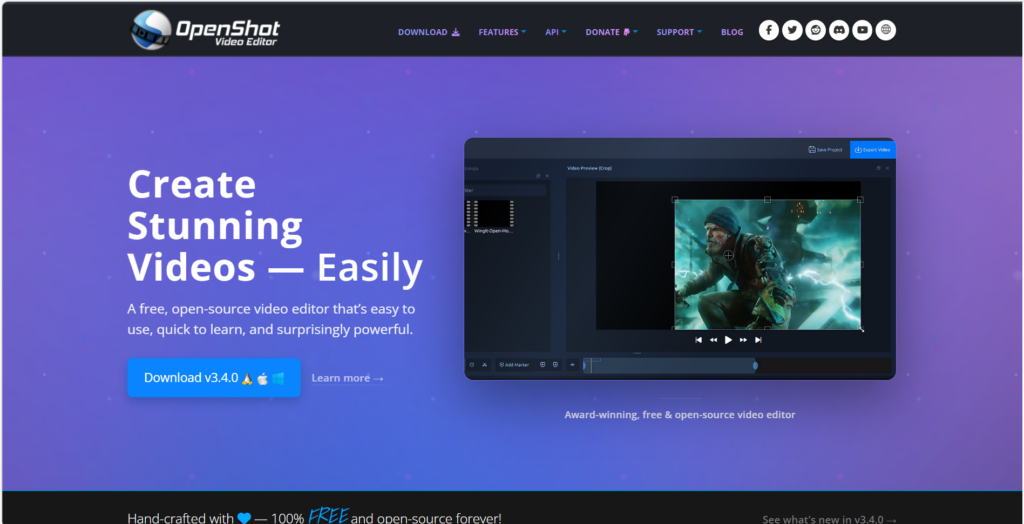
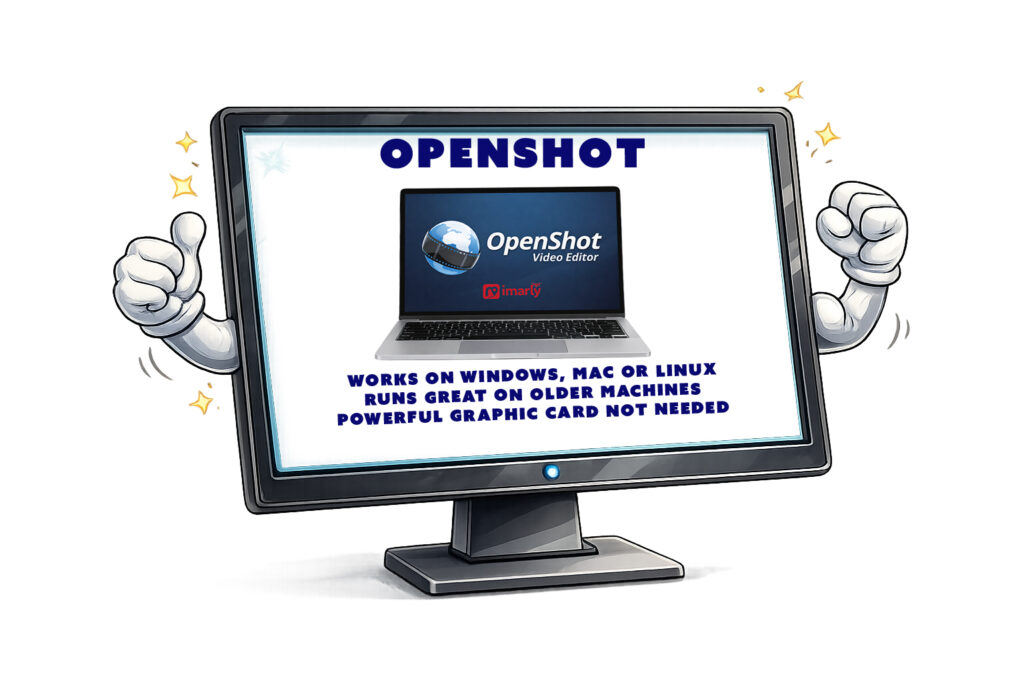
OpenShot is completely free and open-source, works on Windows, Mac, and Linux, and is designed with simplicity in mind.
When you open OpenShot, you’ll notice something immediately: The layout feels clean. The first things you’ll notice are a clean preview window, a timeline running along the bottom, a handy media box off to the side, and big, easy-to-read icons.
It is very user-friendly.
That’s an important difference.
Why OpenShot Video Editor Feels Less Intimidating
OpenShot focuses on making the basics easy.
You can:
✔ Drag and drop videos into the timeline ✔ Trim the beginning or end ✔ Add music underneath your video ✔ Insert titles and text ✔ Add simple transitions
The tools are clearly visible and labeled. Tools are not hidden in dozens of panels, no account is required, and cloud services are not needed. Just open and work. Simpler than DaVinci Resolve but not as polished as Clipchamp.
Pros and Cons of OpenShot Video Editor
Let’s keep this simple and balanced.
✅ Pros
OpenShot is completely free and doesn’t put any watermarks on your videos. Its layout is beginner-friendly, and it runs on both Windows and Mac. I really appreciate how easy it is to drag and drop clips, and you never have to create an account to get started.
❌ Cons
OpenShot does have its limitations: it can get unstable if you’re working on large projects, rendering longer videos can take some time, and you won’t find a lot of advanced color tools or modern templates.
If you’re editing long 4K drone footage, it may struggle.
If you’re editing short family clips, it works just fine.
What Computer Do You Need?
OpenShot Video Editor works on:
Windows
Mac
Linux
It runs better than DaVinci on older machines.
You don’t need a powerful graphics card. But having more RAM always helps with video editing.
For basic HD editing, most modern computers will handle it comfortably.
For heavy 4K editing, performance may vary.
Is OpenShot Video Editor Really Free?
OpenShot really is free—there’s no watermark, no trial period, and no subscription required. It’s all made possible by donations and community support, not some big corporate licensing scheme. That’s a huge plus if you’re like me and prefer to avoid anything with a subscription attached.
Who Should Use OpenShot?
Best for:
OpenShot is a great fit if you’re completely new to editing, want to put together family vacation videos, create quick social media clips, or just need something simple and offline that doesn’t overwhelm you with features you’ll never use.
Not ideal for:
OpenShot isn’t the best choice if you’re looking to do advanced cinematic color grading, tackle really large professional projects, or dive into heavy special effects work.
OpenShot is about accessibility, not complexity.
Honest Recommendation
If DaVinci feels too advanced and Shotcut feels slightly technical, OpenShot may feel more comfortable.
It’s not the fastest. It’s not the most powerful.
But it’s approachable.
And sometimes the best software is the one you’ll actually use.
In the next post, we’ll examine CapCut — a wildly popular editor, especially for phone users and social media creators.
📊 Not Sure Which Editor Is Right for You?
This review is part of my complete guide to Free Video Editing Software.
If you’d like to see all six programs compared side-by-side — including what’s truly free and what has limits — visit the full comparison guide here:
Shotcut free video editor is a completely open-source program that offers powerful editing tools without subscriptions, watermarks, or hidden upgrades. For seniors who want something free but more capable than basic editors, Shotcut may be a strong middle-ground option.
While Shotcut is free, it may take a little practice to use comfortably.
⚠️ Important Download Safety Warning
This is critical.
Because Shotcut is free and open-source, many third-party websites offer downloads. Some of those sites are safe. Some are not.
For your protection:
✔ Only download from the official Shotcut website ✔ Never download from “free software collection” sites ✔ Avoid pop-up ads claiming faster versions ✔ Double-check the website spelling before clicking
I personally verify every download link before sharing it.
What Is Shotcut Free Video Editor?
Shotcut is:
100% free
Open-source (built by a global developer community)
Available for Windows, Mac, and Linux
Not owned by a major corporation
Unlike Clipchamp, it does not rely on cloud processing. Unlike DaVinci Resolve, it does not aim to compete with Hollywood studios.
It lives somewhere in between.
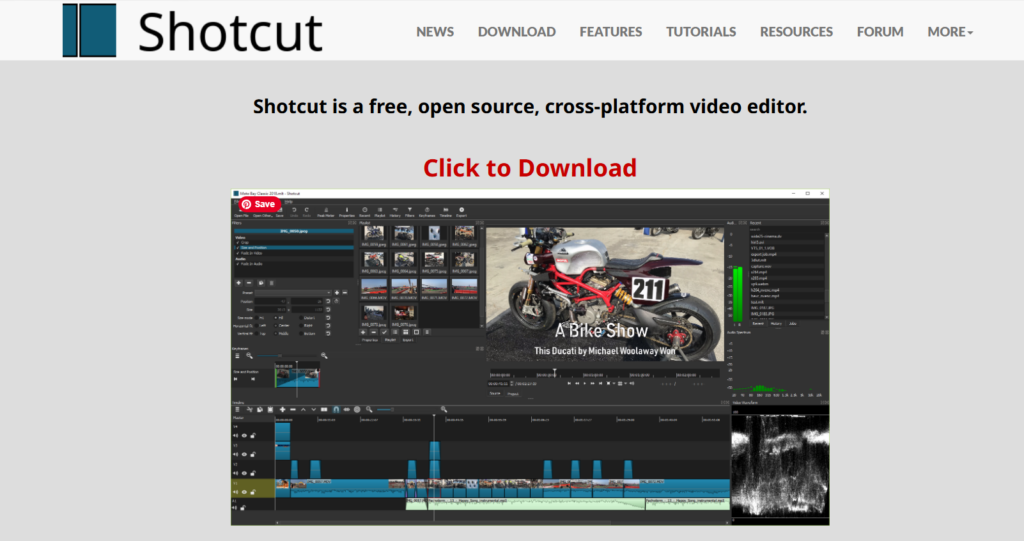
When you open Shotcut free video editor, you’ll see:
A timeline
A preview window
Panels you can turn on or off
Basic editing tools
It’s more “toolbox” than “template-based editor.”
Is Shotcut Free Video Editor Easy to Learn?
Moderately.
Shotcut is simpler than DaVinci Resolve. But it is less polished than Clipchamp.
Honestly, Shotcut’s interface does look a little old-school. The buttons are smaller, and the whole layout isn’t as sleek as some newer editors. It might not win any beauty contests, but it gets the job done.
Underneath that plain look, though, are all the basics you actually need. You can trim your clips, add music, drop in some text, use filters, tweak the color, and export your finished video—no watermarks, no nonsense.
It doesn’t drown you in Hollywood-level film tools, but it also doesn’t babysit you with step-by-step templates. So yes, there’s a bit of a learning curve. But in my experience, it’s not overwhelming—just give yourself an afternoon to poke around and you’ll get it.
Pros and Cons of Shotcut Free Video Editor
Let’s make this very clear.
✅ Pros
• Completely free • No watermark • No subscription required • Works on Windows and Mac • Lightweight compared to pro software • Good balance of power and simplicity
❌ Cons
• Interface looks dated • Fewer built-in templates • Fewer “drag-and-drop” guided tools • Occasional small glitches depending on the system
What Computer Do You Need?
Shotcut runs on:
Windows
Mac
Linux
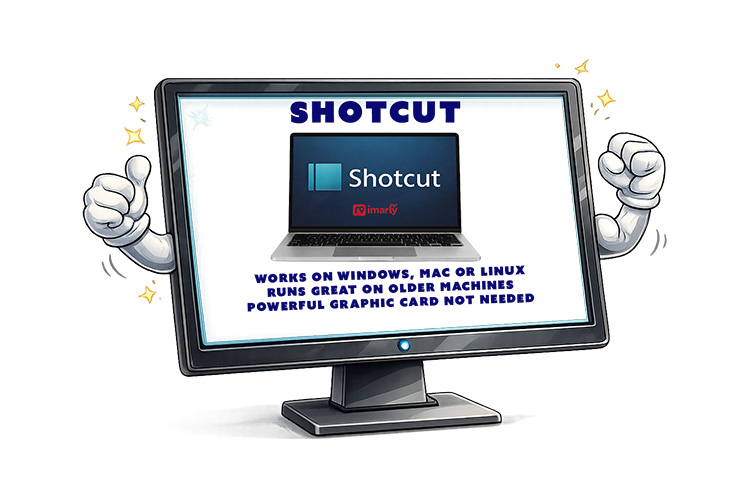
It works on older machines better than DaVinci Resolve does. You don’t need a powerful graphics card. But more RAM always helps when editing video. If your computer can play HD video smoothly, it will likely handle Shotcut fine. For heavy 4K drone editing, performance may vary.
No WaterMark
No hidden export limits.
No trial period.
“Free” actually means free.
It’s supported by community development and donations — not subscriptions.
That’s refreshing in today’s software world.
Who Should Use Shotcut?
Best for:
Shotcut is great if you want more control than you get with Clipchamp, especially if you hate being locked into subscriptions. It’s a solid pick for editing family videos or if you’re just not quite ready to dive into the deep end with something like DaVinci Resolve.
Not ideal for:
Shotcut isn’t the best choice if you’re after flashy templates, instant social media effects, or heavy, Hollywood-style color grading. It’s more about giving you the essentials without the frills—great for getting the job done, but not for those who want everything done for them with a single click.
My Honest Recommendation
Shotcut feels like the dependable old pickup truck of video editors.
It’s not shiny. It’s not corporate. It doesn’t try to impress you.
But it works.
If you want:
True free software
No watermark
No subscription
No cloud dependency
Shotcut deserves serious consideration.
In my next post, we’ll look at OpenShot — another open-source editor that aims to be even more beginner-friendly.
📊 Not Sure Which Editor Is Right for You?
This review is part of my complete guide to Free Video Editing Software.
If you’d like to see all six programs compared side-by-side — including what’s truly free and what has limits — visit the full comparison guide here:
DaVinci Resolve free video editor is one of the most powerful video editing programs available today — and surprisingly, the basic version costs absolutely nothing. But with that power comes complexity, and many beginners (especially seniors) wonder if it’s simply too much.
In this post, I’ll break it down clearly and calmly.
⚠️ Important Download Safety Warning
Before we go any further, this matters.
There are many websites that look like the official DaVinci Resolve site — but they are not. Some include extra bundled software, fake installers, or even malware.
For your protection:
✔ Only download from the official company website ✔ Never click “Download” from pop-up ads ✔ Refrain from third-party “free software” sites ✔ If the website name looks slightly different, stop
I personally test every link prior to sharing it.
The only legitimate source for DaVinci Resolve is the official website of Blackmagic Design:
If the URL is not that exact address, do not download.
What Is DaVinci Resolve Free Video Editor?
DaVinci Resolve is professional-grade editing software used in real Hollywood productions. That’s not marketing hype — it’s actually used for feature films, TV shows, and streaming content.
It combines:
Video editing
Color correction (advanced color grading)
Audio editing
Special effects
All in one program.
The free version is incredibly powerful.
Is DaVinci Resolve Good for Seniors?
This is where we need to be honest.
DaVinci Resolve is powerful — but it is not the easiest program for beginners.
When you first open it, you’ll see multiple panels, buttons, timelines, color wheels, and toolbars. It can feel overwhelming.
If you are:
Willing to learn step-by-step
Comfortable watching a few tutorials
Using a reasonably strong computer
Editing drone footage in 4K
Think of it like buying a professional camera instead of a disposable one. It may take longer to learn — but you won’t outgrow it.
For someone who wants:
Simple trimming
Adding music
Basic cuts only
It may feel like driving a spaceship to the grocery store.
Pros and Cons of DaVinci Resolve Free Video Editor
DaVinci Resolve has a lot to like. It’s really free—no watermarks, no sneaky charges—and you get tons of powerful features, including some awesome color correction tools. You can use it on Windows or Mac, and it’s especially handy if you work with drone videos. Plus, there’s no subscription you have to worry about.
There are a couple of things to keep in mind. Learning how to use DaVinci Resolve takes some time, and it really helps to have a good computer, especially if you want to work with 4K videos. The screen can look busy at first, and the initial download is large. If your computer is on the older side or doesn’t have much memory, it might run a little slow.
What Computer Do You Need?
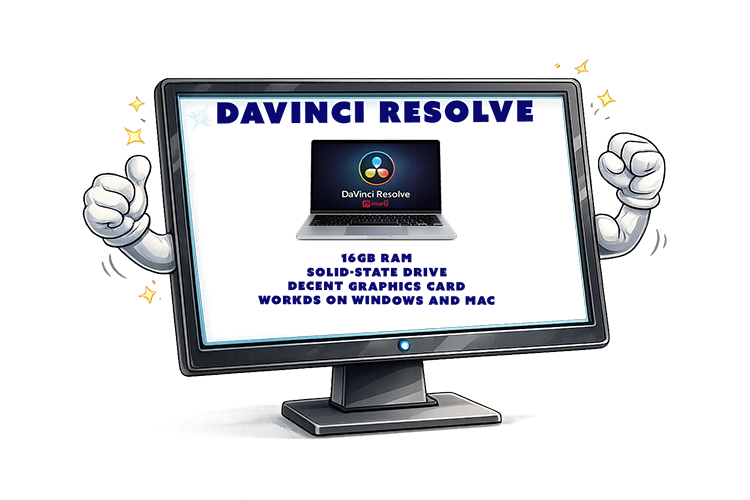
Minimum suggestions:
At least 16GB RAM recommended for smooth editing
A solid-state drive (SSD) helps.
A decent graphics card improves performance.
Works on Windows and Mac
If your computer struggles to play 4K video smoothly, it could struggle editing it.
Is DaVinci Resolve Really Free?
Great news, Davinci Resolve is free. You will not find any tricks or sneaky charges. In the free version, you get all the basics: diting, color correction, audio mixing, and plenty of effects. In the Studio version, you will find some fancy stuff. I am sure you will find the free version is more than enough.
Who Should Use DaVinci Resolve?
Best for:
✔ Drone hobbyists ✔ People serious about learning editing ✔ Anyone wanting professional-level control ✔ Those editing 4K footage
Not ideal for:
✘ Someone who just wants to trim vacation clips quickly ✘ Someone uncomfortable with new interfaces ✘ Very old computers
My Honest Recommendation
If you’re patient and curious, DaVinci Resolve can be an incredible tool.
If you want fast and simple, we’ll be covering easier options next in this series — including Clipchamp, Shotcut, OpenShot, CapCut, and Filmora.
📊 Not Sure Which Editor Is Right for You?
This review is part of my complete guide to Free Video Editing Software.
If you’d like to see all six programs compared side-by-side — including what’s truly free and what has limits — visit the full comparison guide here:
Searching for the best free video editing software can be confusing and risky. With so many seemingly official websites, not all are safe.
I have personally tested six popular video editing tools and go over, step by step, what works, what doesn’t, and, most importantly, how you can confidently choose and safely download the right one.
Get expert insights to save time, avoid scams, and choose the perfect tool for you—start with the first review!
If you’re part of my drone community, or if you’ve ever asked:
“What’s the easiest free video editor?”
“What works on Windows?”
“What works on Mac?”
“Can I just edit on my phone?”
“Is this download safe?”
This series is for you.
Over the next six posts, I’ll be breaking down:
Davinci
ClipChamp
Shotcut
OpenShot
Capcut
Filmora
Each post will cover:
✔ What it is ✔ Who it’s best for ✔ Pros and cons ✔ Windows vs Mac compatibility ✔ Smartphone options ✔ Beginner difficulty level ✔ And most importantly — safe download links
⚠️ Important Download Safety Warning
There are many websites that look official but are not. Some copy the design of real software companies and try to trick people into downloading unsafe files.
For your protection:
✔ Only download from the official website ✔ Use the direct link provided in this article ✔ Never download from pop-up ads ✔ If something looks slightly “off,” stop
Every link in this series will be tested personally before I share it.