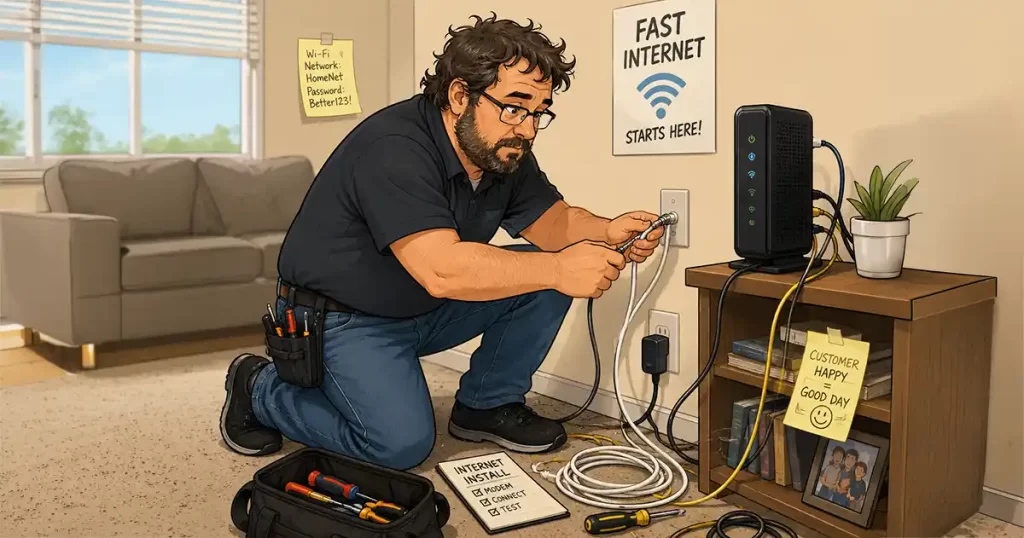
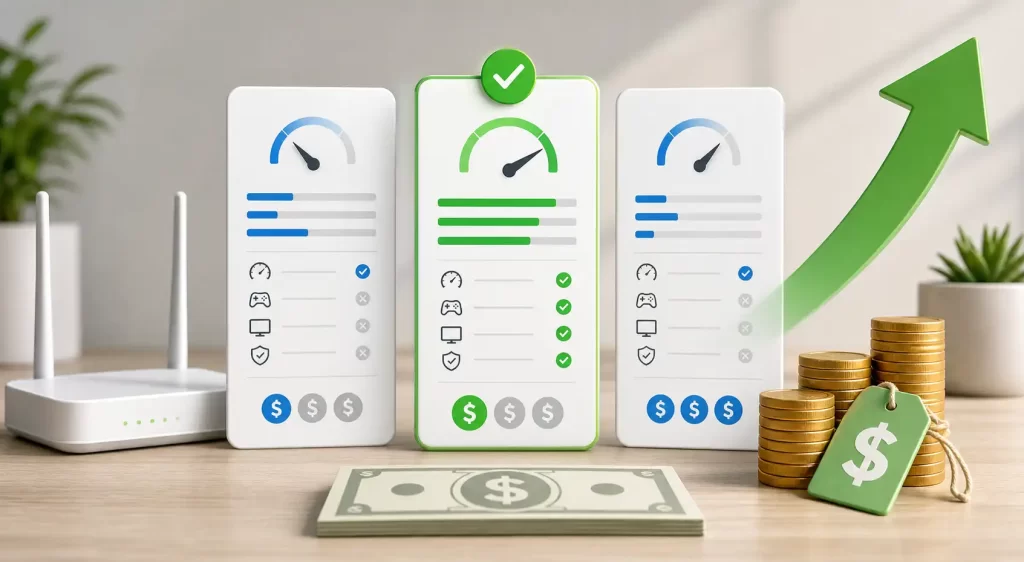
Internet service plans can be confusing. Shopping for a new plan? There’s one question you should ask before agreeing to anything:
“Could you please send me the Broadband Label for this plan?”
It may sound like a simple request, but that one question can help you compare internet providers, understand hidden fees, and avoid expensive surprises on your monthly internet bill.
Sometimes, having the edge isn’t about knowing all the answers.
Sometimes it’s simply knowing the right question to ask.
What Is a Broadband Label?
Think of the FCC Broadband Label as the Nutrition Facts label for your internet service.
Instead of listing calories and ingredients, it shows the important details about your internet plan in a standardized format that makes it easier to compare one provider against another.
It helps you see beyond the sales pitch and focus on the facts.
Before You Agree
Before saying yes to any of the to any Internet Service Plans presented to you, ask:
“Could you please email or text me the Broadband Label for this internet service plan?”
That’s it.
One simple question could save you money for years.
What to Look for on a Broadband Label
You don’t need to become a technology expert.
Just pay attention to these important details.
💰 Monthly Priceof internet service plans.
Is this the actual monthly price?
Or is it a promotional rate?
Many internet providers advertise attractive introductory prices to to Internet Service Plans that increase after several months.
📅 How Long Does the Price Last?
Look for promotional pricing.
If the label says the discount expires after 12 or 24 months, ask:
“What will my monthly bill be after the promotion ends?”
Knowing the long-term cost helps you compare internet service plans more accurately.
📦 Internet Service plans Equipment Fees
Is the modem or router included?
Or are you paying a monthly rental fee?
A $15 equipment rental may not seem like much, but over five years it adds up to hundreds of dollars.
⚡ Internet Speed
Check both:
Download speed
Upload speed
If you stream movies, attend Zoom meetings, upload videos, or work from home, upload speed can be just as important as download speed.
Data Limits
Does the plan include unlimited data?
What happens if you exceed the monthly allowance?
Some providers charge additional fees, while others reduce your internet speed.
These costs often explain why your actual internet bill is higher than the advertised price.
What If the Representative Doesn’t Know?
This may surprise you…
During my years working in technical support for an internet provider, I wouldn’t have known about the Broadband Label.
If a customer had asked me for one, I likely would have placed them on hold while I contacted a supervisor.
Not because I didn’t understand technology.
My job was helping customers troubleshoot internet problems—not explaining sales disclosures or pricing documents.
If you get a representative who is unfamiliar with your request, be patient and politely say:
“No problem. Please check with a supervisor or someone in sales? I want to review the Broadband Label before making a decision. A respectful question often gets better results than an argument.
What If No One Can Find It?
Sometimes the representative asks another department.
Then another supervisor.
The call gets longer.
Everyone is trying to help.
At that point, many customers feel pressured to agree so they can end the conversation.
Don’t.
Instead, say:
“I appreciate all your help today. I want to review the Broadband Label before making a decision, so I’ll think it over and call back later.”
There’s nothing wrong with taking your time before choosing an internet service plan.
Don’t Let a Long Phone Call Make the Decision for You
One thing I learned in technical support is that long phone calls can wear people down.
After forty-five minutes…
Multiple transfers…
Several holds…
Many customers wanted the call to end.
Unfortunately, that’s often when expensive decisions get made.
Remember:
You’re choosing a service you’ll probably pay for every month.
A little patience today could save you money for years.
Sometimes the Right Question Is More Powerful Than the Right Answer
You don’t have to become a networking expert.
You don’t need to memorize technical terms.
You need enough knowledge to ask better questions.
That’s how smart consumers protect themselves.
Because sometimes…
It isn’t the answer that gives you the advantage.
It’s knowing the right question to ask.
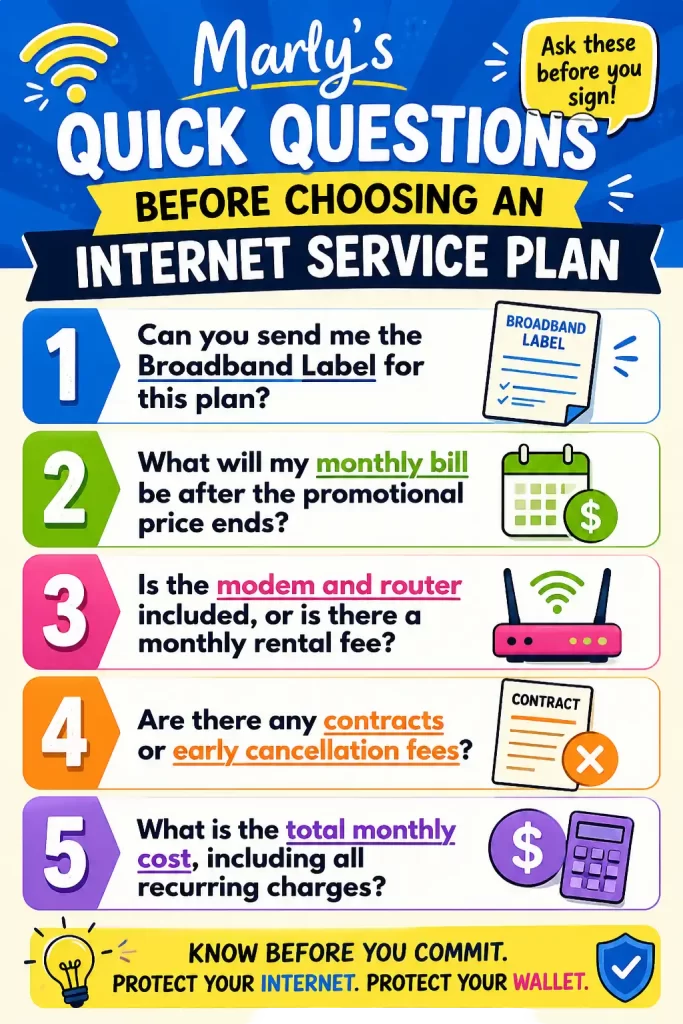
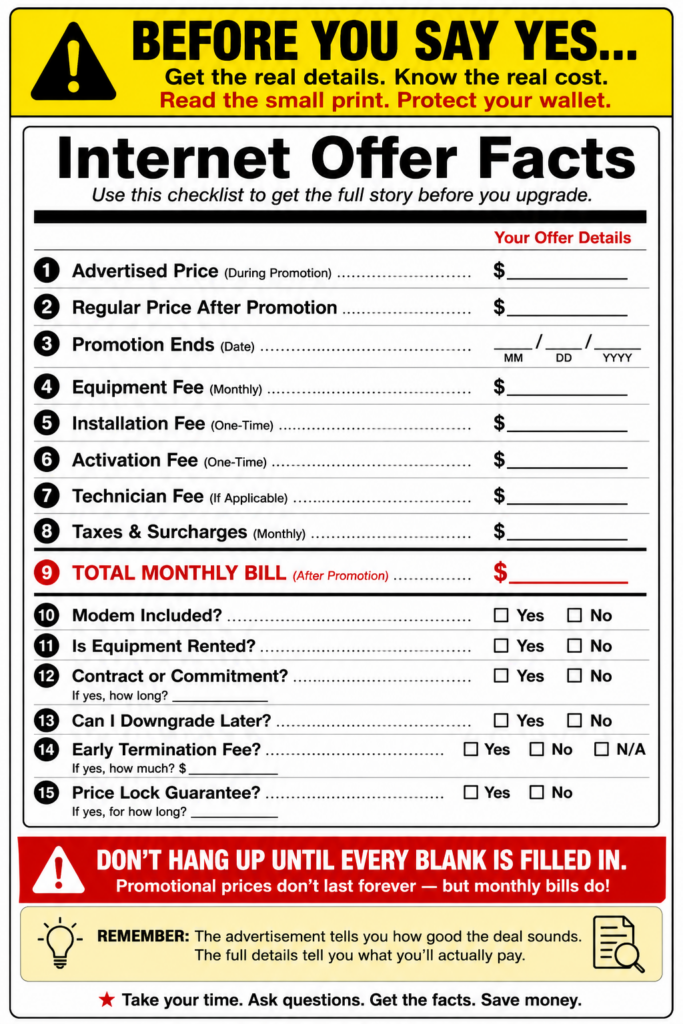
Marly’s Quick Questions Before Choosing an Internet Service Plan
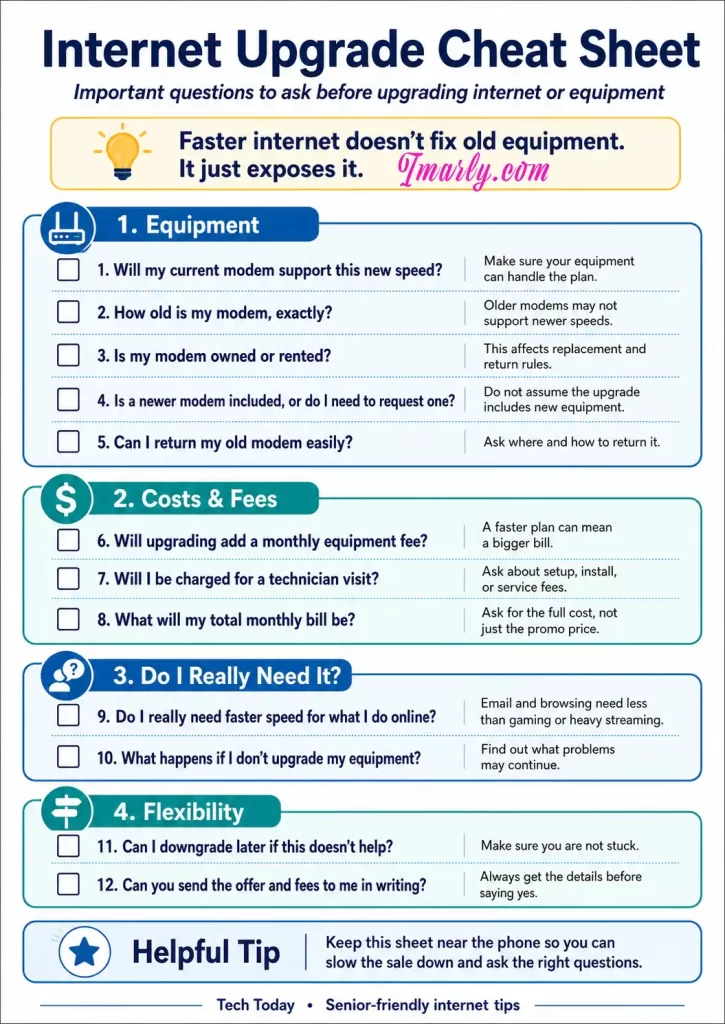
If you are considering updating your internet but are not firm on it yet, screenshot this quick guide, call your internet provider, and ask the questions in this image. The goal is to get an idea of what to look for as you consider and form the right questions for your situation.
Internet Services Plans: More Money Saving Questions to ASK?
Imarly resource tool box
Once you’ve narrowed down your choices, don’t stop there. Whether you’re signing up as a new customer or upgrading your current internet service, asking the right questions can make the difference between a great deal and an expensive mistake. Check out my guide, 👉10 Questions to Ask Before Upgrading Your Internet, to learn the questions I believe every customer should ask before saying “yes.”
🌐 FCC Broadband Consumer Labels
Learn what a Broadband Label is and how it helps you compare internet service plans. 👉Broadband Consumer Labels
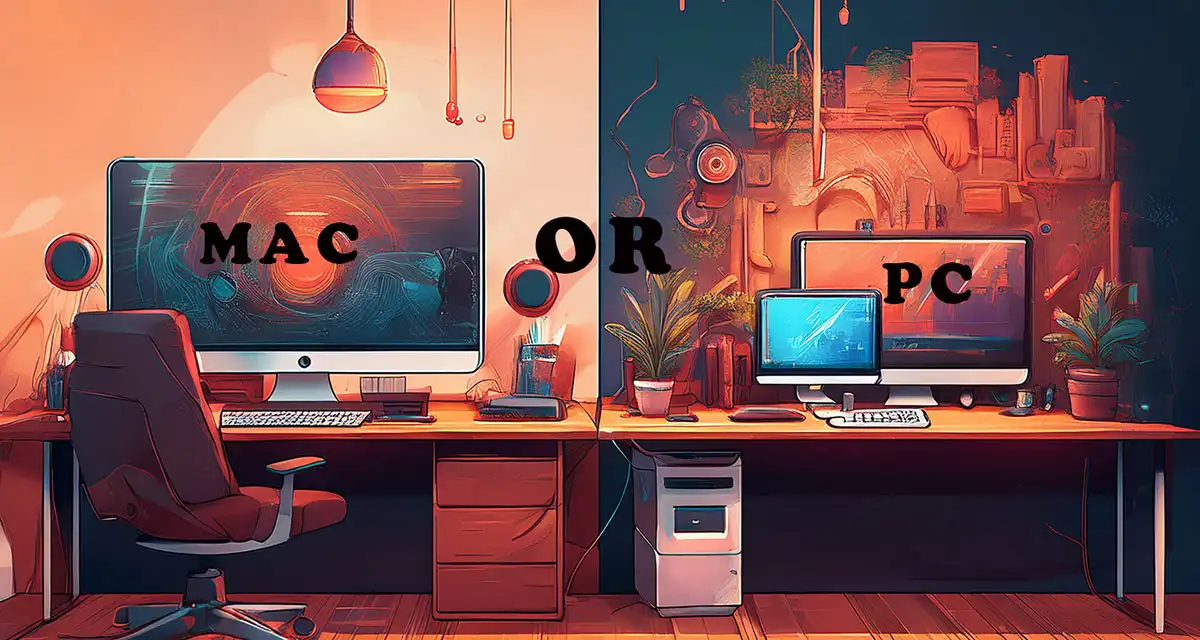
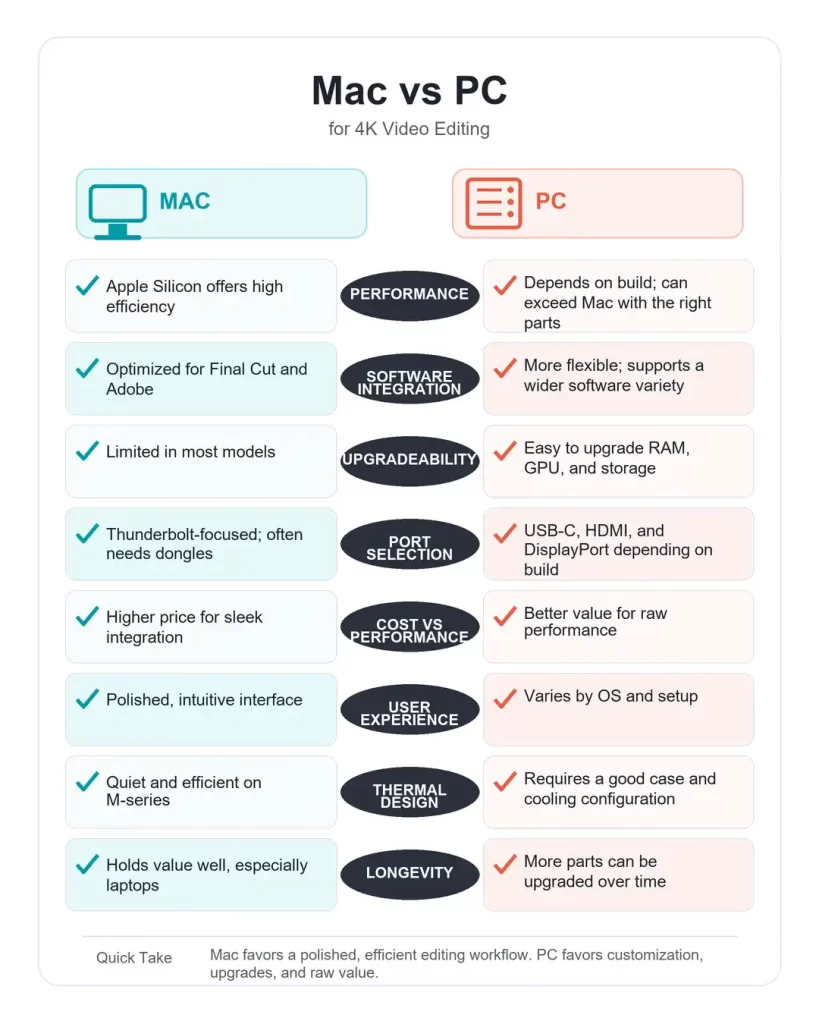
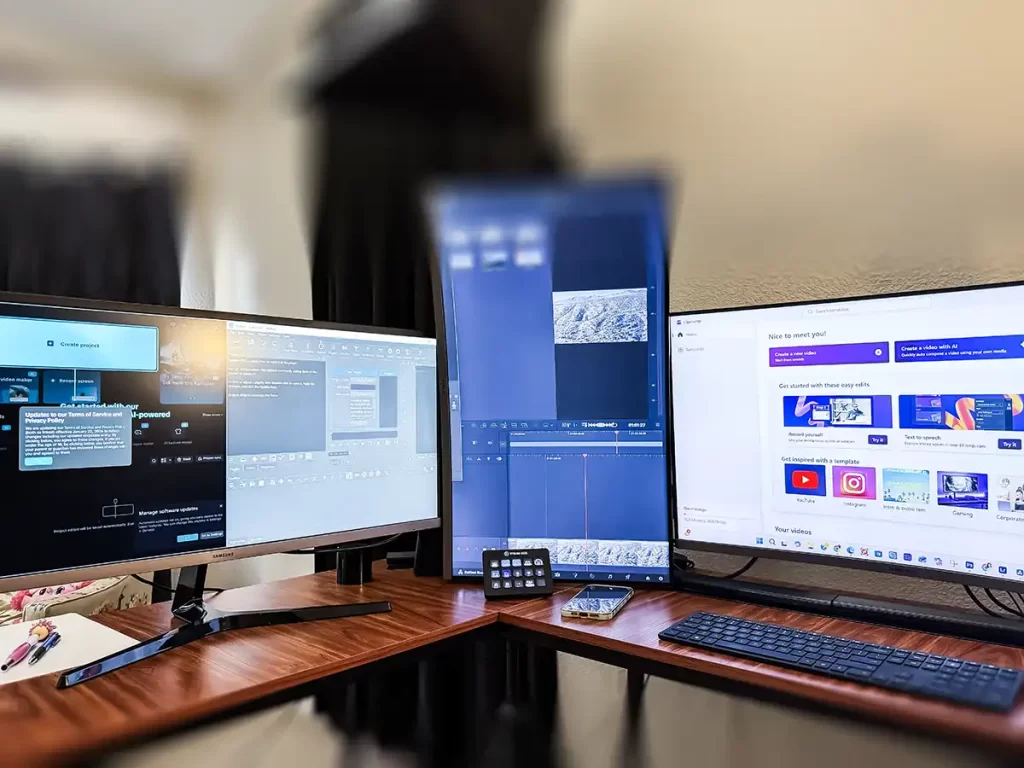
4K video editing needs the proper equipment to achieve the full benefits of 4K video and if you’re trying to decide between a Mac and a PC for your 4K video editing setup, you’re not alone. With so many options out there—from Apple’s powerful M-series chips to high-end PC builds—figuring out what works best for your workflow can feel overwhelming.
In this post, I’ll walk you through current system requirements, pros and cons, and real-world performance so you can make an informed choice that fits your creative needs.
4K Video Editing Requirements on a Mac
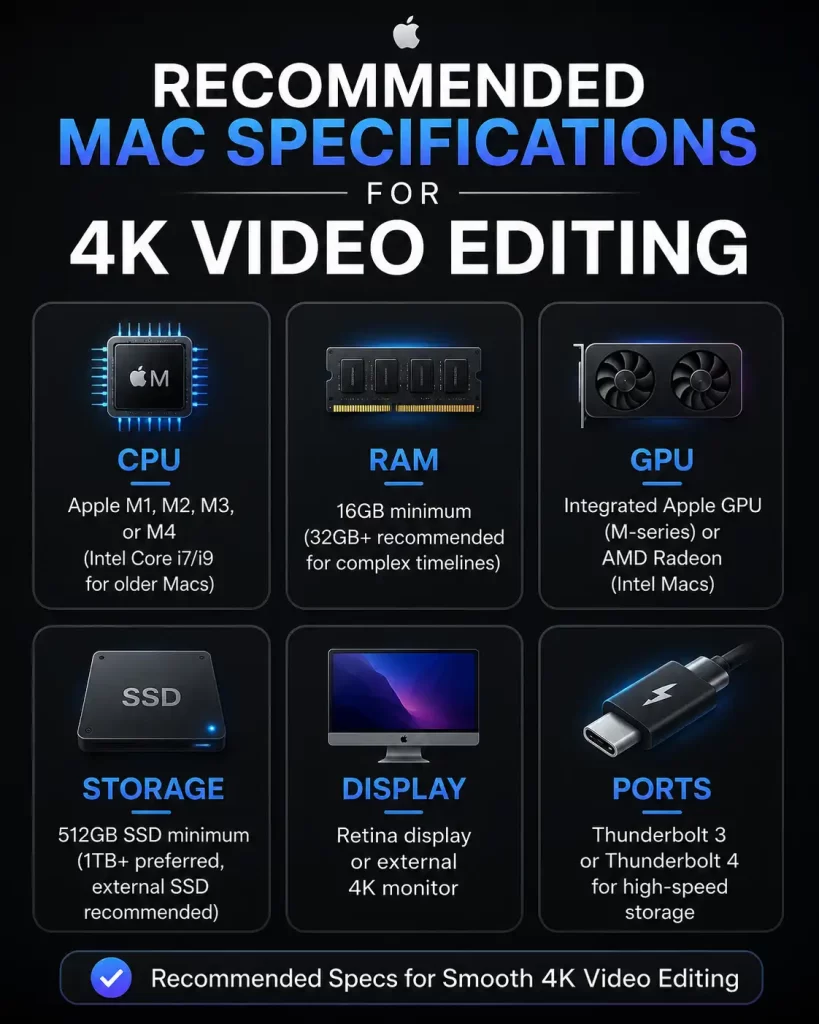
What specs are needed to edit 4K on a Mac? Here are the most recommended options worth considering if you are planning on using Final Cut Pro or Adobe Premiere Pro for a smooth editing experience:
What About The MacBook Air For 4K Video Editing?
A MacBook Air can handle 4K video editing. Still, there are some recommendations, the most important being to use proxy files or optimized media for better performance on lightweight models. Also recommended are the M1, M2 and M5 versions.
Windows 4K Video Editing
Windows users have access to more customization and power per dollar. Building or buying a system tailored for 4K may be less of a financial burden. Let’s go over what to look for:
Insert recommended pc spec for 4K editing.
Can I afford a PC for 4K editing?
Custom builds under $1,200 may outperform Macs at the same price. That performance shines through when paired with DaVinci Resolve or Adobe Premiere.
Pros and cons of editing 4K on MAC
Pros:
Seamless experience with Final Cut Pro (Mac exclusive)
Fewer ports; external drives often require adapters
Pros and cons Editing 4K on PC
Pros:
Greater customization and future-proofing
Better cost-to-performance ratio
More choices in software and hardware
Easy to repair or upgrade over time
Cons:
Compatibility issues with drivers or software
Requires tech knowledge or IT support
More variation in build quality and noise levels
Which One Should You Choose?
I’ve been a tech nerd for over 50 years, and the majority of my experience has been with PCs. While I do know how to use a Mac and have explored Apple products, I recognize there would be a learning curve if I decided to fully switch.
At one point, I even considered getting a Mac just to experience it first-hand, but I couldn’t justify the cost of a new system just for the sake of trying something new, especially when I already have the skills and knowledge to accomplish my goals on a PC.
I do wish I had experimented with Mac when I was younger, but I’m still genuinely grateful for the depth of experience I’ve gained with Windows systems.
Trying to choose between a Mac and PC for video editing?
If you value simplicity, reliability, and a streamlined creative experience, a Mac with Apple Silicon is a fantastic (though pricier) choice.
If you’re more into custom builds, hardware upgrades, or want more raw power per dollar, a PC might be your ideal workstation—especially for Adobe or DaVinci users.
Whichever direction you go, make sure your machine meets the minimum requirements to avoid frustrating render times and playback issues.
Of course, even the best computer is only part of the equation. Once you’ve chosen the right Mac or PC, the next step is finding video editing software that fits your experience level and budget.
If you’re not sure where to start, I’ve personally reviewed several popular free video editors, compared their features, and included important download safety tips to help you avoid fake websites and scams.
Questions to ask before upgrading internet service should come before saying yes to a faster—and usually more expensive—plan.
Internet providers often make upgrading sound simple: pay a little more each month and everything online will suddenly become faster. But a higher-speed plan may not solve the problem if your modem, router, Wi-Fi setup, computer, or other equipment cannot handle the new speed.
Before agreeing to anything, slow the conversation down and ask questions.
You do not have to understand every technical term. You need enough information to know what you are buying, what equipment is required for upgrading internet service, and what the complete cost will be.
Faster Does Not Mean Better Internet
Better Internet Is Not Only Faster Internet.
A faster internet plan can help when several people are streaming, gaming, working from home, making video calls, or using many connected devices at the same time.
However, speed is only one part of your internet connection.
An old modem may not support the faster plan when upgrading internet service. A weak router may not send a good Wi-Fi signal throughout the house. A computer may be running slowly for reasons unrelated to the internet. Even the location of your router can affect your experience.
That is why you should identify the actual problem before buying more speed.
Here are ten questions to ask your internet provider before agreeing to an internet speed upgrade.
1. Will My Current Modem Support the New Internet Speed When Upgrading Internet Service?
Your modem is the device that connects your home to your internet provider. Every modem has limits on the speeds and technology it can support.
Ask the representative to confirm that your modem is approved for the exact plan being offered before upgrading internet service.
Do not settle for a vague answer such as, “It should work.”
Ask:
“Can you check the modem model listed on my account and confirm that it supports this specific speed?”
For example, you could upgrade from a 300 Mbps plan to a 1 Gig plan, but an older modem might not be capable of delivering the full new speed. You could end up paying for service your equipment cannot properly use.
2. How Old Is My Modem, Exactly?
Many people have used the same modem for years and have no idea how old it is.
That is understandable. Modems usually sit quietly on a shelf, behind a television, or near a computer. As long as the internet works, we rarely think about them.
Ask the provider when the modem was first activated or issued. You can also look for the brand and model number printed on the device.
Age alone does not automatically make a modem unusable, but an older model may not support newer internet standards, faster speeds, or current security updates.
Write down the modem’s:
Manufacturer or brand
Model number
Approximate age
Maximum supported speed
Provider approval status
Having this information makes it easier to confirm whether the modem needs to be replaced.
3. Do I Own the Modem, or Am I Renting It?
Many customers are surprised to learn that they have been paying a monthly modem or gateway rental fee.
Look at your internet bill for terms such as:
Equipment rental
Modem rental
Wi-Fi equipment
Gateway
Advanced Wi-Fi
Panoramic Wi-Fi
Whole-home Wi-Fi
Ask the representative whether the equipment belongs to you or the internet provider.
When equipment is rented, the provider is generally responsible for replacing it according to its policies. When you own it, you may be responsible for purchasing a newer compatible model.
Knowing who owns the modem also helps you understand whether it must be returned if you replace it, move, or cancel service.
4. Will the Upgrade Add a Monthly Equipment Fee?
A different modem may be required, which can change the final monthly price as an additional monthly charge. Ask, “What will my total monthly bill be after the upgrade?
You will want them to include equipment fees, taxes, and any optional services when upgrading internet service?” Ask, “If the quoted price is a temporary promotional rate, what will the normal price be when the promotion ends.
Internet providers must display FCC Broadband Consumer Labels for standalone broadband plans at points of sale. These labels provide information about pricing, introductory rates, typical speeds, data allowances, and certain fees. Ask the representative to show or send you the broadband label for the plan before you agree to it.
5. Is a Newer Modem Included, or Do I Have to Request One?
Upgrading internet service rarely includes automatic upgrades to the equipment.
Ask the provider directly:
“If my current modem does not support this speed, will you automatically send me a replacement?”
Then confirm:
Is there a charge
Will the replacement be new or refurbished
If you must install it yourself, and is there a charge for a technician install
Whether you must call to activate it
How long you have to return the old equipment
Some providers may leave the old modem active unless the customer specifically requests newer equipment. That might cause frustration when the new plan fails to perform as expected.
6. How Do I Return My Old Modem?
Equipment returns can become expensive when they are not handled correctly.
Ask where the old modem must be returned and whether you can:
Take it to a local provider store.
Drop it off at a shipping location.
Prepaid return label
Schedule a pickup
Ask for a receipt or tracking number.
Keep that proof until the device disappears from your account and your next few bills show no unreturned-equipment charge.
It is also a good idea to photograph the modem’s serial number and the return receipt. Those photos can be extremely helpful if the provider later claims you never returned the equipment.
7. Will I Be Charged for a Technician Visit?
A representative might recommend sending a technician to install equipment, check wiring, or improve the connection.
Before scheduling the appointment, ask whether there will be a charge.
Ask:
What is the exact technician fee?
Is the fee waived as part of the upgrade?
Will I be charged if the problem is inside my home?
Will I be charged if the provider’s equipment is defective?
Can I install the modem myself instead?
Could additional wiring or outlet charges be added?
Please include any promised fee waiver in your order confirmation and in your account notes.
A verbal promise can be difficult to prove later.
8. Do I Really Need Faster Internet for What I Do Online?
This may be the most important question on the list.
Think about how you normally use the internet.
Do you mainly:
Read email?
Browse websites?
Use Facebook?
Watch occasional videos?
Make video calls?
Stream television?
Play online games?
Work from home?
Upload large photographs or videos?
Have several people online at once?
Someone who mainly checks email, reads the news, shops online, and uses Facebook may not need the fastest available internet plan.
A larger household with multiple televisions, gaming systems, security cameras, phones, tablets, and computers may benefit from more speed—especially when several devices are active simultaneously.
The FCC offers broadband guides that compare common activities and household usage. The figures are general guidelines rather than guarantees, but they can help consumers think about what they actually do online before selecting a plan.
Before upgrading, ask the provider:
“Based on my actual usage and number of devices, why are you recommending this particular speed?”
The representative should be able to explain the recommendation in ordinary language.
9. What Happens If I Upgrade the Plan but Keep My Current Equipment?
This question helps reveal whether you are being sold an incomplete upgrade.
Your internet connection may continue working with old equipment, but you may not get the full speed you are paying for. What you are experiencing is an incomplete upgrade. You could also experience dropped connections, buffering, weak Wi-Fi, or inconsistent performance.
Ask whether keeping the old modem will:
Limit maximum speed
If there is no speed limit, will it slow down after a certain speed? Some internet plans offer unlimited but slow down after reaching 300mbps or more.
Cause compatibility problems
Affect reliability
Prevent technical support
Create security concerns
Require replacement later
Request a clear explanation of what the equipment can and cannot support.
Remember that the modem brings the internet into your home, while the router distributes the connection to your devices. Some providers combine both functions into one device called a gateway.
The modem can support the plan while the router or Wi-Fi connection remains the real problem.
10. Can I Downgrade Later If the Upgrade Does Not Help?
Before accepting a faster plan, find out whether you can return to your current plan or choose a less expensive one.
Ask:
Is there a contract?
Is there an early termination fee?
How long does the promotional price last? This is important to know because most providers will not send you warnings before increasing your price to the normal rate. Set a calendar alert to notify you when you are near the end of your promotion.
"As someone who spent years in tech support, I'll admit this is something I didn't even know existed at the time. It wasn't part of my role, and if a customer had asked me for one, I probably would have needed to ask a supervisor. That's exactly why I'm sharing it now—because if it was easy to miss from the inside, it's even easier for customers to never know it's available."
base price, introductory pricing, recurring fees, certain one-time fees, typical download and upload speeds, latency, and information about data allowances. Review the label before completing the order.
Download your printable version of this cheat sheet by clicking on above photo or here 👉Internet upgrade cheat sheet.
Ask for the Offer in Writing
Before agreeing to an internet upgrade over the telephone, ask the representative to email or message you the complete offer.
The confirmation should include:
The name of the plan
Download speeds
Upload Speeds
New monthly price
Promotional period
Price after the promotion
Equipment charges
Installation or activation fees
Technician charges
Contract terms
Cancellation terms
Equipment return instructions
Do not allow yourself to be rushed.
You can say:
“Thank you. I need to review the full price and equipment requirements before I agree to the change.”
A legitimate offer should still make sense after you have had time to read it.
Check Your Current Internet Before You Upgrade
Before calling your provider, write down what is actually going wrong.
For example:
Websites load slowly
Video keeps buffering
Wi-Fi does not reach a bedroom.
Connection drops at certain times (It could be the device)
One device is slow, but others work normally.
Video calls freeze
Uploads take too long.
The internet becomes slow when everyone is home.
These clues matter.
If Wi-Fi is poor in one room, router placement or signal coverage may be the issue. If every device loses service, the modem, wiring, or provider connection may need attention.
If only one computer is slow, the computer may be the problem.
Paying for more speed without identifying the cause can leave you with the same problem and a higher bill.
A Simple Script to Use With Your Provider
You can read this directly to the representative:
Before changing my plan, can you let me know the complete monthly cost? Please include equipment fees. And will my current modem support the new speed? Will I have to replace my equipment, and is there an installation or technician charge? What will the price be after the promotion ends? Please send me the FCC Broadband Consumer Label and the full offer in writing to help me decide.
There is nothing rude or difficult about asking these questions.
You are the customer, and you have the right to understand what you are purchasing.
Be Careful With Unsolicited Internet Upgrade Calls
Not every person claiming to represent your internet company is legitimate.
You will find that there are excellent scammers who sometimes impersonate internet and cable providers. These scammers offer discounts, upgrades, or lower bills. And for all the hard work these scammers put into scamming you, they will request an advance payment more often in the form of gift cards, banking details, passwords, or remote access to your computer.
The Federal Trade Commission has warned consumers—including older adults—about scammers pretending to represent television and internet companies.
When someone unexpectedly calls with an offer:
Do not provide account passwords or payment information.
Do not allow remote access to your computer.
Hang up.
Find the provider’s telephone number on your bill or official account.
Call the company directly and ask whether the offer is real.
Do not rely on the caller ID or a telephone number supplied by the caller.
Faster internet does not fix old equipment. It often just exposes its limitations.
Before paying for more speed, make sure your modem and router can support it. Find out what the upgrade will really cost, ask whether new equipment is included, and decide whether the faster plan matches how you actually use the internet.
Most importantly, remember that you do not have to decide the sales call.
Slow the sale down.
Ask the questions.
Get the answers in writing.
Then decide whether the upgrade is truly right for you.
Keep Learning and Stay Protected
Technology is constantly changing, but you don’t have to figure it out alone. Before making any changes to your internet service, take a few minutes to review the official resources below. They provide reliable information about broadband labels, internet speeds, consumer rights, and filing complaints if something doesn’t seem right.
Scam Watch & Protect(on iMarly.com) – Learn how to spot fake internet provider calls, phishing emails, and other common scams targeting consumers.
And because scammers often impersonate internet and cable companies with fake offers, don’t forget to visit my Scam Watch & Protect section, where I share real scams, warning signs, and practical tips to help you recognize and avoid them. The more informed you are, the harder it becomes for scammers—and confusing sales tactics—to catch you off guard.
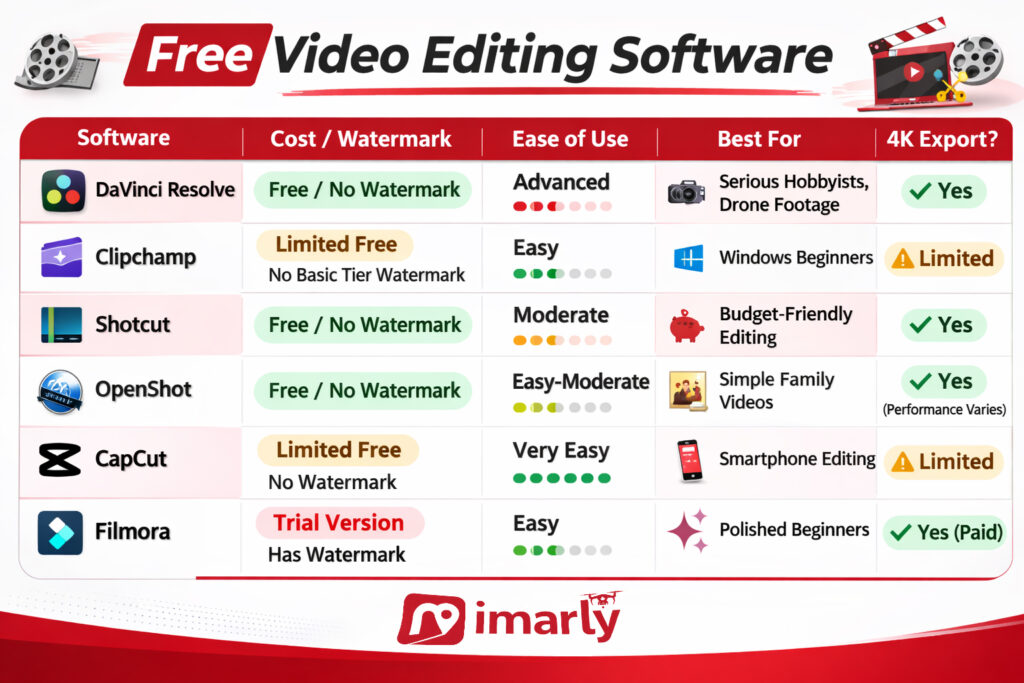
Finding the best free video editing software can be tricky; not all free options are truly free. I’ve reviewed 6 popular programs and created a comparison guide that brings everything together in one place.
⚠️ Important Download Warning
Have you ever worried that the software you download might not be safe? Video editing tools are among the most impersonated online. These impostors copy trusted logos, duplicate entire sites, and even purchase legitimate ads to lure you in.
Your protection checklist:
Use official links.
Never search for free downloads and click the first link; this is a common way to get tricked by malicious sites.
Stay away from cracked or unlocked versions.
If a website address appears to look slightly different, stop!
If nothing else, your takeaway from this should be “Your Safety Matters” more than free software.
Why Free Is Not Always Really Free
There are three main “free” models:
Truly Free (Open-Source or Strategic Free)
Shotcut
OpenShot
DaVinci Resolve
Freemium (Free with Limits)
Clipchamp
CapCut
Filmora
Free Trial (Temporary)
Many professional tools
Free often means:
Watermarks
Export limits
Feature restrictions
Subscription nudges
It can be confusing.
And confusion is where scams thrive.
How to Choose the Right One
If you want:
Professional-level editing and no watermark → DaVinci Resolve
Simple Windows editing → Clipchamp
Completely free without corporate accounts → Shotcut or OpenShot
Phone editing and social media templates → CapCut
Polished and easy but willing to pay → Filmora
There is no “best” editor.
There is only the right one for your comfort level and computer.
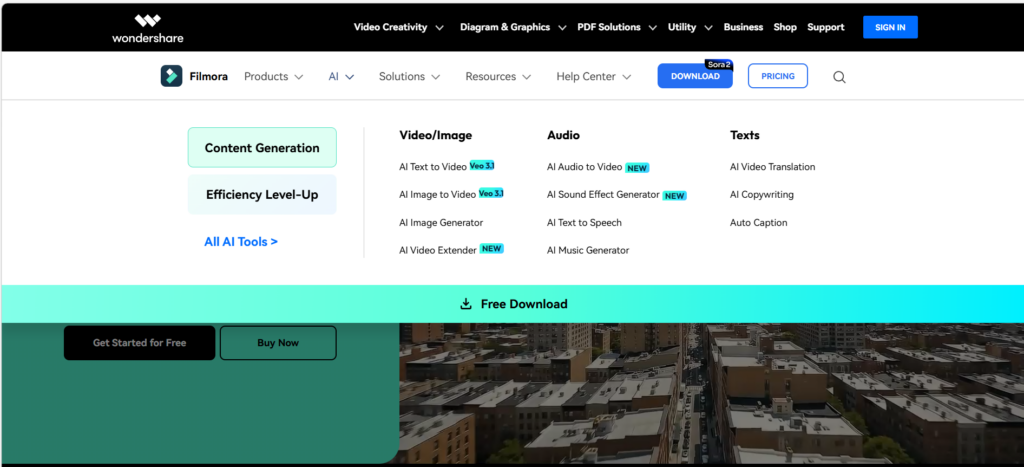
Filmora video editor review searches are extremely common because this program advertises itself as beginner-friendly and free. It promises simple drag-and-drop editing, built-in effects, and fast results — all without a steep learning curve.
But when something says “free,” we need to slow down and read carefully.
Let’s walk through it clearly.
⚠️ Important Download Safety Warning
Filmora is widely searched, which means fake download sites often try to copy it.
To stay safe, I always recommend downloading Filmora only from the official Wondershare website, never using “cracked” or “unlocked” versions, steering clear of third-party free software sites, and double-checking the web address before you hit download.
If the website address looks slightly different, stop immediately.
I personally verify all download links before sharing them.
What Is Filmora Video Editor?
Filmora is:
A beginner-focused video editor
Designed for ease of use
Available for Windows and Mac
Built with templates and visual effects
When you open Filmora, you’ll notice something immediately:
It looks modern.
Large buttons. Clean timeline. Drag-and-drop functionality. Built-in effects and transitions are ready to use.
Compared to DaVinci Resolve, it feels lighter.
Compared to OpenShot, it feels more polished.
Compared to CapCut, it feels more “desktop professional.”
That’s intentional.
Is Filmora Video Editor Really Free?
Here’s the big thing you need to know: Filmora lets you download and use it for free, which sounds great—until you get to the export stage. If you’re using the free version, any video you make will have a watermark slapped right across it.
If you want to get rid of that watermark, you’ll need to pay for a license or a subscription. Many beginners only notice after editing.
Pros and Cons of Filmora Video Editor
✅ Pros
Filmora is great for beginners. A clean and modern interface that is easy to just drag and drop clips, and you get built-in effects and music right away.
Plus, it works smoothly on both Windows and Mac. In my experience, it’s way less intimidating to learn than, say, DaVinci.
❌ Cons
Here’s the not-so-great stuff: the free version puts a big watermark on everything you export, so if you want clean videos, you’ll have to pay. Updates only come with a subscription, there are some upsells sprinkled in, and if you’re looking for all the bells and whistles of pro-level software, Filmora just isn’t quite there—but for most folks starting out, that’s usually not a dealbreaker.
It’s designed to feel simple — and it does.
But long-term use usually requires payment.
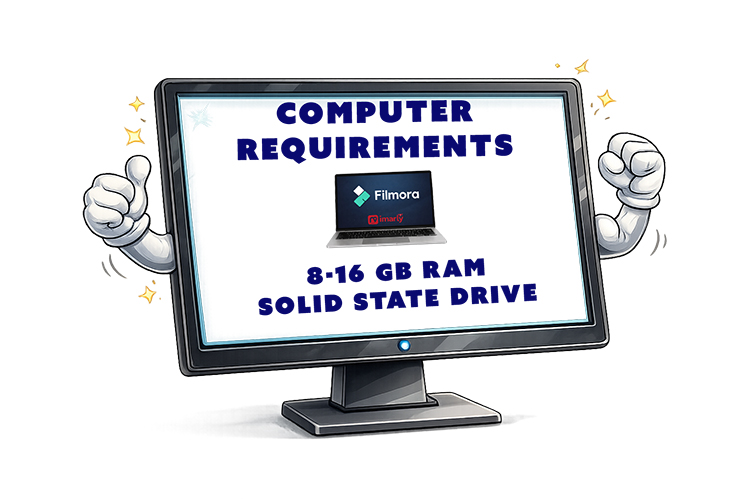
What Computer Do You Need to Run Filmora video editor?
Filmora runs on:
Windows
Mac
It does not require extremely powerful hardware like DaVinci Resolve.
Most modern computers with:
8–16GB RAM
Solid-state drive
Will handle HD editing comfortably.
For heavy 4K drone footage, performance depends on your system.
Who Should Use Filmora?
Best for:
If you do not want complicated menus and prefer a polished, modern interface, Filmora may be for you. It works great for quick video projects.
Not ideal for:
Filmora probably isn’t the best fit if you need something totally free, want advanced tools for cinematic color grading, or just don’t like dealing with subscriptions.
My Honest Recommendation
To me, Filmora is kind of like the “training wheels” of polished video editing—it takes away a lot of the intimidation and just makes things easier, but it’s not truly free if you want to export without a watermark.
If you’re okay with paying for convenience, it’s a super comfortable choice. But if you’d rather not spend anything, Shotcut or OpenShot will do the trick, and if you want to grow your skills with pro-level tools, DaVinci Resolve could be worth the learning curve. For quick phone edits, CapCut is hard to beat.
There’s no single “best” video editor out there. The best one is the one that fits your comfort, your computer, and what you actually want to do.
📊 Not Sure Which Editor Is Right for You?
This review is part of my complete guide to Free Video Editing Software.
If you’d like to see all six programs compared side-by-side — including what’s truly free and what has limits — visit the full comparison guide here:
CapCut video editor review conversations have exploded in recent years because this free editing app makes it incredibly easy to create polished videos on a smartphone. With built-in templates, music, and effects, CapCut feels modern and powerful — especially for social media.
But when something is free and wildly popular, it’s worth slowing down and looking carefully.
⚠️ Important Download Safety Warning
Because CapCut is so popular, there are many fake download websites pretending to offer it.
To stay safe, I always recommend downloading CapCut only from the official website or directly through the Apple App Store or Google Play Store. Never trust random “APK” sites or pop-up ads that promise unlocked premium versions—those are almost always scams.
If the site name looks slightly different, stop immediately.
I personally verify all links before sharing them.
What Is CapCut Video Editor?
CapCut is a free video editing app, and it’s actually owned by ByteDance—the same company behind TikTok. That means it’s designed with social media in mind from the very start. You can use CapCut on your iPhone, Android device, or desktop, so it’s super accessible no matter which platform you prefer.
One thing I notice is that, unlike editors like OpenShot or Shotcut, CapCut is really built around templates. This makes the whole editing process much faster and more approachable, especially if you’re new to video editing.
Personally, I love how easy it is to pick a template, drop in your video clips, and then just add automatic captions or music. You can export your finished video really quickly, and the results look modern and polished.
Is CapCut Video Editor Safe to Download?
Here’s where we need to think clearly.
CapCut itself, when downloaded from official app stores or the official website, is legitimate.
However:
Some features require an account sign-in.
It collects usage data (like most modern apps)
Some features require internet access.
CapCut isn’t dangerous, but it’s important to remember it’s a cloud-connected app, so if you’re like me and sometimes feel weird about creating accounts or managing privacy settings, that’s totally normal—it can definitely feel a little overwhelming. Just a heads-up: those “CapCut Pro unlocked” downloads you see on sketchy sites are never safe, so I always stick to the official stores and recommend you do the same.
Pros and Cons of CapCut Video Editor
Let’s simplify.
✅ Pros
What I really like about CapCut is that it’s super easy for beginners, works great on smartphones, and comes with built-in templates and music. The automatic captions, fast export, and modern interface are all huge pluses for me, too.
❌ Cons
On the downside, you’ll need an account to unlock a lot of features, and like most apps these days, CapCut does collect some of your data. There are also some premium features that require payment, and you’ll need an internet connection to get the full experience. Plus, if you’re hoping for a super powerful desktop editor, CapCut doesn’t quite measure up to the pro options out there.
If your goal is quick social media content, CapCut shines.
If your goal is cinematic drone films with deep color grading, it’s limited.
What Devices Does CapCut Video Editor Work On?
CapCut works on:
iPhone
Android
Windows desktop
Mac desktop
It performs best on smartphones and tablets.
The desktop version is improving but still focuses heavily on social content.
Is CapCut Really Free?
Yes — but partially.
The basic editing tools are free.
However:
Some templates require payment.
Some advanced features require a subscription.
Cloud storage may have limits.
For casual users, the free version is enough.
But always read before upgrading.
Who Should Use CapCut?
Honestly, I think CapCut is best if you’re comfortable with your smartphone and like sharing on social media, or if you want to whip up quick vacation highlight reels and fun TikTok or Instagram videos.
To be real, CapCut just isn’t going to be your thing if working offline is a must, not a fan of signing up for new accounts, or you’re hoping to dive deep into advanced cinematic editing. It’s made for quick, social-friendly edits, not for folks who want a ton of technical control or pro-level features.
My Honest Recommendation
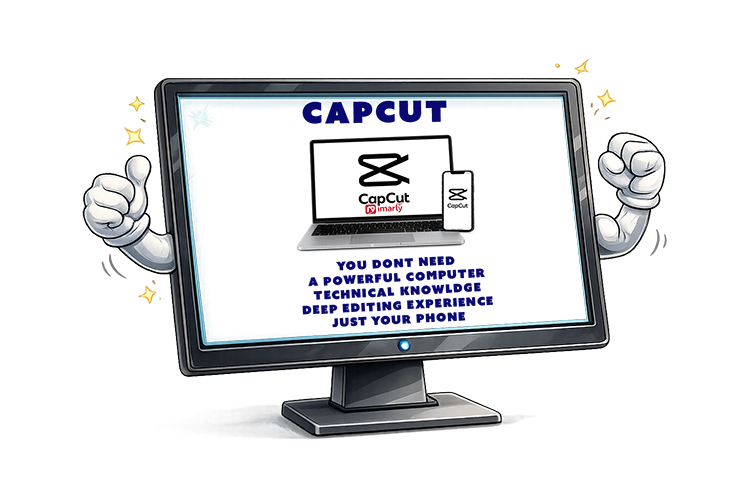
CapCut dramatically lowers the barrier to editing.
You don’t need:
A powerful computer
Technical knowledge
Deep editing experience
You just need your phone.
For many, that’s actually a huge advantage.
But always remember:
Popularity attracts fake download sites.
Stick to official stores only.
In our final post in this series, we’ll look at Filmora — a polished, beginner-friendly editor that markets itself as free… but has a few important details you should know before installing.
📊 Not Sure Which Editor Is Right for You?
This review is part of my complete guide to Free Video Editing Software.
If you’d like to see all six programs compared side-by-side — including what’s truly free and what has limits — visit the full comparison guide here:
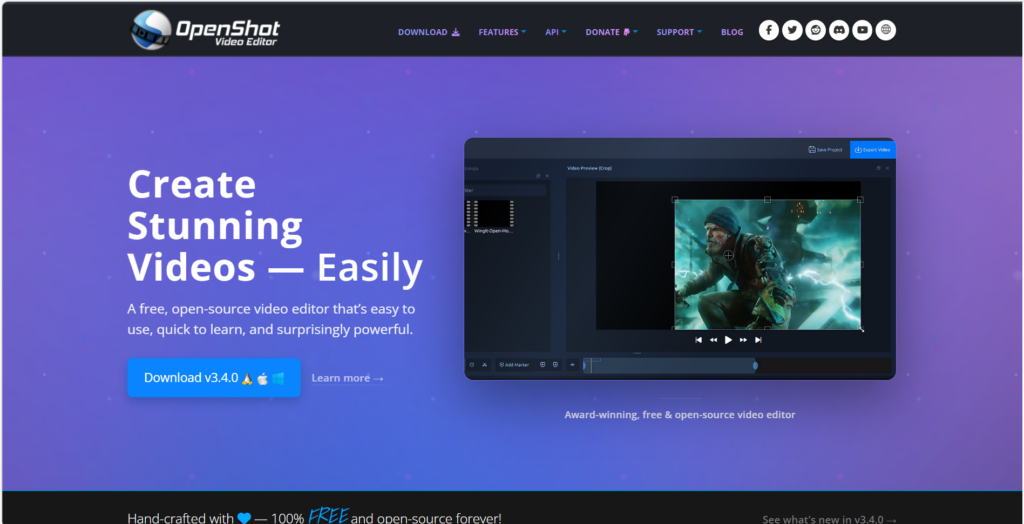
OpenShot video editor is designed to make video editing feel less overwhelming while still offering useful tools for trimming, adding music, and creating simple projects. For anyone who wants something free and straightforward, OpenShot often feels more approachable than professional-level software.
⚠️ Important Download Safety Warning
Because OpenShot is free and open-source, many websites offer downloads. Some are legitimate. Others bundle unwanted software or fake installers.
To stay safe, I recommend that you always download OpenShot from the official website. Be sure to steer clear of any unfamiliar “download mirrors,” and never trust pop-up ads promising a faster download. It’s also a good habit to double-check the website address before installing anything.
I personally verify every download link before sharing it.
What Is OpenShot Video Editor for Beginners?
OpenShot is completely free and open-source, works on Windows, Mac, and Linux, and is designed with simplicity in mind.
When you open OpenShot, you’ll notice something immediately: The layout feels clean. The first things you’ll notice are a clean preview window, a timeline running along the bottom, a handy media box off to the side, and big, easy-to-read icons.
It is very user-friendly.
That’s an important difference.
Why OpenShot Video Editor Feels Less Intimidating
OpenShot focuses on making the basics easy.
You can:
✔ Drag and drop videos into the timeline ✔ Trim the beginning or end ✔ Add music underneath your video ✔ Insert titles and text ✔ Add simple transitions
The tools are clearly visible and labeled. Tools are not hidden in dozens of panels, no account is required, and cloud services are not needed. Just open and work. Simpler than DaVinci Resolve but not as polished as Clipchamp.
Pros and Cons of OpenShot Video Editor
Let’s keep this simple and balanced.
✅ Pros
OpenShot is completely free and doesn’t put any watermarks on your videos. Its layout is beginner-friendly, and it runs on both Windows and Mac. I really appreciate how easy it is to drag and drop clips, and you never have to create an account to get started.
❌ Cons
OpenShot does have its limitations: it can get unstable if you’re working on large projects, rendering longer videos can take some time, and you won’t find a lot of advanced color tools or modern templates.
If you’re editing long 4K drone footage, it may struggle.
If you’re editing short family clips, it works just fine.
What Computer Do You Need?
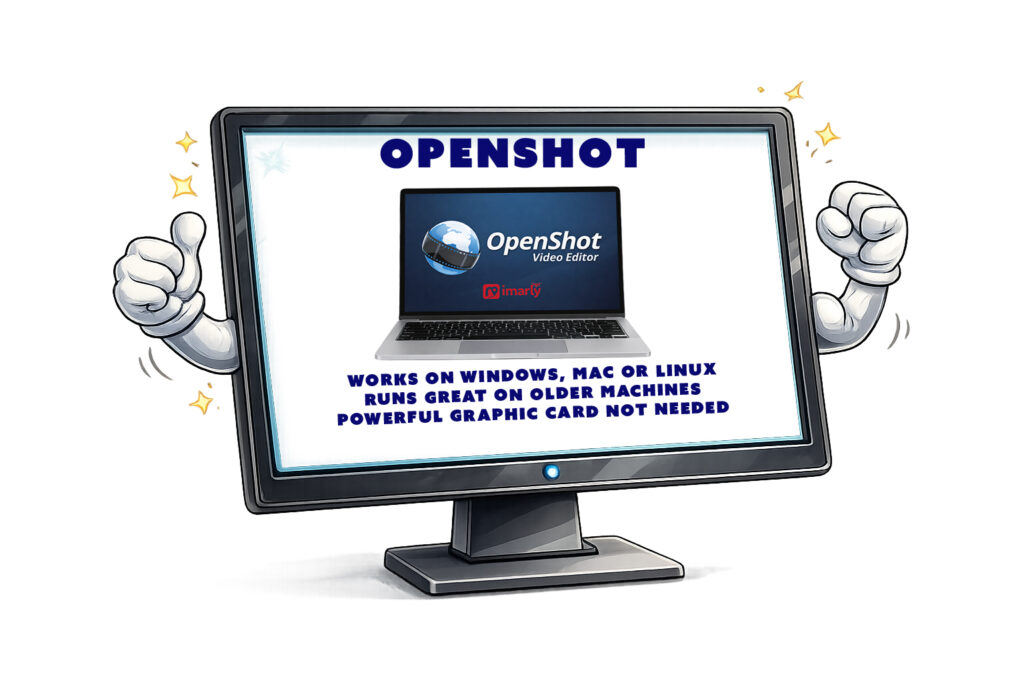
OpenShot Video Editor works on:
Windows
Mac
Linux
It runs better than DaVinci on older machines.
You don’t need a powerful graphics card. But having more RAM always helps with video editing.
For basic HD editing, most modern computers will handle it comfortably.
For heavy 4K editing, performance may vary.
Is OpenShot Video Editor Really Free?
OpenShot really is free—there’s no watermark, no trial period, and no subscription required. It’s all made possible by donations and community support, not some big corporate licensing scheme. That’s a huge plus if you’re like me and prefer to avoid anything with a subscription attached.
Who Should Use OpenShot?
Best for:
OpenShot is a great fit if you’re completely new to editing, want to put together family vacation videos, create quick social media clips, or just need something simple and offline that doesn’t overwhelm you with features you’ll never use.
Not ideal for:
OpenShot isn’t the best choice if you’re looking to do advanced cinematic color grading, tackle really large professional projects, or dive into heavy special effects work.
OpenShot is about accessibility, not complexity.
Honest Recommendation
If DaVinci feels too advanced and Shotcut feels slightly technical, OpenShot may feel more comfortable.
It’s not the fastest. It’s not the most powerful.
But it’s approachable.
And sometimes the best software is the one you’ll actually use.
In the next post, we’ll examine CapCut — a wildly popular editor, especially for phone users and social media creators.
📊 Not Sure Which Editor Is Right for You?
This review is part of my complete guide to Free Video Editing Software.
If you’d like to see all six programs compared side-by-side — including what’s truly free and what has limits — visit the full comparison guide here:
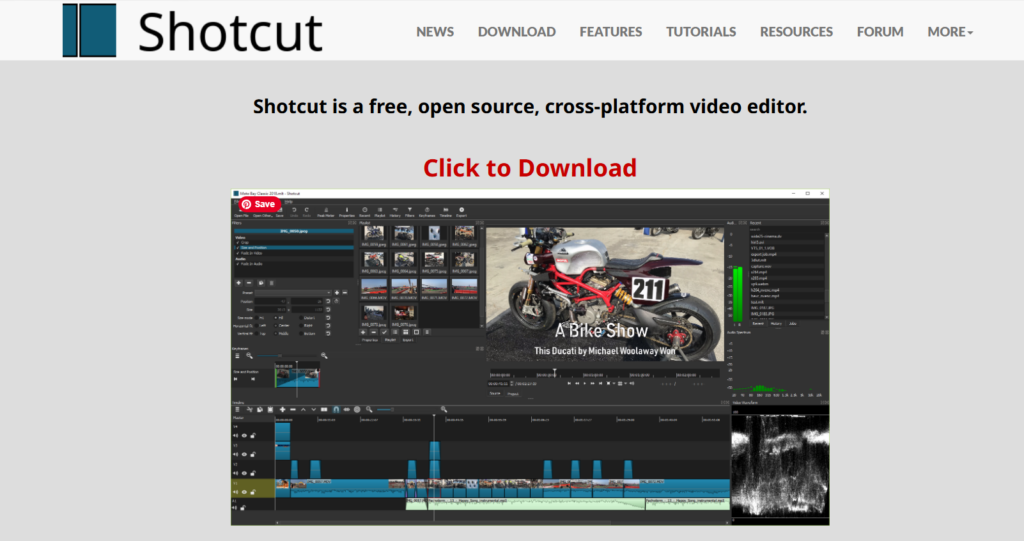
Shotcut free video editor is a completely open-source program that offers powerful editing tools without subscriptions, watermarks, or hidden upgrades. For seniors who want something free but more capable than basic editors, Shotcut may be a strong middle-ground option.
While Shotcut is free, it may take a little practice to use comfortably.
⚠️ Important Download Safety Warning
This is critical.
Because Shotcut is free and open-source, many third-party websites offer downloads. Some of those sites are safe. Some are not.
For your protection:
✔ Only download from the official Shotcut website ✔ Never download from “free software collection” sites ✔ Avoid pop-up ads claiming faster versions ✔ Double-check the website spelling before clicking
I personally verify every download link before sharing it.
What Is Shotcut Free Video Editor?
Shotcut is:
100% free
Open-source (built by a global developer community)
Available for Windows, Mac, and Linux
Not owned by a major corporation
Unlike Clipchamp, it does not rely on cloud processing. Unlike DaVinci Resolve, it does not aim to compete with Hollywood studios.
It lives somewhere in between.
When you open Shotcut free video editor, you’ll see:
A timeline
A preview window
Panels you can turn on or off
Basic editing tools
It’s more “toolbox” than “template-based editor.”
Is Shotcut Free Video Editor Easy to Learn?
Moderately.
Shotcut is simpler than DaVinci Resolve. But it is less polished than Clipchamp.
Honestly, Shotcut’s interface does look a little old-school. The buttons are smaller, and the whole layout isn’t as sleek as some newer editors. It might not win any beauty contests, but it gets the job done.
Underneath that plain look, though, are all the basics you actually need. You can trim your clips, add music, drop in some text, use filters, tweak the color, and export your finished video—no watermarks, no nonsense.
It doesn’t drown you in Hollywood-level film tools, but it also doesn’t babysit you with step-by-step templates. So yes, there’s a bit of a learning curve. But in my experience, it’s not overwhelming—just give yourself an afternoon to poke around and you’ll get it.
Pros and Cons of Shotcut Free Video Editor
Let’s make this very clear.
✅ Pros
• Completely free • No watermark • No subscription required • Works on Windows and Mac • Lightweight compared to pro software • Good balance of power and simplicity
❌ Cons
• Interface looks dated • Fewer built-in templates • Fewer “drag-and-drop” guided tools • Occasional small glitches depending on the system
What Computer Do You Need?
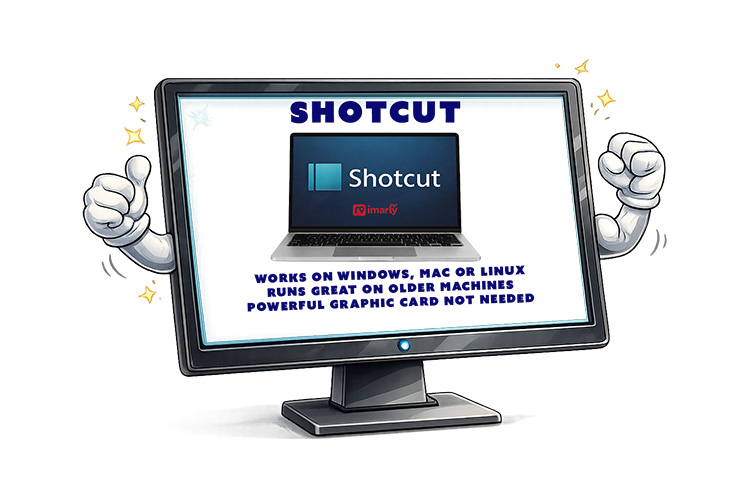
Shotcut runs on:
Windows
Mac
Linux
It works on older machines better than DaVinci Resolve does. You don’t need a powerful graphics card. But more RAM always helps when editing video. If your computer can play HD video smoothly, it will likely handle Shotcut fine. For heavy 4K drone editing, performance may vary.
No WaterMark
No hidden export limits.
No trial period.
“Free” actually means free.
It’s supported by community development and donations — not subscriptions.
That’s refreshing in today’s software world.
Who Should Use Shotcut?
Best for:
Shotcut is great if you want more control than you get with Clipchamp, especially if you hate being locked into subscriptions. It’s a solid pick for editing family videos or if you’re just not quite ready to dive into the deep end with something like DaVinci Resolve.
Not ideal for:
Shotcut isn’t the best choice if you’re after flashy templates, instant social media effects, or heavy, Hollywood-style color grading. It’s more about giving you the essentials without the frills—great for getting the job done, but not for those who want everything done for them with a single click.
My Honest Recommendation
Shotcut feels like the dependable old pickup truck of video editors.
It’s not shiny. It’s not corporate. It doesn’t try to impress you.
But it works.
If you want:
True free software
No watermark
No subscription
No cloud dependency
Shotcut deserves serious consideration.
In my next post, we’ll look at OpenShot — another open-source editor that aims to be even more beginner-friendly.
📊 Not Sure Which Editor Is Right for You?
This review is part of my complete guide to Free Video Editing Software.
If you’d like to see all six programs compared side-by-side — including what’s truly free and what has limits — visit the full comparison guide here:
Clipchamp video editor for Windows is a straightforward choice for beginners, as it is often pre-installed on Windows 11 computers. However, simple does not always mean it will meet every need.
What Is Clipchamp Video Editor for Windows?
Clipchamp is Microsoft’s modern, beginner-friendly video editor. It replaced the old Windows Movie Maker style tools and is designed to be:
Clean
Simple
Template-based
Cloud connected
Unlike DaVinci Resolve, Clipchamp is not built for Hollywood-level production. It’s built for everyday users. It runs in your browser or as a lightweight app, making it less demanding on your computer.
Why Clipchamp video editor for Windows Is Beginner-Friendly
When you open it, you see:
Large buttons
Drag-and-drop media areas
Pre-made templates
Simple trimming tools
There are no overwhelming color wheels. No advanced audio mixers. No complicated node systems.
You can:
✔ Import a video ✔ Drag it to a timeline ✔ Trim the beginning or end ✔ Add music ✔ Add text ✔ Export
That’s it.
Clipchamp Video Editor for Windows
Pros and Cons
✅ Pros
Clipchamp is honestly great if you’re just starting out—it’s super beginner-friendly and the interface is clean, so you won’t get lost. A lot of the time, you’ll already have it on your Windows 11 machine, so there’s no huge download to worry about. It’s perfect for basic edits and doesn’t bog down your computer like pro-level software can.
❌ Cons
There are a few downsides though—Clipchamp makes you sign in with a Microsoft account, and some of the cooler features are behind a paywall. Since a lot of its magic happens in the cloud, you’ll need a decent internet connection. If you’re hoping for advanced editing tools or the ability to export in any format you want, you might find yourself wishing for more.
If your goal is serious color grading or advanced cinematic editing, you may eventually outgrow it.
But for simple edits? It’s comfortable.
Is Clipchamp Really Free?
Yep, Clipchamp is free. You’ll get the basics: simple video editing, exports in the usual (not super high-end) resolutions, and a handful of stock media—not a massive library. It’s enough to get you started, but you will have to pay if you want more premium features or a deep pool of stock footage.
What Computer Do You Need?
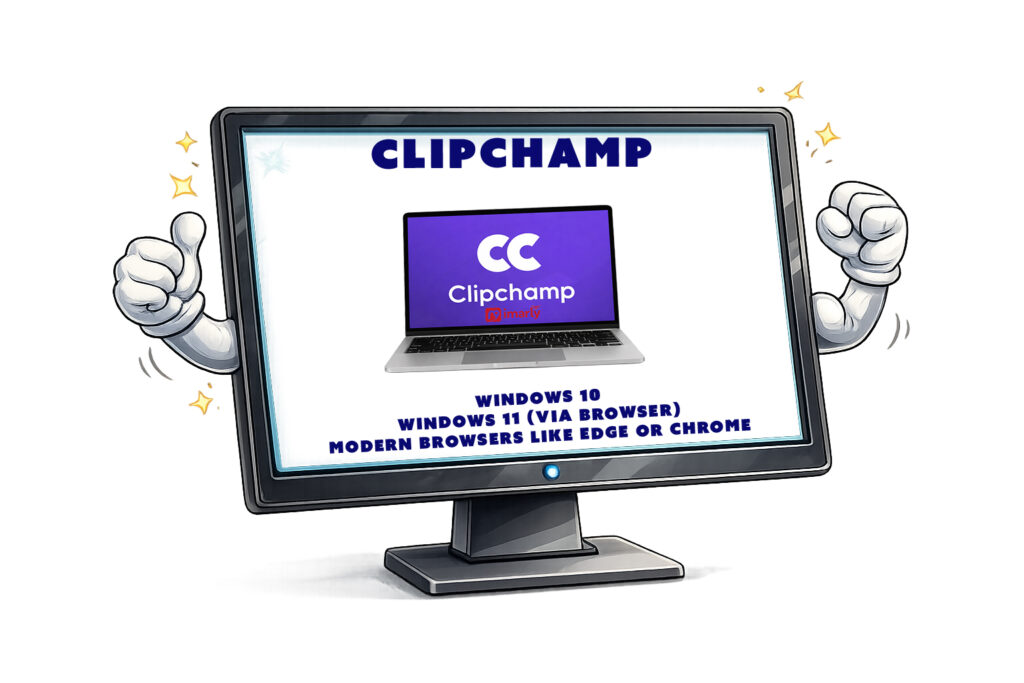
Clipchamp works best on:
Windows 11
Windows 10 (via browser)
Modern browsers like Edge or Chrome
It does not have a full Mac desktop version, though Mac users can use it through a browser.
Because it relies partly on cloud processing, it doesn’t require as much hardware as DaVinci Resolve does.
That makes it appealing for older computers.
So, who is the best fit for Clipchamp video editor for Windows?
Clipchamp is a sweet spot for beginners, people who just want to edit a quick vacation video, or anyone making something for social media—especially if you hate complicated interfaces or you’re working on an older computer. On the flip side, if you’re after advanced color correction, professional-level editing, or huge 4K drone projects, this probably isn’t the tool for you.
My Honest Recommendation
Clipchamp can feel less intimidating than DaVinci, thanks to its lower learning curve. As a beginner, you can get comfortable with timelines and trimming. It allows beginners to get comfortable with timelines and trimming without experiencing overwhelm.
Next, we’ll explore Shotcut—a completely free open-source option that sits somewhere between simple and serious, supplying a different balance of features.
📊 Not Sure Which Editor Is Right for You?
This review is part of my complete guide to Free Video Editing Software.
If you’d like to see all six programs compared side-by-side — including what’s truly free and what has limits — visit the full comparison guide here:
DaVinci Resolve free video editor is one of the most powerful video editing programs available today — and surprisingly, the basic version costs absolutely nothing. But with that power comes complexity, and many beginners (especially seniors) wonder if it’s simply too much.
In this post, I’ll break it down clearly and calmly.
⚠️ Important Download Safety Warning
Before we go any further, this matters.
There are many websites that look like the official DaVinci Resolve site — but they are not. Some include extra bundled software, fake installers, or even malware.
For your protection:
✔ Only download from the official company website ✔ Never click “Download” from pop-up ads ✔ Refrain from third-party “free software” sites ✔ If the website name looks slightly different, stop
I personally test every link prior to sharing it.
The only legitimate source for DaVinci Resolve is the official website of Blackmagic Design:
If the URL is not that exact address, do not download.
What Is DaVinci Resolve Free Video Editor?
DaVinci Resolve is professional-grade editing software used in real Hollywood productions. That’s not marketing hype — it’s actually used for feature films, TV shows, and streaming content.
It combines:
Video editing
Color correction (advanced color grading)
Audio editing
Special effects
All in one program.
The free version is incredibly powerful.
Is DaVinci Resolve Good for Seniors?
This is where we need to be honest.
DaVinci Resolve is powerful — but it is not the easiest program for beginners.
When you first open it, you’ll see multiple panels, buttons, timelines, color wheels, and toolbars. It can feel overwhelming.
If you are:
Willing to learn step-by-step
Comfortable watching a few tutorials
Using a reasonably strong computer
Editing drone footage in 4K
Think of it like buying a professional camera instead of a disposable one. It may take longer to learn — but you won’t outgrow it.
For someone who wants:
Simple trimming
Adding music
Basic cuts only
It may feel like driving a spaceship to the grocery store.
Pros and Cons of DaVinci Resolve Free Video Editor
DaVinci Resolve has a lot to like. It’s really free—no watermarks, no sneaky charges—and you get tons of powerful features, including some awesome color correction tools. You can use it on Windows or Mac, and it’s especially handy if you work with drone videos. Plus, there’s no subscription you have to worry about.
There are a couple of things to keep in mind. Learning how to use DaVinci Resolve takes some time, and it really helps to have a good computer, especially if you want to work with 4K videos. The screen can look busy at first, and the initial download is large. If your computer is on the older side or doesn’t have much memory, it might run a little slow.
What Computer Do You Need?
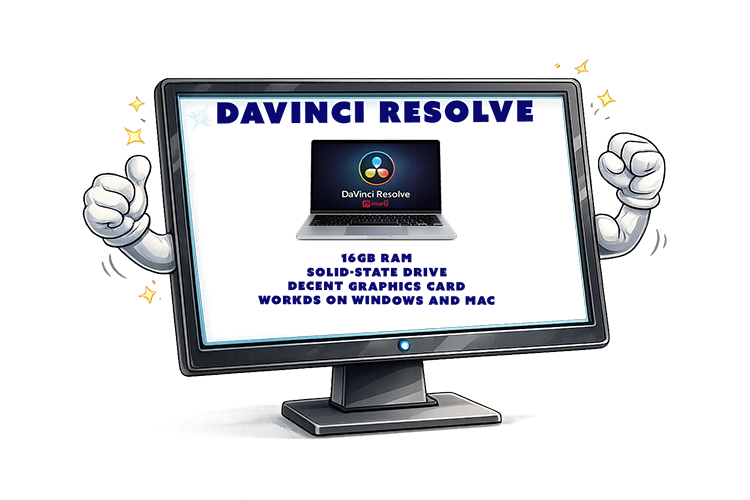
Minimum suggestions:
At least 16GB RAM recommended for smooth editing
A solid-state drive (SSD) helps.
A decent graphics card improves performance.
Works on Windows and Mac
If your computer struggles to play 4K video smoothly, it could struggle editing it.
Is DaVinci Resolve Really Free?
Great news, Davinci Resolve is free. You will not find any tricks or sneaky charges. In the free version, you get all the basics: editing, color correction, audio mixing, and plenty of effects. In the Studio version, you will find some fancy stuff. I am sure you will find the free version is more than enough.
Who Should Use DaVinci Resolve?
Best for:
✔ Drone hobbyists ✔ People serious about learning editing ✔ Anyone wanting professional-level control ✔ Those editing 4K footage
Not ideal for:
✘ Someone who just wants to trim vacation clips quickly ✘ Someone uncomfortable with new interfaces ✘ Very old computers
My Honest Recommendation
If you’re patient and curious, DaVinci Resolve can be an incredible tool.
If you want fast and simple, we’ll be covering easier options next in this series — including Clipchamp, Shotcut, OpenShot, CapCut, and Filmora.
📊 Not Sure Which Editor Is Right for You?
This review is part of my complete guide to Free Video Editing Software.
If you’d like to see all six programs compared side-by-side — including what’s truly free and what has limits — visit the full comparison guide here: