Adult picky-eater coping strategies can get stronger and produce real results, but that doesn’t happen overnight.
Learning to Live With It — Part 3 of 3
I did not wake up one morning and announce, “Today, I am eating a bowl of spinach.”
I am still me. I did not suddenly become the mayor of normal eating. My food list is still a work in progress, but I am learning how to live with it better.
Adult picky-eater coping strategies: I Do Not Owe Everyone My Entire Food History
The biggest change was realizing I didn’t owe everyone a full explanation.
For years, I tried to teach people my entire food history somewhere between the salad and the entrée. I explained. I defended. I pleaded. I provided so much information that I practically needed a PowerPoint.
Short, honest sentences had more power than you would believe. Example – Oh! No, thank you. I am not in the mood for salad today, or I am saving room for the main course, and that looks yummy but I am going to pass.
These are not lies. They are small truths that give people enough information without inviting a committee meeting about my plate.
Made-up stories about allergies or dramatic medical reasons may answer one question, but they can create ten more. Friends and family who truly care may remember the story and worry. It can also make them nervous about inviting you anywhere food might appear.
And food appears everywhere. It is very committed.
Short honesty works better for me.
Then I Became the Person Saying, “Just Try It”
One of my funniest and most humbling lessons happened while I was having dinner with my nephew, who is an even more selective eater than I am.
I ordered rice with my meal. He said he did not eat rice.
And there I was, suddenly becoming the exact person I had complained about for decades.
“What? How can you not like rice? Try it. Just take a bite.”
Then I stopped myself.
There it was—the urge.
It was the same urge my friends had felt with me. I wanted him to try something so he could enjoy what I enjoyed. I wanted to share the meal. I wanted that happy little moment when someone takes a bite and says, “You were right. This is delicious.”
If I, someone who understands extreme picky eating from the inside, could forget and pressure another picky eater, perhaps I could have more compassion for the people who had pressured me without understanding.
That did not make the pressure okay.
It did make it more human.
Adult picky-eater coping strategies ForFinding Foods That Work
These days, I handle food awkwardness with less shame.
I order simple foods containing only one or two ingredients. I eat the bread and happily let it take the blame. I pass on what I need to pass on. I do not announce that I am a picky eater unless there is a real reason to share it.
At home, I have also found ways to work with my limited diet instead of constantly fighting against it.
Smoothies have become one reliable way for me to eat more fruit and sneak in a vegetable. I prepare containers with banana, strawberries, pineapple, and spinach. After I add protein powder and blend everything together, the texture changes completely.
That texture change makes the ingredients easier for me to accept.
Spinach has been one of my biggest surprises. I discovered that it has almost no taste when blended with other foods. Eventually, I tried cooking it into eggs, rice, and potatoes and found the texture didn’t bother me there either.
I have also worked peppers, onions, and carrots into my regular diet.
These may not sound like glamorous breakthroughs, and I probably won’t be invited to host a cooking show anytime soon. But they are breakthroughs to me.
Safe Foods Still Have a Place
Experimenting with new foods does not mean I no longer need my safe foods.
Some days, my diet becomes a source of pressure, and I need eating to feel simple again. Crackers are one of my safest options. They quiet the hunger for a little while without creating another struggle.
Chocolate cake is also a safe food.
Is it healthy? I like to think it can be—especially if I indulge only about once a year. Sometimes enjoying a food that makes me smile, without fear or negotiation, is its own kind of relief.
My Palate Is Still Changing
Quitting smoking has also changed things.
After more than 40 years, my taste buds seem to be waking up and looking around. Some foods I once disliked are now surprisingly good.
Salmon. Greek yogurt. Water, of all things.
I used to force myself to drink water. Now I actually enjoy it.
My palate is still changing, and I am grateful for every small surprise.
I know I am at a serious stage in my life. I am in my sixties, and I want my final chapters to be healthy, active, and full of connection. I worry about what a limited diet could mean for my future.
I worry that even if my eating habits do not shorten my life, they could still affect its quality.
But I am also determined.
Adult picky-eater coping strategy Protect Your Peace
To my fellow picky eaters, adults with ARFID symptoms, and anyone living with sensory food aversions: please do not let shame take everything from you.
I know it can take over because I let it drive for years.
Protect your peace. Not every meal needs to become a courtroom. Look for foods you can eat, and experiment when you feel able. If you believe your food restrictions are affecting your health, nutrition, weight, or relationships, consider asking for help.
And to the friends and families of adult picky eaters: I know you want the best for us. Your support can be wonderful, but pressure is exhausting.
Sometimes the kindest response is simply, “No problem,” then letting the meal continue.
I am still an extremely picky eater. I still hate parts of it. But I no longer let it decide every invitation, every friendship, or every bit of joy available to me.
For now, that’s progress.
And progress counts—even when it comes with a side of very plain rice.
FAQ Ideas for SEO
How can adult picky eaters handle social meals?
Can taste buds change after quitting smoking?
How can families support someone with ARFID or extreme picky eating?
Adult picky eaters encounter food almost everywhere.
Adult Picky Eaters and the Awkward Restaurant Problem Part 2 of 3
Birthdays come with cake. Holidays are represented by large, overflowing plates. Restaurants are where people go on first and second dates. Friends do not usually say, “Let’s sit somewhere and catch up.” They say, “Let’s grab lunch.”
For most people, grabbing lunch is simple.
For me, it used to feel like an obstacle course filled with menus, smells, questions, and the possibility of a surprise salad.
When the Restaurant Felt Like a Stage
I would meet friends at a restaurant, sit down, talk, laugh, and try to act like a normal human who had not already scanned the menu online three times.
Then the waiter would arrive carrying a tray of salads and place one in front of everyone.
Including me.
I would stare at the plate and hope no one noticed I was not eating. Sometimes I would push the lettuce around with my fork, giving it a little tour of the plate. I would do almost anything to avoid the questions.
But the questions usually came anyway.
“What’s the matter?”
“Are you okay?”
“Is there something wrong with the food?”
“You can’t eat salad?”
“Have you tried it?”
“Maybe just try one bite.”
Suddenly, my eating habits became the main topic at the table.
I would try to explain that I was not being rude. I was not rejecting the cook, the restaurant, the host, agriculture, or the entire concept of leafy greens.
I simply could not eat the salad.
As I explained in Part 1, my reaction to certain foods feels physical. My body and mind respond before my manners have a chance to intervene.
I wanted to eat healthy. I wanted to be easy. I wanted to be the kind of person who could order the house salad and then casually discuss the weather.
Instead, I became the food conversation.
When Concern Starts Feeling Like Pressure
That kind of attention is exhausting.
The more people asked, the smaller I felt. By the time the entrée arrived, I would be anxious, tired, and already promising myself that I would never go out to eat again.
No friends. No dates. No restaurants. Never again.
For years, that is almost what happened.
I began rejecting invitations that involved food. When I went to a restaurant, I often went alone. I loved my friends, but I did not have the emotional strength to keep pleading with them to understand something I hardly understood myself.
I declined so many invitations that eventually they stopped coming. Then I stopped calling and answering phone calls.
I became tired of being noticed while I ate.
I felt alone. Then I felt angry.
I felt judged and alienated because of picky eating that did not feel like my fault. For a while, I blamed everyone else.
Adult Picky Eaters Looking at It Differently Now
Now that I am in my sixties, I can see another side of it too.
People were not always trying to embarrass me. Often, they were trying to include me. They wanted me to enjoy the meal the way they enjoyed it.
They wanted me to have that one bite that would make me say, “You were right. This is delicious.”
They did not understand that, for me, taking a bite could feel like panic instead of pleasure.
Recognizing that did not erase the hurt or make the pressure okay. It did help me stop carrying all of it as anger.
Learning about ARFID also helped me understand why food restrictions can interfere with relationships and social activities. So much of life happens around food.
Even for someone who has not been diagnosed with ARFID, extreme picky eating can create the same cycle of explaining, avoiding, hiding, rehearsing, and apologizing.
What I Wish People Understood
Adult picky eaters know that salad is healthy.
We understand that salmon has nutrients.
We also know your casserole is famous.
And yes, we know that “just try it” sounds easy from the outside.
But if trying it were easy, many of us would have done it years ago.
The social pain of extreme picky eating is not only about the food. It is about feeling like you are too much trouble. It is about wanting connection while dreading the meal that comes with it.
It is about loving people and still needing a break from their concern.
That is a lonely place to sit, especially when everyone else at the table is simply eating dinner.
Learning How to Return to the Table
Today, I have become much better at keeping my eating habits from becoming the main attraction.
Maybe people notice less because I am older. Maybe I have simply stopped caring so much about what other people think. I believe that change shows in my personality.
Either way, I no longer feel obligated to explain my entire food history every time something remains untouched on my plate.
Learning how to handle those moments without hiding from invitations took time. I had to find short answers, safer choices, and ways to protect my peace without removing myself from the people I cared about.
Those are the coping strategies I will share in Part 3.
I am still an extremely picky eater. The difference is that I am learning not to let every plate of lettuce decide whether I get to enjoy the people sitting around it.
FAQ
Why do some picky eaters avoid restaurants?
Restaurants can be stressful when you are unsure what ingredients will be in a dish or whether it can be prepared in a way you can eat. I try not to order foods that will leave me picking out ingredients I cannot eat. It becomes messy, draws attention and can feel embarrassing.
Resource:How to Help Someone With ARFID — Beat explains that ARFID can significantly affect someone’s lifestyle, including eating at restaurants, attending parties and traveling.
How can ARFI affect relationships?
ARFID can make dating, family meals and other social situations difficult. You may worry that someone will judge your eating, become frustrated with you or ultimately decide that you are unwanted. That fear can make it difficult to relax around food or explain what you are experiencing.
What should you not say to an extreme picky eater?
Avoid comments such as “Just try it,” “You’re being difficult” or “How can you not like that?” If someone says they are not hungry, let them be—you may not know what they are dealing with. If you have an extreme picky eater in your life, pressure, teasing and unwanted attention are unlikely to help. Sometimes the kindest thing you can do is simply let them eat—or not eat—without making it an issue.
Resource:How to Help Someone With ARFID — Beat specifically recommends not forcing unfamiliar foods, tricking someone into eating or commenting on and watching what they eat.
I am an extremely picky eater, but even that does not fully describe what eating can be like for me.
I Am an Extremely Picky Eater, and It Is More Than Being Difficult
When people hear the term “picky eater,” they may picture someone standing in front of a buffet, acting dramatic because the green beans are not wearing the right outfit. But for some of us, picky eating is much more complicated than simply disliking certain foods.
For me, it goes far beyond preference.
I can look at a beautiful, colorful, fresh salad and honestly think, That looks so good. I should at least try one bite.
Then I pick up the fork.
Before the food even gets close to my mouth, I can feel the rumblings of a dry heave. The fear that I might throw up takes over, and my body says, “Absolutely not.”
The gag reflex arrives like it owns the place, and no amount of positive thinking helps.
I wish I could eat the salad. I really do. But this is a reaction to food that I have never been able to get past.
Learning About ARFID
For years, I thought this was simply me being an extremely picky eater.
Then I learned there is a name for a condition involving food restriction that can go far beyond ordinary pickiness: ARFID, which stands for Avoidant/Restrictive Food Intake Disorder.
ARFID can involve a very limited range of foods, strong sensory reactions to taste, smell, texture, or appearance, and difficulties involving nutrition, health, or everyday life.
Please understand that I have not been officially diagnosed, and I am not trying to diagnose myself.
Learning about ARFID did, however, help me understand that severe picky eating can be more than a preference. It gave me language for something I had struggled to explain for most of my life.
My reaction to certain foods feels physical. It is not simply a decision I make at the dinner table.
Every Picky Eater Has a Different Food Map
My diet has been limited for most of my life. I dislike most vegetables and some fruits, but other picky eaters I have met are the exact opposite. Some eat mostly fruits and vegetables but struggle with meat or starches.
That is one thing I have learned from being in online groups: picky eaters are not all picky in the same way.
We each have our own little food map, and some of those maps are missing entire countries.
Even my version of a salad looks different.
An antipasto salad is probably the closest I will ever get to eating one. It contains several foods I already enjoy, so it feels familiar and safe. A traditional leafy salad may stop me before the fork reaches my mouth, but a plate filled with prosciutto, tomatoes, cheese, and other familiar ingredients can actually make me smile.
That may not sound like a major difference to someone else, but it is a big difference to me.
The Health Side Still Worries Me
The health side of having such a limited diet has always worried me.
As a child, I watched people in my family struggle with weight, and that frightened me. I did not want that future for myself. I have managed not to become obese, but I have still struggled with my weight throughout my life.
Now I am in my sixties and still thinking about it.
I quit smoking in March after more than 40 years, and the promised weight gain showed up right on schedule. I went from approximately 135 pounds to around 145, and apparently my metabolism did not get the memo that I was already dealing with enough.
Eating carefully feels like the only option I have. But eating carefully is difficult when many of the foods considered “right” or “healthy” are the same foods my body refuses.
That is one reason I rely so much on movement. Staying active has been one of the tools that helped me avoid what I feared might become my family destiny. Exercise has not solved everything, but it gives me a way to keep fighting for my health using something I can control.
Food does not always give me that same feeling of control.
More Than a Preference
I am sharing this because I want other extremely picky eaters—and the people who love them—to understand something important.
This is not always stubbornness. It is not always immaturity. It is not always someone refusing to grow up and eat a vegetable.
Sometimes it is a physical and exhausting challenge that follows a person throughout life.
It can also affect much more than what appears on someone’s plate. When so much of life happens around food, being unable to eat what everyone else is eating can become complicated very quickly.
That is the part of the story I will share next.
And yes, I still wish I could eat the salad. I really do.
I just wish the salad understood that too.
FAQ
What is ARFID in adults?
Avoidant/Restrictive Food Intake Disorder (ARFID) is an eating disorder that causes someone to severely limit the amount or variety of foods they eat. This may be driven by food textures, smells or appearances, a lack of interest in eating, or fear of choking or vomiting—not by concerns about weight or body shape. Learn more from the National Institute of Mental Health.
Is extreme picky eating the same as ARFID?
Not necessarily. Extreme picky eating may be a sign of ARFID, but ARFID involves food restriction serious enough to affect nutrition, health or everyday life. Only a qualified healthcare professional can determine whether someone meets the criteria for ARFID. Learn more about ARFID and picky eating from Cleveland Clinic.
Can picky eating affect your health as an adult?
Yes. If picky eating severely limits the foods or nutrients someone consumes, it can contribute to nutritional deficiencies, low energy, weight changes and other health problems. It may also make restaurants, travel and social gatherings difficult or stressful. Anyone concerned about their eating or nutrition should speak with a doctor or registered dietitian. Find additional ARFID information and support through NEDA.
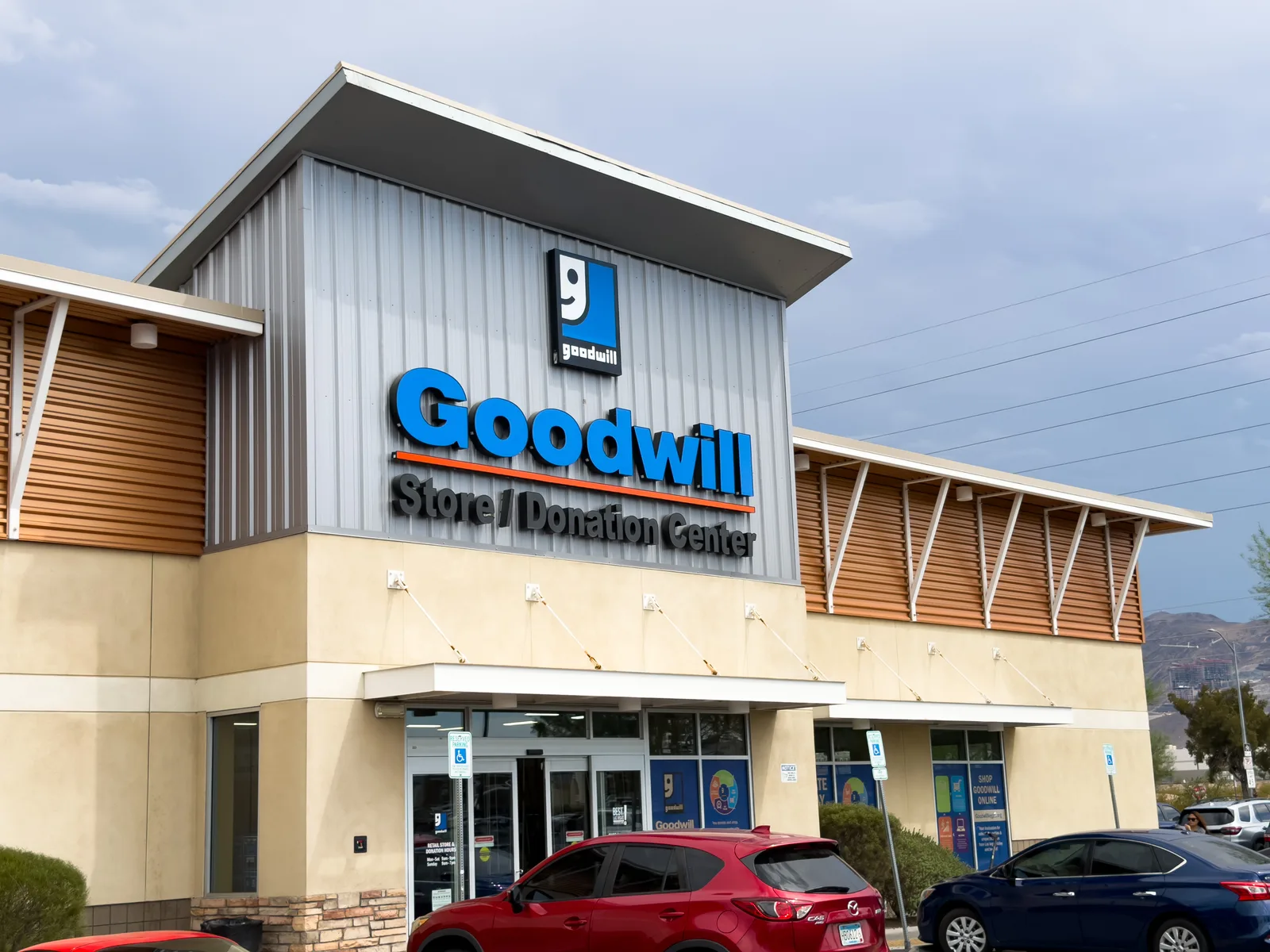
Goodwill shopping spree days always start with a little promise to myself: “I’m only going to look.” Now, at 61 years old, I know better than to believe myself, but I still say it every time.
Then I pulled into the parking lot, saw cars everywhere, and remembered what day it was.
Senior discount day.
Well, that explained it. I sat there for a second and laughed at myself. “Girl, did you really think you were the only grandmother in town looking for a bargain today?”
I should have known.
As I parked, I had a little conversation with myself. “You really thought you were the only person who knew Goodwill had deals today?” Clearly, I was not.
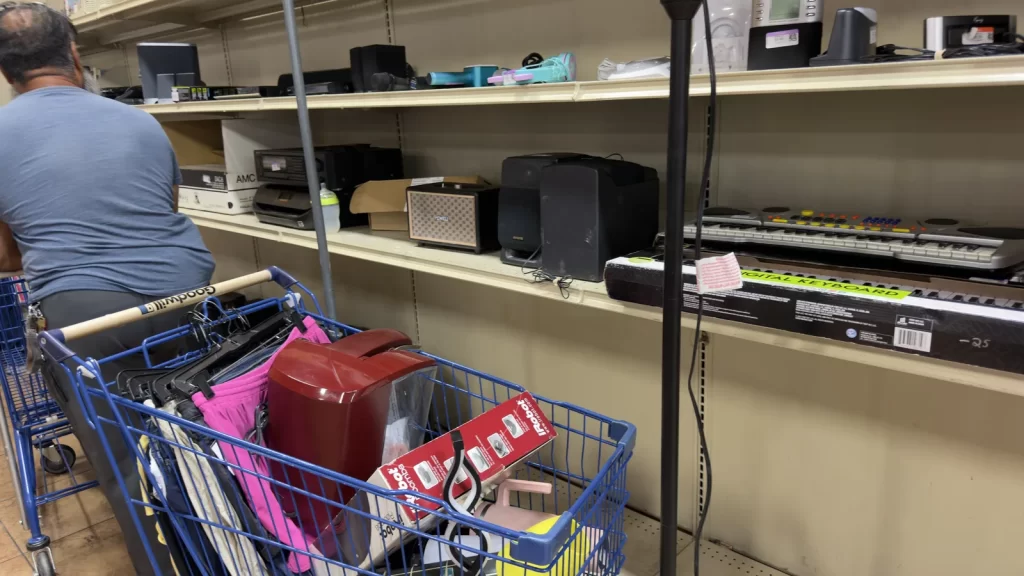
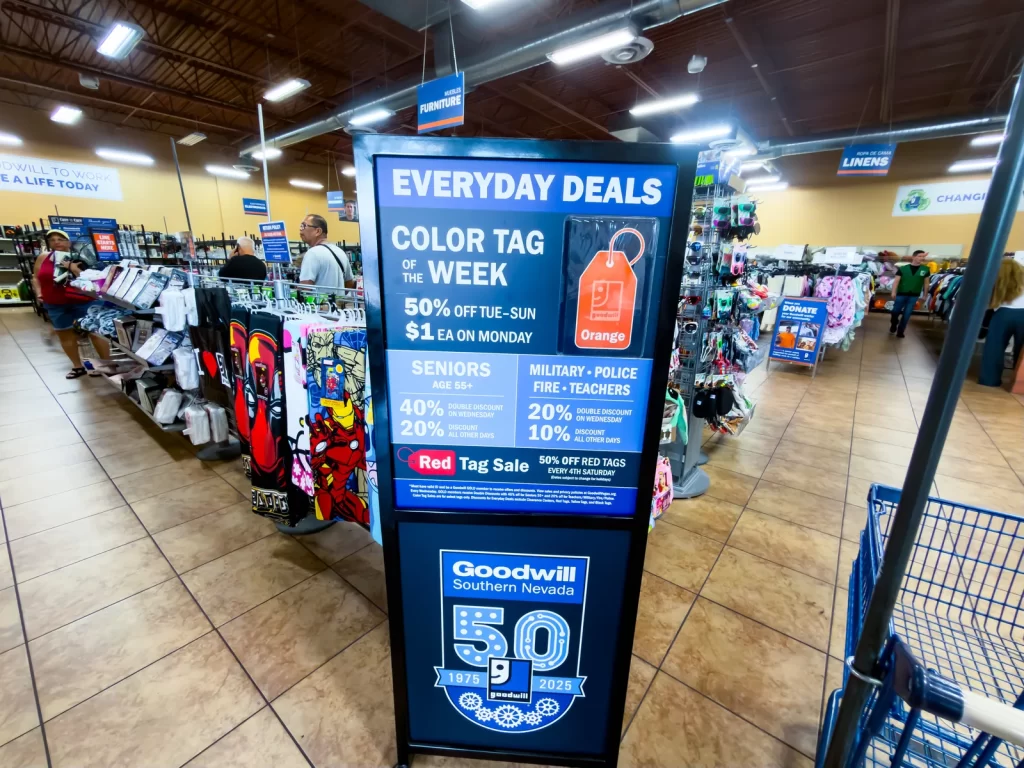
The parking lot was full, the store was busy, and once I grabbed my cart and headed toward the sale sign, everything made sense. Orange tags were 50 percent off, seniors were getting 40 percent off, and the floor had been freshly stocked.
It wasn’t just seniors, either. Young couples, parents with little kids, serious bargain hunters, and people like me tried to act calm while mentally calculating discounts.
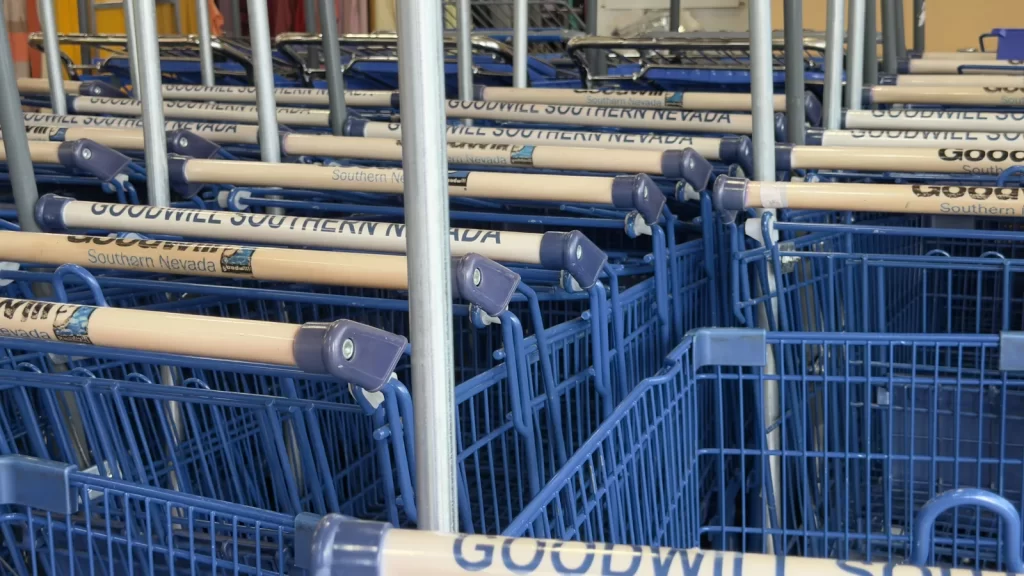
I tried to take pictures carefully because I never want to photograph anyone who doesn’t want to be photographed. Also, getting around was a little tricky because the aisles were tiny. This was definitely a one-cart-at-a-time situation. If two carts met in the same aisle, somebody had to reverse like they were backing out of a driveway.
But even with the crowd, I stayed for several hours. I had nowhere to be for the next three hours, which is rare, so I took my time and enjoyed the hunt. By the end, my cart was full of things I needed, things I needed, and a few things that looked at me first.
Clothing Deals Are a Treasure Hunt
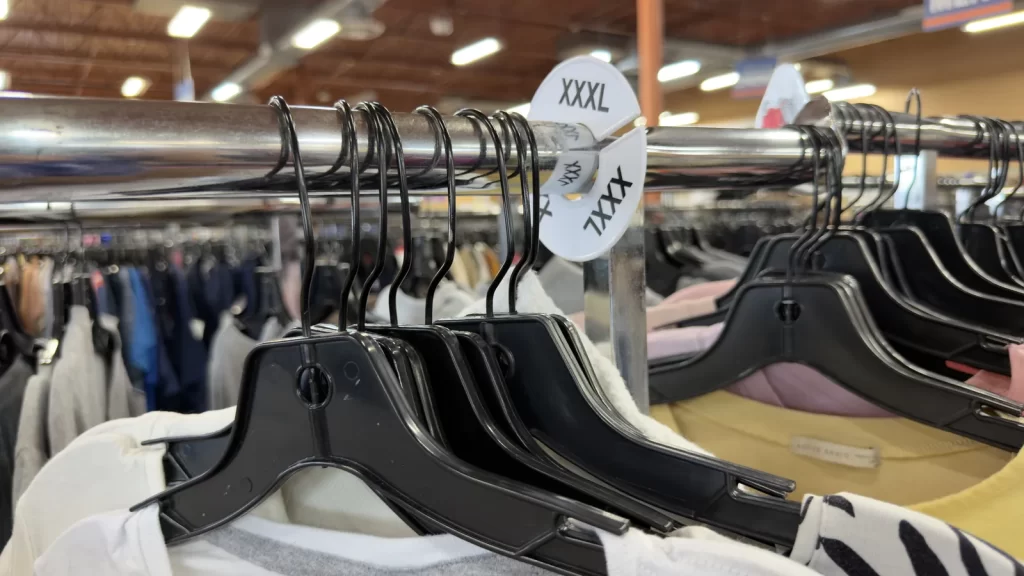
As I started through the clothing racks, I reminded myself of one very important thrift store rule: don’t trust the size signs.
A small might be hiding in the extra-large section. An extra-large might be tucked away in the smalls. A pair of shorts could be anywhere. Goodwill clothing shopping requires patience, good eyes, and the willingness to look through every aisle even when the sign says it is not your size.
That is what took the most time.
Slowly, my cart started filling with T-shirts, pants, and shorts. At one point I felt that familiar little panic: “Am I spending too much money?”
Then I reminded myself, “You are in Goodwill. There is probably not a shirt in this cart over $3.”
That helped.
After I finished looking for myself, I went to the girls’ section and found some great deals on pants and shorts for my granddaughter. That is one of the best parts of thrift store shopping. You can find useful things for the people you love without paying full retail prices.
Goodwill Electronics: A Gamble, a Roomba, and a Plan
Now let’s talk about Goodwill electronics, because this is where things got interesting.
I have a rule about buying electronics at thrift stores: it is a gamble. Sometimes you win, sometimes you take home a mystery object with a cord.
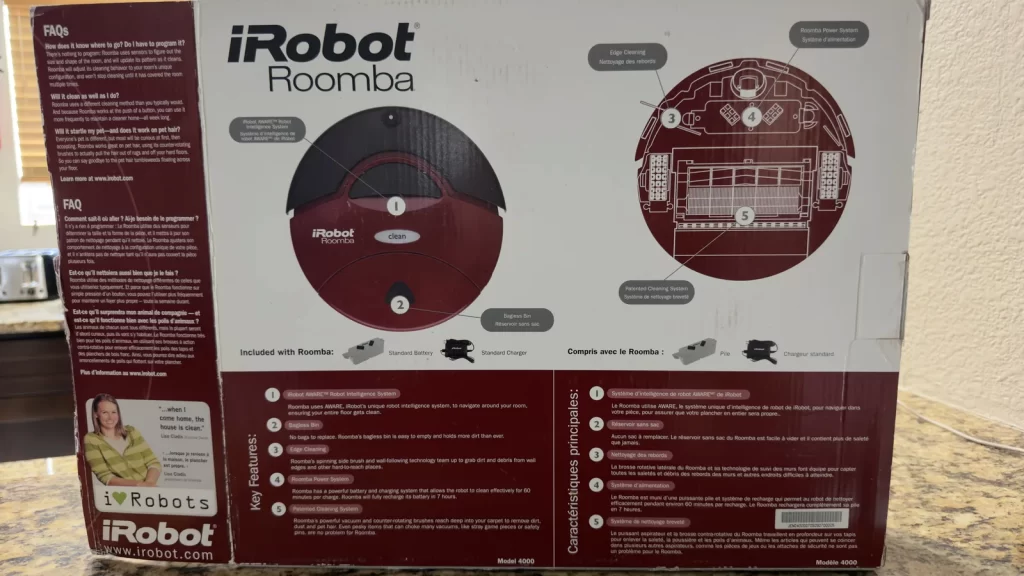
But then I saw a Roomba.
And suddenly my practical side and my bargain-hunting side started having a meeting.
I checked the return policy and found my answer. Electronics could be returned within seven days for store credit. Seven days was enough time to take it home, test it, and decide whether it was worth keeping.
That lowered the risk just enough for me.
The Roomba came home with me, and guess what? It worked. It needed a new battery, but I ordered one; it arrived before the return window closed, and I tested everything in time. If it had not worked, I could have returned the battery and the Roomba.
But it worked. That was a win.
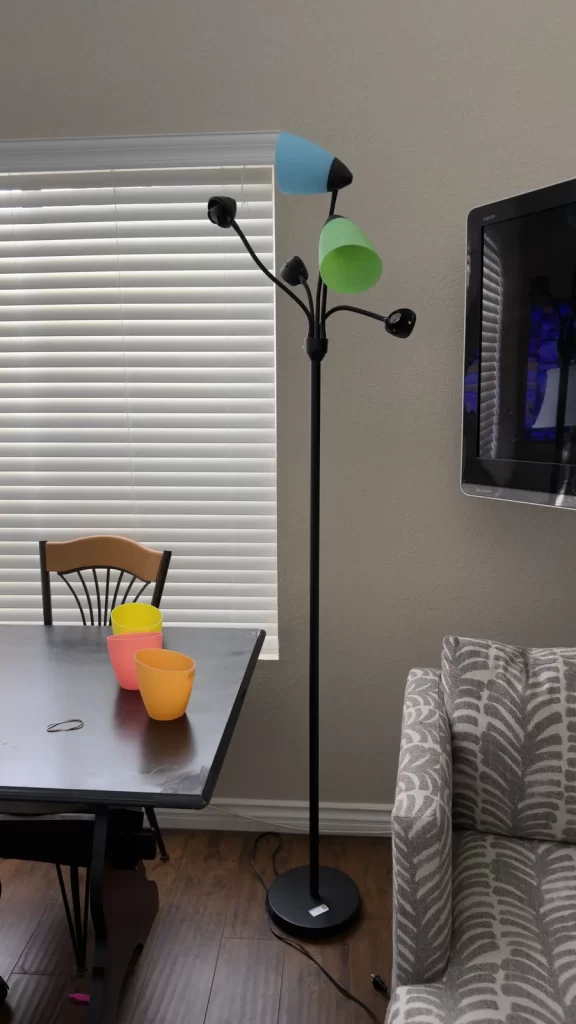
I also put a Keurig machine and two lamps in my cart, because apparently once I opened the electronics door, I walked right through it.
The Keurig was $15. I brought it home, descaled it, deep-cleaned it, and made my first cup of coffee.
Another win.
The small desk lamp worked perfectly and now looks great on my desk.
The colorful floor lamp, however, was $11 and did not turn on.
Did I return it? No.
I decided to keep it and make it a project, because that is the other part of my personality. I like taking things apart, figuring them out, and putting them back together. So that lamp is now my next little adventure. If you want to find out whether I fixed it or made it worse, come back later.
Goodwill Treasure Finds and Sweet Memories
The best thrift store finds aren’t always the most expensive. Sometimes they are the ones that bring back a memory so fast you can almost smell it.
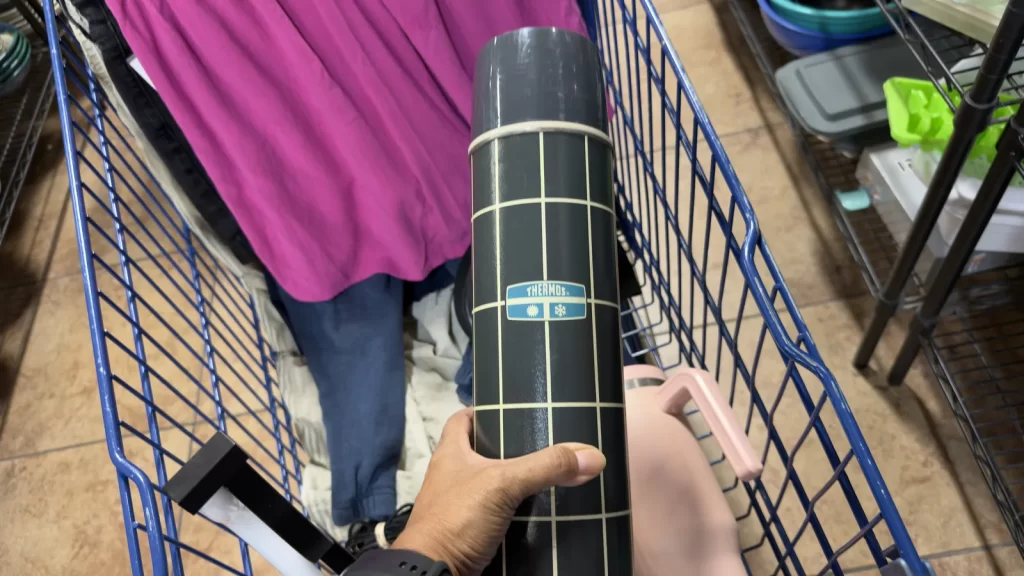
That happened when I found a thermos.
I picked it up, and suddenly I was five or six years old again. I could smell crayons and Kool-Aid. My father had a thermos just like it.
That thermos went straight into my cart.
It may not look like much to someone else, but to me it is a treasure. A little piece of memory. A tiny time machine. My own thrift store treasure chest.
I like keeping bottles filled with ice water around the house, so those were practical and useful. And yes, I meant to say they were a steal, but honestly, at $2 each, they almost felt like one.
My Goodwill Haul Total
When I finally made my way to the checkout counter, I paid $87.59 total.
That is a big Goodwill trip for me. Usually, I spend around $20 to $30, so this was definitely outside my normal comfort zone. The electronics pushed the total higher, but since I came home with clothes, items for my granddaughter, a Roomba, a Keurig, lamps, water bottles, and a memory-filled thermos, I felt pretty good about it.
I am not sharing this to brag about a shopping cart full of secondhand stuff. Most of it was things I already needed or could use. What I really want to share is this: if you cannot afford something you want or need brand new, thrift shopping can be a fun alternative.
It takes time. You might walk out with a cart full of treasures, or you might walk out with nothing. That is part of the hunt.
And I love the hunt.
I will definitely go back to Goodwill, and I want to try other thrift stores too. Right now, I am keeping my eyes open for very old cast iron cookware and items from the late 1960s and early 1970s.
If you have been thrifting and you have a favorite thrift store, please share it with us. I know Goodwill isn’t the only thrift store, and I’d like to learn about other places and options. I would love to hear your latest finds.
Before I bring all my new-to-me treasures inside and give them a home, I try to keep one rule in mind: for every thrift store haul, I find at least 2 to 5 items to donate, throw away, or give to someone else.
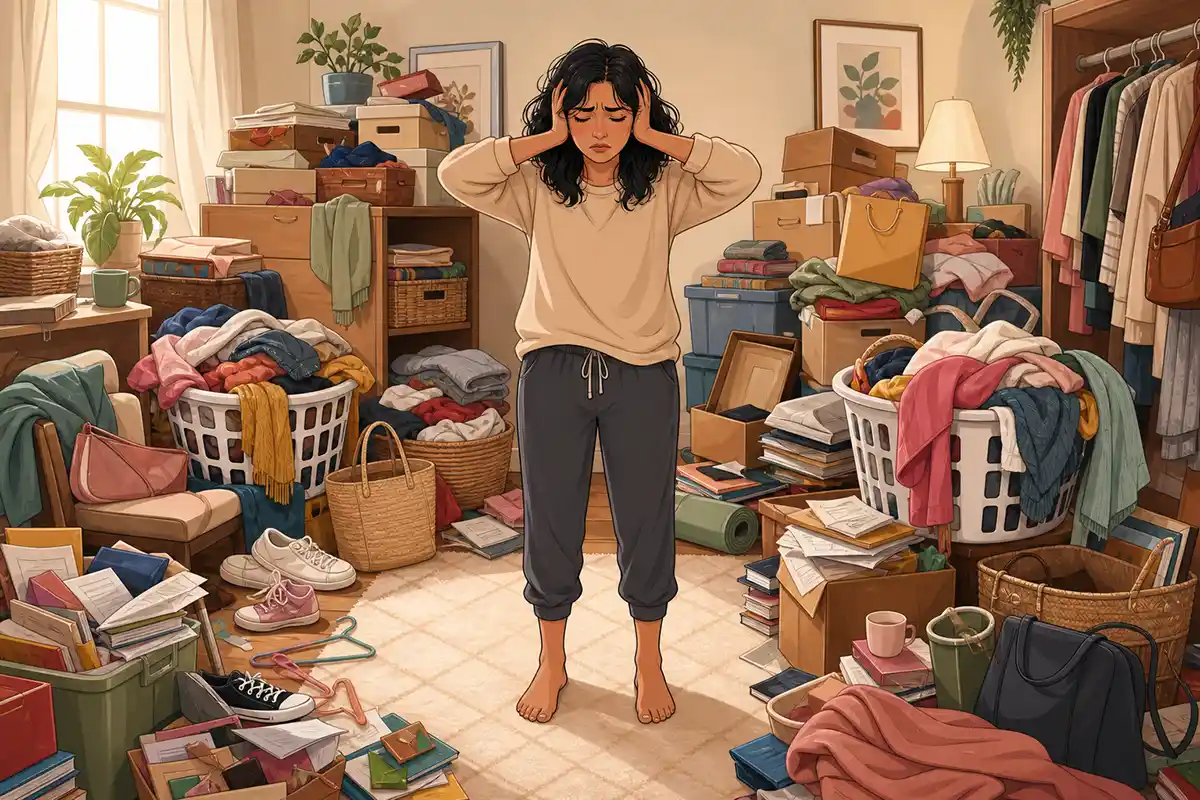
Bargain hunting is fun, but I do not want my home so full of stuff that I lose my space, peace, or mental clarity. I can enjoy the thrill of bringing home something new without letting clutter take over. If you struggle with keeping that balance too, you may enjoy my post on
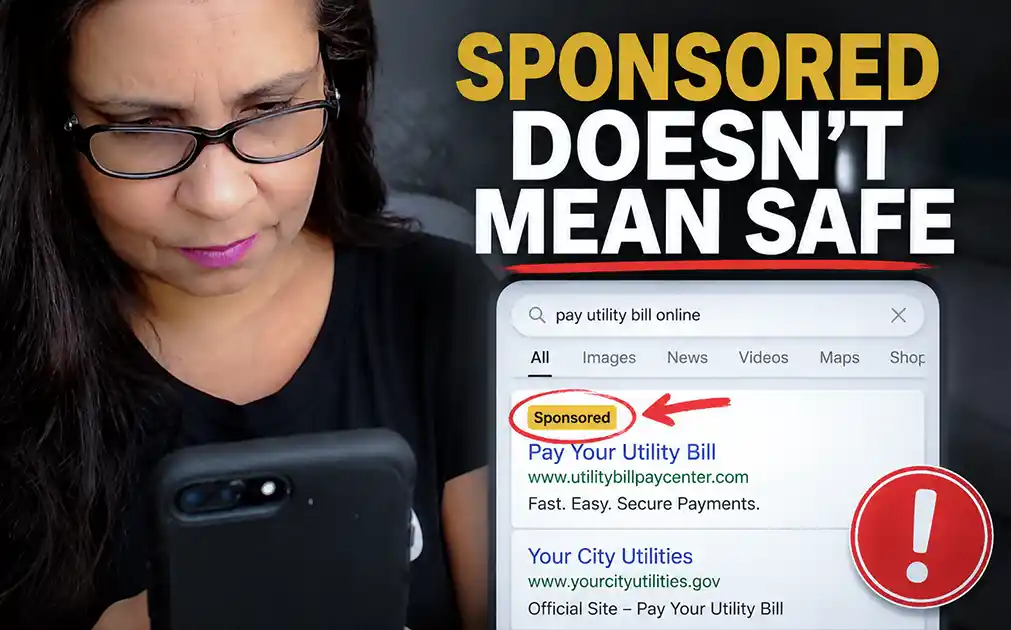
Sponsored Search Scams: Now Scammers Are Buying Ads to Trap Us.
Sponsored search scams are the latest reason I am really annoyed and upset about what is happening online. Right now, I want to shout this warning to the world. For now, I will blog about it.
Scammers are getting better and better at making the fake look real. We are already reaching a point where many of us cannot tell the difference just by looking. Now scammers are investing even more time and money in their scams—including buying sponsored ads to help trap potential victims.
Yes, they are paying for the privilege of scamming us.
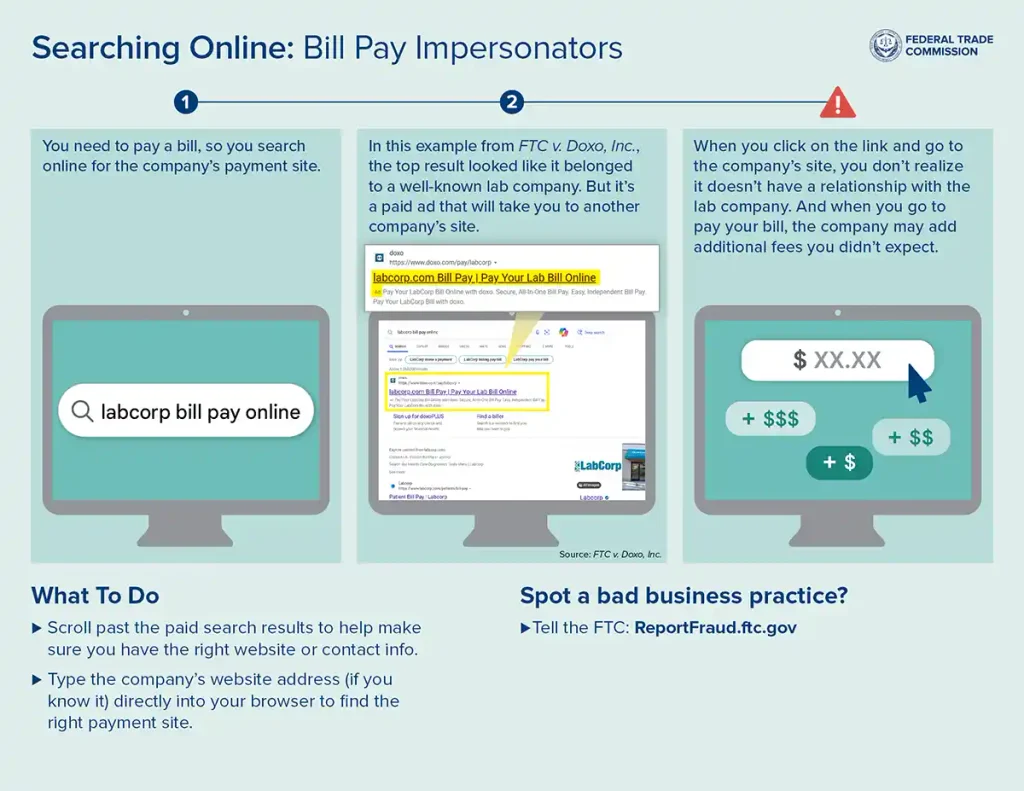
The FTC recently warned consumers about bill-payment impersonators using sponsored search results. Someone may receive a suspicious email or text and do exactly what we have always told them to do: don’t click the link. Instead, they open a search engine and search for the company themselves.
That is supposed to be the safe thing to do.
But a paid result could lead them to a third-party payment site that looks like the company’s official payment channel. They could pay unexpected fees, be enrolled in a subscription they did not knowingly choose, or provide financial information to a business they never intended to use.
So now even this familiar advice is no longer enough:
“Don’t click the link. Search for the company yourself.”
We apparently have to add more instructions to the instructions.
I Have Watched Scam Advertisements Become More Convincing
This is not the first time I have seen scammers use advertisements and familiar company names to attract victims.
I previously made a video warning people about a fake Bed Bath & Beyond website. It used a company name people recognized and offered products at ridiculously low prices.
I also warned people about a $47.98 mobility-scooter advertisement that appeared across social media. The kind of scooter shown in the advertisement can cost thousands of dollars. The price alone should raise questions, but the advertisement was especially upsetting because of the people it could attract.
Someone who is elderly, disabled, or struggling financially might desperately need that scooter. They may want to believe they have finally found one they can afford.
Scammers understand that.
They understand our needs, our hopes, our habits, and the names of the companies we already trust. They use it all against us.
I saw the same pattern with the viral Yeti cooler scam, which used the Sam’s Club name to make a fake giveaway seem trustworthy.
I had already noticed fake videos, websites, and company advertisements on Facebook and other social-media platforms. Now scammy advertisements are appearing in paid results on Google Search, Bing, and potentially anywhere else that sells prominent search placement.
They are following us from social media into the very places we were taught to use for safety.
Sponsored Search Scams Can Make a Fake Website Look Real
Most of us have been taught not to trust links in unexpected emails or text messages. If you need to contact your bank or pay a utility bill, search for the company yourself.
That advice made sense.
But what happens when the scammer is waiting for you in the search results?
They may use misleading descriptions, trusted names, official-looking websites, or telephone numbers that appear to belong to a legitimate organization.
A sponsored placement may give a fake or misleading website a false sense of legitimacy. People may assume that if an advertisement appears prominently in a major search engine, someone must have checked it first.
Unfortunately, we cannot afford to make that assumption.
A safer approach is to use the company’s official app, a bookmark you previously verified, or a web address printed on a trusted bill or statement.
The FTC also recommends scrolling past paid advertisements, typing a known company address directly into your browser, or using the website or telephone number printed on your bill.
If you do use a search engine, carefully examine the web address before entering your username, password, account number, or payment information.
If you encounter a suspicious advertisement, impersonator, or dishonest payment site, you can report it at ReportFraud.ftc.gov.
But that brings me to another part of this that upsets me.
More Businesses Are Pushing Us Online
In my experience, more companies are pushing customers toward handling their business online.
Customers may have limited options to pay by mail or speak with a real person. Some companies even charge an additional fee for making a payment by phone.
This upsets me to no end.
People are being pushed online to take care of important responsibilities, but the online world is becoming increasingly difficult to trust. We are told to be careful, inspect every link, verify every website, question every advertisement, and somehow recognize increasingly convincing scams.
How much responsibility can we continue placing on the person who is just trying to pay a bill?
I Especially Worry About Older Internet Users
I worry about everyone, but I especially worry about my elderly friends who are just beginning to use the internet.
Some are only now comfortable enough online to handle their basic responsibilities. They may know how to open a browser, search for a company, sign into an account, and make a payment.
They have learned just enough to do what businesses now expect them to do.
Then the rules change.
We told them not to click links in suspicious messages. We told them to search for the company themselves.
Now those results that used to lead to a trusted source now may lead you to an advertisement purchased by a dishonest business or impersonator.
How is anyone supposed to know?
And if I am being completely honest, this is not only about people who are new to technology. I consider myself a tech-savvy senior, and I know that I am also at risk.
It is easy to become distracted because you are in a hurry. This distraction can confuse you this confusion will make you believe that you have reached the correct website.
Knowledge may reduce the risk, but it doesn’t make any of us untouchable.
What Comes Next?
That is the question I keep asking myself.
What else? What is next?
Scammers are becoming more convincing. Artificial intelligence is making it harder to distinguish real images, videos, voices, and messages from fake ones. Familiar companies are being impersonated. Sponsored advertisements can lead people to websites they never intended to visit.
Sometimes it almost makes me want to turn off my Wi-Fi and get rid of the internet altogether.
Of course, that is not a realistic answer for most of us. The internet is too woven into our everyday lives. We use it to communicate, manage our money, make appointments, access important accounts, and take care of our families.
But I am tired of feeling like nothing we do is enough.
I am annoyed, upset and worry that it will never end.
I wish I could stop these advertisements before anyone sees them, expose every fake website, and make every deceptive post disappear. But I know that is far beyond anything one person can do.What I do have is my ability to share what I see and speak out about it.
And I will continue doing that for as long as I am physically and mentally able.
If one warning helps one person stop before entering payment information into the wrong website, then speaking out still matters.
Are Drone Tariffs Going to Make Our Hobby Too Expensive?
Updated August 18, 2026: This article reflects the drone tariff rules announced as of this date. The policy and its implementation may change as additional guidance is issued.
I own several drones: a DJI Mini 4 Pro, Mini 5 Pro, Neo, and Avata 360. I didn’t buy them to build some giant commercial drone operation. I bought them because I love flying.
So when I read that new drone tariffs were coming, my first thought wasn’t about international trade, manufacturing, or supply chains.
My first thought was: Is my hobby eventually going to become too expensive for people like me?
That is the part of this story I care about.
Plenty of places explain tariffs, national security, and American manufacturing. Those things matter, but I started looking at this as someone who loves drones.
I already invested money into this hobby. I invested time learning to fly, learning the rules, and figuring out what each of my drones can do.
I’ve written before about how getting into the drone hobby turned into something much bigger than simply buying a drone for me.
And I know I’m not the only one.
Many recreational pilots aren’t trying to build a drone empire. We fly because it gets us outside. We take pictures. We make videos. We explore. We learn something new.
Some pilots might occasionally make a little money with their drone, but for many of us this is first and foremost something we enjoy.
So what happens to us?
First: Your Current Drone Isn’t Suddenly Going Anywhere
This was the first thing I wanted cleared up.
The new Drone Tariffs proclamation applies to covered drones being imported into the United States beginning September 3, 2026. It does not place a new tariff on the drone already sitting in your house.
It also isn’t an order telling recreational pilots to stop flying the drones they already own.
In other words, September 3 is not doomsday for drone pilots.
If you already own a drone, the Drone Tariffs does not suddenly make that drone unusable.
That distinction matters because when headlines start throwing around numbers like 25% and 100%, it can sound much scarier than what is actually happening.
What Are the New Drone Tariffs?
The U.S. government wants to reduce the country’s dependence on foreign-made drones and drone components and encourage more production in the United States.
According to the August 13, 2026 presidential proclamation, the new tariffs create different rates depending on the type of drone and whether certain exceptions or qualifying lower rates apply.
Large drones over 25 kilograms, drones with thermal imaging capabilities, docking stations, and certain specified components can face a 100% tariff.
Smaller drones weighing 25 kilograms or less without thermal imaging generally fall under the 25% category, although qualifying products from certain countries may receive lower Drone Tariffs.
Most of us flying little camera drones aren’t shopping for 25-kilogram aircraft.
We fly the Minis, Neos, and other small drones that fit in a bag and come along with us to the park.
And that is where my concern really begins.
Does a 25% Drone Tariffs Mean Prices Will Go Up 25%?
Not necessarily.
This matters because it’s easy to see “25% tariff” and assume a drone that costs a certain price today will automatically cost exactly 25% more after September 3.
That isn’t how we should look at it.
U.S. Customs and Border Protection explains that the importer is ultimately responsible for paying duties on imported merchandise. What happens to the final retail price after that can depend on the manufacturer, distributor, retailer, supply chain, and other costs.
A company might absorb some of that extra expense. It might pass some of it along to customers. It might pass most of it along.
We don’t know yet what the final price increases will look like for individual consumer drones.
That is why I don’t think we should panic.
But I also don’t think recreational pilots should ignore what is happening.
Should I Rush Out and Buy Another Drone Before September 3?
This was one of my first thoughts too.
If drones get more expensive, should I hurry up and buy what I want now?
For me, the answer is no.
At least not just because a date is approaching.
If I was already planning to buy a particular drone, found a good price, and could comfortably afford it, that would be one thing.
Buying an expensive drone that I don’t really need because I’m afraid I’ll never be able to afford another one is something entirely different.
We don’t know yet exactly how retailers will respond. We don’t know what future models will cost. We don’t know what manufacturers might change in their supply chains.
The proclamation also includes incentives intended to encourage companies to manufacture more drones and drone components here in the United States.
So I’m watching.
I’m not panic-buying.
What I’m More Worried About Is the Replacement Drone
Honestly, the only thing I am really worried about is whether my Mini Pro 4 and 5 will work. Will my NEO work, and let’s not forget my latest addition to my fleet, my Avata 360.
Today, I’m okay.
But drones don’t last forever.
We crash them. Batteries age. Technology changes. Parts wear out. Sometimes something stops working.
What worries me isn’t waking up on September 3 and discovering that I can’t fly.
It’s looking a few years down the road and needing to replace one of my drones only to discover that the affordable choices I used to have are no longer affordable.
That’s a very different concern.
And right now, I think it’s a legitimate one.
Replacement parts and repairs are another area I’ll be watching.
Certain other drone components are scheduled for a 25% tariff beginning February 9, 2027, according to the proclamation.
We don’t yet know exactly how all of that will eventually affect what an average hobbyist pays to keep a drone flying.
How will the Drone Tariffs affect Pilots Who Make a Little Money?
Another group keeps coming to mind.
Maybe you mostly fly because you love it, but every once in a while you use your drone for a small paying job.
You’re not running a giant company with a fleet of aircraft.
Maybe your drone helped you turn something you enjoy into a little extra income.
Those pilots could feel rising equipment costs even more.
A large company may be able to build higher equipment costs into its business.
Someone doing an occasional small job may not have that same flexibility.
If replacing a damaged or outdated drone eventually requires a much larger investment, some smaller operators may have to decide whether continuing is financially worth it.
I’m not saying that’s definitely going to happen.
I’m saying that’s one of the things worth watching.
Could These Tariffs Actually Help in the Long Run?
Possibly.
I don’t want to look at only one side of this.
The stated goal of the tariff policy is to increase drone and drone-component manufacturing in the United States, reduce dependence on foreign supply chains, and encourage companies to invest in American production.
The proclamation even creates an onshoring incentive program for companies willing to build or expand U.S. manufacturing facilities.
If that works, maybe we eventually end up with more drones and components being made here.
Maybe more competition develops.
Maybe new affordable choices appear.
I would love to see that happen.
But building an industry doesn’t happen overnight.
And recreational pilots still have to live through whatever happens between where we are today and where the drone market eventually ends up.
That’s the part I’ll be watching.
Is My Drone Hobby Coming to an End?
After reading all of this, I keep coming back to my original question.
Is my time with this hobby coming to an end?
Right now, I don’t believe it is.
The drones I already own are still here, and right now I still get to enjoy them.
But I do think the days of simply assuming that the next affordable drone will always be waiting on the shelf may be changing.
And that makes me appreciate what I already have a little more.
I’m going to take better care of my drones.
I’m going to make smarter purchasing decisions instead of buying because something new and shiny comes along.
I’m going to watch prices, watch what manufacturers do, and pay attention as these policies develop.
But I’m not giving up flying because of what might happen.
I’ve invested too much time into learning this hobby, and more importantly, I enjoy it too much.
So for now, my drones are staying charged.
My controller is staying ready.
And I’m going to keep flying for as long as I’m allowed and able.
For me, decluttering for mental clarity is not about having a perfect home. I hate clutter. Not in a cute, “I like a tidy home” kind of way. I mean clutter makes me feel uncomfortable in my own skin.
The Space Where Clutter Used to Be
I hate clutter.
Not in a cute, “I like a tidy home” kind of way. I mean clutter makes me feel uncomfortable in my own skin. When my environment is crowded, my mind starts to feel crowded too. I feel confused, unhappy, surrounded, and sometimes almost trapped by things that are just sitting there.
Some people struggle with keeping too much. I struggle with the opposite.
Decluttering for Mental Clarity, Even When I Go Too Far
I am not a hoarder. I may be the equivalent extreme on the other end. I get rid of things too soon. Clothes, papers, little household items, things I have decided are no longer necessary. Sometimes I move so fast that later I find myself looking for the very thing I donated or threw away. And yes, I have had to replace things before.
But in the moment, when I want something gone, I really want it gone.
There is a particular kind of relief I feel when a space opens up. A corner clears. A shelf has room. A closet is no longer fighting me when I open the door. I can breathe better. I can think better. The space feels peaceful to me.
And if I am being completely honest, sometimes I declutter in secret.
If something has been sitting in the same place for months and months, forgotten by the person who owns it, it starts to feel like it belongs to the clutter now. I will wait until nobody is looking and quietly make it disappear. Not because I want to be sneaky for the sake of being sneaky, but because I already know what might happen if someone catches me.
They might say, “Put that back.”
And I do not want to put it back.
I want it gone.
The Relief of Empty Space after Decluttering for Mental Clarity
There is a strange satisfaction in looking at the empty spot afterward and knowing the thing that was bothering me is no longer there. I do not need credit. In fact, I would rather not have credit. I want the space.
Now, I know this may sound extreme. It probably is. I have learned that my love of decluttering can go too far. Sometimes things are worth keeping. Sometimes documents matter. Sometimes other people’s belongings are not mine to decide on, even if they have abandoned them in plain sight for what feels like forever.
So I am learning balance.
Finding Balance Without Breaking the Bank
What works for me is not fancy. I keep a simple plastic bin nearby, and when I notice something I no longer need, I place it there. When the bin is full, I empty it out and find those items new homes.
I do not have a top ten list of organizing products because I do not need one. What I use is simple: one or two clear storage bins. You can find them almost anywhere. I’ll include an Amazon link because that was the lowest price I found so far but shop around.
Check Walmart, Home Depot, your local supermarket, or even Goodwill and Salvation Army. If you buy a used bin, just inspect it carefully because secondhand bins are more likely to have cracks or damage.
There are plenty of products that claim to help with organization, but honestly, the only real investment you need is your time, your desire, and one or two clear see-through bins.
When Clutter Feels Like Noise
For me, decluttering is not just about having a pretty closet or a clean room. It is about how I feel in my space. A cluttered room can make me feel like my thoughts have nowhere to land. A clear room gives me calm. It gives me room to move, room to think, room to be.
I grew up knowing that space is a luxury. A closet, a dresser, a room of your own- those things were not always guaranteed. Maybe that is part of why I treat space like something valuable. If I have it, I do not want to bury it under things I do not use, need, or even like.
I would rather live with less and feel lighter.
That does not mean I always get it right. Sometimes I declutter too quickly. Sometimes I throw away first and ask questions later. Sometimes the space feels so good that I forget there may have been a reason to keep what was there.
But I still believe there is something powerful about clearing your environment. Not because every drawer needs to be perfect. Not because your home should look like a magazine. Not because decluttering makes you a better person.
Internet service plans can be confusing. Shopping for a new plan? There’s one question you should ask before agreeing to anything:
“Could you please send me the Broadband Label for this plan?”
It may sound like a simple request, but that one question can help you compare internet providers, understand hidden fees, and avoid expensive surprises on your monthly internet bill.
Sometimes, having the edge isn’t about knowing all the answers.
Sometimes it’s simply knowing the right question to ask.
What Is a Broadband Label?
Think of the FCC Broadband Label as the Nutrition Facts label for your internet service.
Instead of listing calories and ingredients, it shows the important details about your internet plan in a standardized format that makes it easier to compare one provider against another.
It helps you see beyond the sales pitch and focus on the facts.
Before You Agree
Before saying yes to any of the to any Internet Service Plans presented to you, ask:
“Could you please email or text me the Broadband Label for this internet service plan?”
That’s it.
One simple question could save you money for years.
What to Look for on a Broadband Label
You don’t need to become a technology expert.
Just pay attention to these important details.
💰 Monthly Priceof internet service plans.
Is this the actual monthly price?
Or is it a promotional rate?
Many internet providers advertise attractive introductory prices to to Internet Service Plans that increase after several months.
📅 How Long Does the Price Last?
Look for promotional pricing.
If the label says the discount expires after 12 or 24 months, ask:
“What will my monthly bill be after the promotion ends?”
Knowing the long-term cost helps you compare internet service plans more accurately.
📦 Internet Service plans Equipment Fees
Is the modem or router included?
Or are you paying a monthly rental fee?
A $15 equipment rental may not seem like much, but over five years it adds up to hundreds of dollars.
⚡ Internet Speed
Check both:
Download speed
Upload speed
If you stream movies, attend Zoom meetings, upload videos, or work from home, upload speed can be just as important as download speed.
Data Limits
Does the plan include unlimited data?
What happens if you exceed the monthly allowance?
Some providers charge additional fees, while others reduce your internet speed.
These costs often explain why your actual internet bill is higher than the advertised price.
What If the Representative Doesn’t Know?
This may surprise you…
During my years working in technical support for an internet provider, I wouldn’t have known about the Broadband Label.
If a customer had asked me for one, I likely would have placed them on hold while I contacted a supervisor.
Not because I didn’t understand technology.
My job was helping customers troubleshoot internet problems—not explaining sales disclosures or pricing documents.
If you get a representative who is unfamiliar with your request, be patient and politely say:
“No problem. Please check with a supervisor or someone in sales? I want to review the Broadband Label before making a decision. A respectful question often gets better results than an argument.
What If No One Can Find It?
Sometimes the representative asks another department.
Then another supervisor.
The call gets longer.
Everyone is trying to help.
At that point, many customers feel pressured to agree so they can end the conversation.
Don’t.
Instead, say:
“I appreciate all your help today. I want to review the Broadband Label before making a decision, so I’ll think it over and call back later.”
There’s nothing wrong with taking your time before choosing an internet service plan.
Don’t Let a Long Phone Call Make the Decision for You
One thing I learned in technical support is that long phone calls can wear people down.
After forty-five minutes…
Multiple transfers…
Several holds…
Many customers wanted the call to end.
Unfortunately, that’s often when expensive decisions get made.
Remember:
You’re choosing a service you’ll probably pay for every month.
A little patience today could save you money for years.
Sometimes the Right Question Is More Powerful Than the Right Answer
You don’t have to become a networking expert.
You don’t need to memorize technical terms.
You need enough knowledge to ask better questions.
That’s how smart consumers protect themselves.
Because sometimes…
It isn’t the answer that gives you the advantage.
It’s knowing the right question to ask.
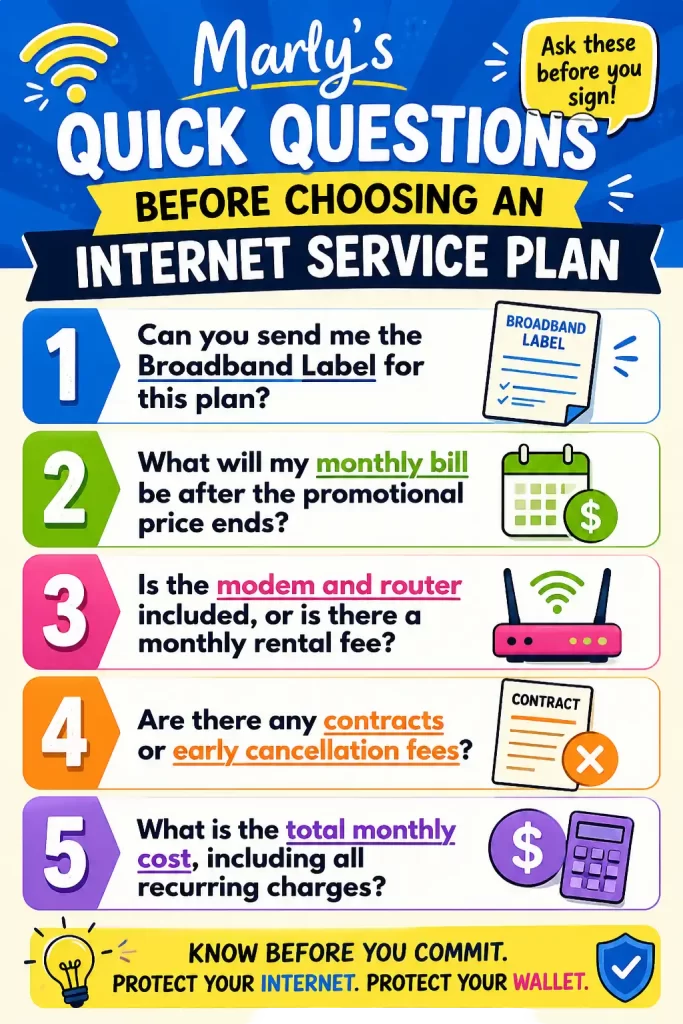
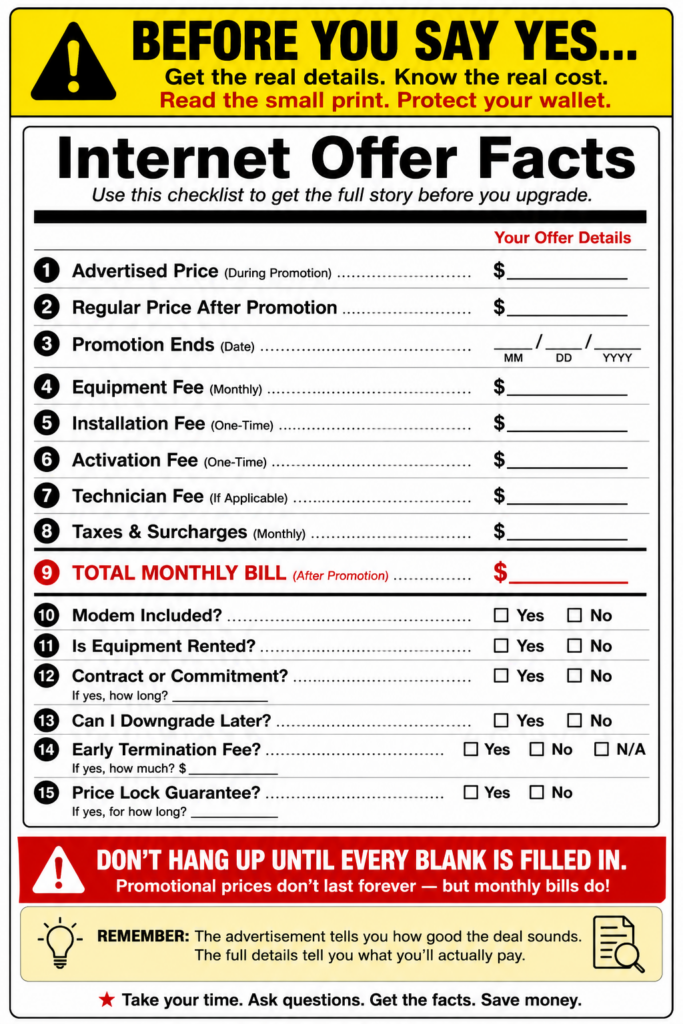
Marly’s Quick Questions Before Choosing an Internet Service Plan
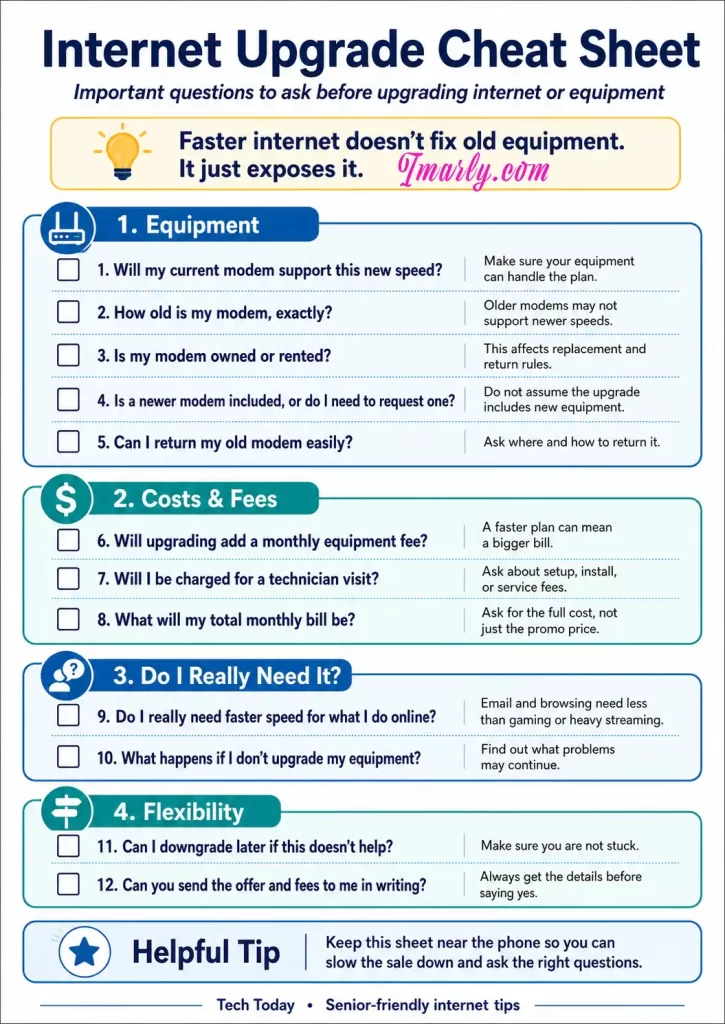
If you are considering updating your internet but are not firm on it yet, screenshot this quick guide, call your internet provider, and ask the questions in this image. The goal is to get an idea of what to look for as you consider and form the right questions for your situation.
Internet Services Plans: More Money Saving Questions to ASK?
Imarly resource tool box
Once you’ve narrowed down your choices, don’t stop there. Whether you’re signing up as a new customer or upgrading your current internet service, asking the right questions can make the difference between a great deal and an expensive mistake. Check out my guide, 👉10 Questions to Ask Before Upgrading Your Internet, to learn the questions I believe every customer should ask before saying “yes.”
🌐 FCC Broadband Consumer Labels
Learn what a Broadband Label is and how it helps you compare internet service plans. 👉Broadband Consumer Labels
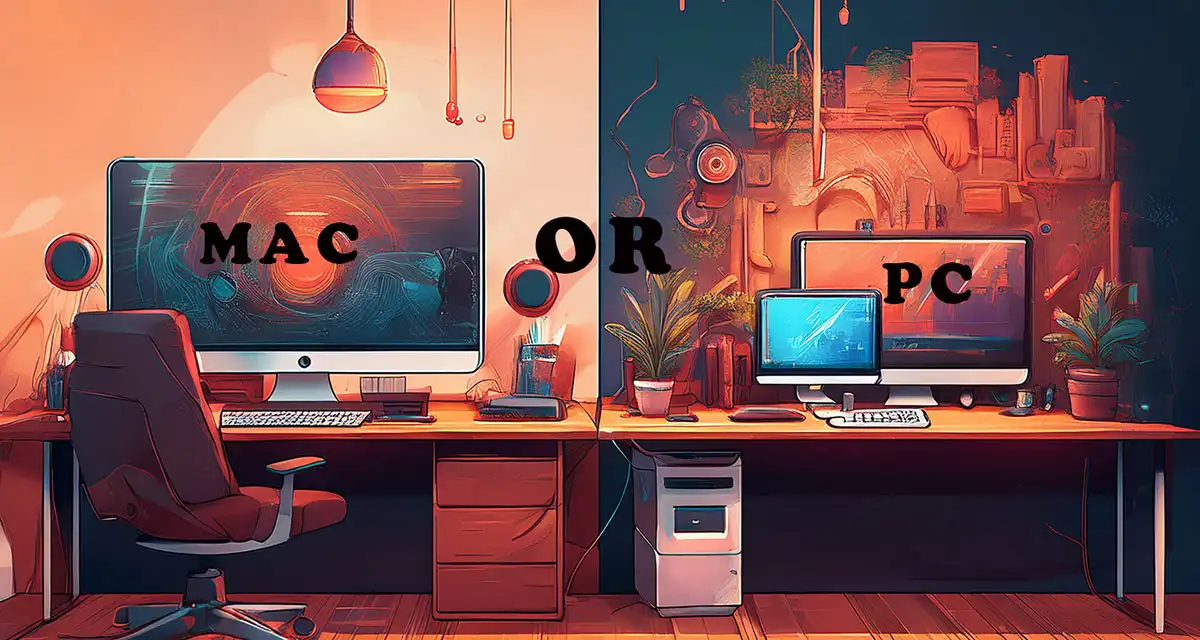
4K video editing needs the proper equipment to achieve the full benefits of 4K video and if you’re trying to decide between a Mac and a PC for your 4K video editing setup, you’re not alone. With so many options out there—from Apple’s powerful M-series chips to high-end PC builds—figuring out what works best for your workflow can feel overwhelming.
In this post, I’ll walk you through current system requirements, pros and cons, and real-world performance so you can make an informed choice that fits your creative needs.
4K Video Editing Requirements on a Mac
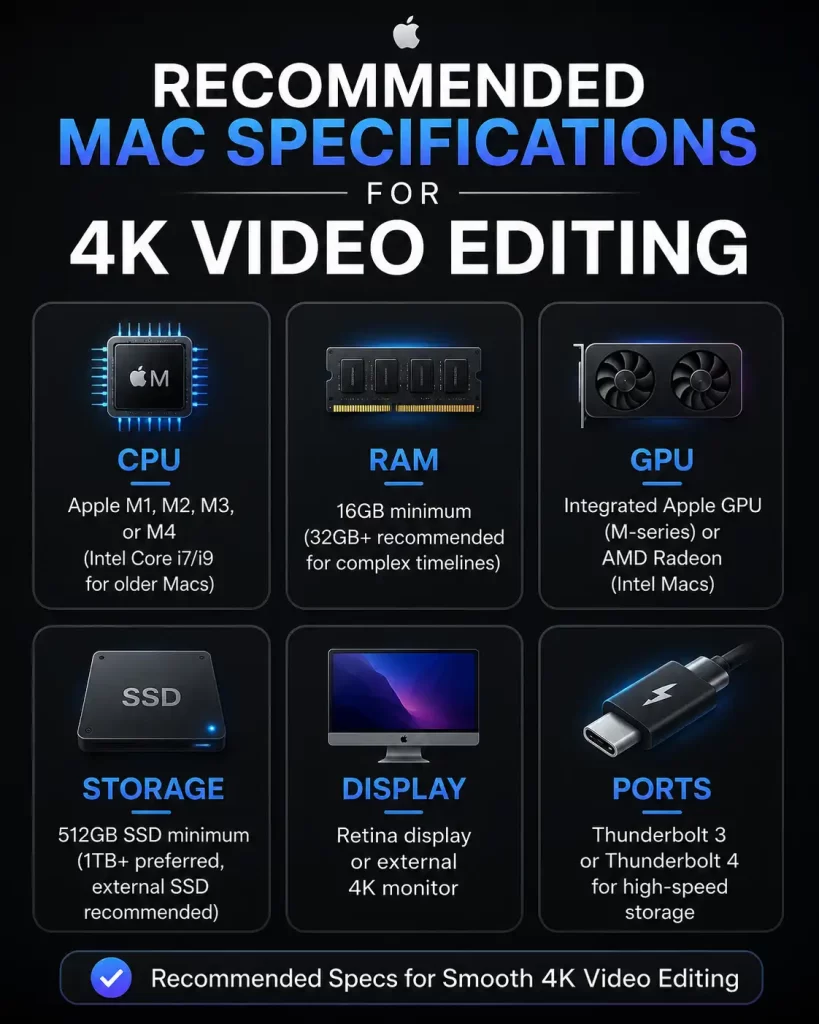
What specs are needed to edit 4K on a Mac? Here are the most recommended options worth considering if you are planning on using Final Cut Pro or Adobe Premiere Pro for a smooth editing experience:
What About The MacBook Air For 4K Video Editing?
A MacBook Air can handle 4K video editing. Still, there are some recommendations, the most important being to use proxy files or optimized media for better performance on lightweight models. Also recommended are the M1, M2 and M5 versions.
Windows 4K Video Editing
Windows users have access to more customization and power per dollar. Building or buying a system tailored for 4K may be less of a financial burden. Let’s go over what to look for:
Insert recommended pc spec for 4K editing.
Can I afford a PC for 4K editing?
Custom builds under $1,200 may outperform Macs at the same price. That performance shines through when paired with DaVinci Resolve or Adobe Premiere.
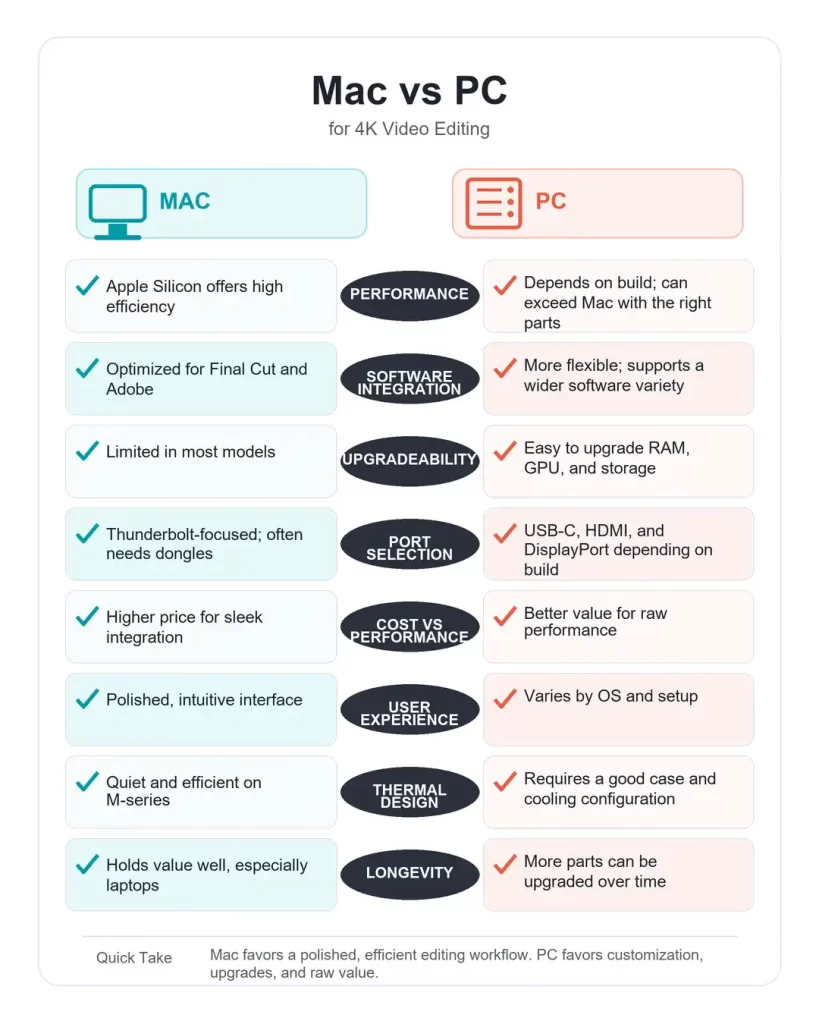
Pros and cons of editing 4K on MAC
Pros:
Seamless experience with Final Cut Pro (Mac exclusive)
Fewer ports; external drives often require adapters
Pros and cons Editing 4K on PC
Pros:
Greater customization and future-proofing
Better cost-to-performance ratio
More choices in software and hardware
Easy to repair or upgrade over time
Cons:
Compatibility issues with drivers or software
Requires tech knowledge or IT support
More variation in build quality and noise levels
Which One Should You Choose?
I’ve been a tech nerd for over 50 years, and the majority of my experience has been with PCs. While I do know how to use a Mac and have explored Apple products, I recognize there would be a learning curve if I decided to fully switch.
At one point, I even considered getting a Mac just to experience it first-hand, but I couldn’t justify the cost of a new system just for the sake of trying something new, especially when I already have the skills and knowledge to accomplish my goals on a PC.
I do wish I had experimented with Mac when I was younger, but I’m still genuinely grateful for the depth of experience I’ve gained with Windows systems.
Trying to choose between a Mac and PC for video editing?
If you value simplicity, reliability, and a streamlined creative experience, a Mac with Apple Silicon is a fantastic (though pricier) choice.
If you’re more into custom builds, hardware upgrades, or want more raw power per dollar, a PC might be your ideal workstation—especially for Adobe or DaVinci users.
Whichever direction you go, make sure your machine meets the minimum requirements to avoid frustrating render times and playback issues.
Of course, even the best computer is only part of the equation. Once you’ve chosen the right Mac or PC, the next step is finding video editing software that fits your experience level and budget.
If you’re not sure where to start, I’ve personally reviewed several popular free video editors, compared their features, and included important download safety tips to help you avoid fake websites and scams.
Questions to ask before upgrading internet service should come before saying yes to a faster—and usually more expensive—plan.
Internet providers often make upgrading sound simple: pay a little more each month and everything online will suddenly become faster. But a higher-speed plan may not solve the problem if your modem, router, Wi-Fi setup, computer, or other equipment cannot handle the new speed.
Before agreeing to anything, slow the conversation down and ask questions.
You do not have to understand every technical term. You need enough information to know what you are buying, what equipment is required for upgrading internet service, and what the complete cost will be.
Faster Does Not Mean Better Internet
Better Internet Is Not Only Faster Internet.
A faster internet plan can help when several people are streaming, gaming, working from home, making video calls, or using many connected devices at the same time.
However, speed is only one part of your internet connection.
An old modem may not support the faster plan when upgrading internet service. A weak router may not send a good Wi-Fi signal throughout the house. A computer may be running slowly for reasons unrelated to the internet. Even the location of your router can affect your experience.
That is why you should identify the actual problem before buying more speed.
Here are ten questions to ask your internet provider before agreeing to an internet speed upgrade.
1. Will My Current Modem Support the New Internet Speed When Upgrading Internet Service?
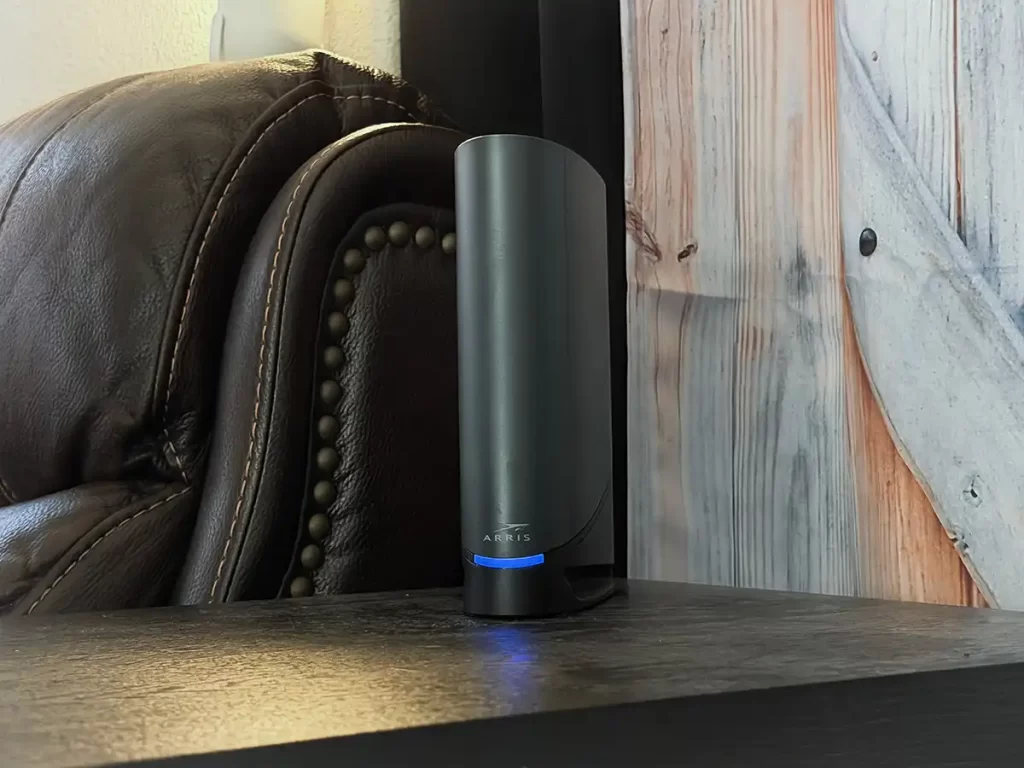
Your modem is the device that connects your home to your internet provider. Every modem has limits on the speeds and technology it can support.
Ask the representative to confirm that your modem is approved for the exact plan being offered before upgrading internet service.
Do not settle for a vague answer such as, “It should work.”
Ask:
“Can you check the modem model listed on my account and confirm that it supports this specific speed?”
For example, you could upgrade from a 300 Mbps plan to a 1 Gig plan, but an older modem might not be capable of delivering the full new speed. You could end up paying for service your equipment cannot properly use.
2. How Old Is My Modem, Exactly?
Many people have used the same modem for years and have no idea how old it is.
That is understandable. Modems usually sit quietly on a shelf, behind a television, or near a computer. As long as the internet works, we rarely think about them.
Ask the provider when the modem was first activated or issued. You can also look for the brand and model number printed on the device.
Age alone does not automatically make a modem unusable, but an older model may not support newer internet standards, faster speeds, or current security updates.
Write down the modem’s:
Manufacturer or brand
Model number
Approximate age
Maximum supported speed
Provider approval status
Having this information makes it easier to confirm whether the modem needs to be replaced.
3. Do I Own the Modem, or Am I Renting It?
Many customers are surprised to learn that they have been paying a monthly modem or gateway rental fee.
Look at your internet bill for terms such as:
Equipment rental
Modem rental
Wi-Fi equipment
Gateway
Advanced Wi-Fi
Panoramic Wi-Fi
Whole-home Wi-Fi
Ask the representative whether the equipment belongs to you or the internet provider.
When equipment is rented, the provider is generally responsible for replacing it according to its policies. When you own it, you may be responsible for purchasing a newer compatible model.
Knowing who owns the modem also helps you understand whether it must be returned if you replace it, move, or cancel service.
4. Will the Upgrade Add a Monthly Equipment Fee?
A different modem may be required, which can change the final monthly price as an additional monthly charge. Ask, “What will my total monthly bill be after the upgrade?
You will want them to include equipment fees, taxes, and any optional services when upgrading internet service?” Ask, “If the quoted price is a temporary promotional rate, what will the normal price be when the promotion ends.
Internet providers must display FCC Broadband Consumer Labels for standalone broadband plans at points of sale. These labels provide information about pricing, introductory rates, typical speeds, data allowances, and certain fees. Ask the representative to show or send you the broadband label for the plan before you agree to it.
5. Is a Newer Modem Included, or Do I Have to Request One?
Upgrading internet service rarely includes automatic upgrades to the equipment.
Ask the provider directly:
“If my current modem does not support this speed, will you automatically send me a replacement?”
Then confirm:
Is there a charge
Will the replacement be new or refurbished
If you must install it yourself, and is there a charge for a technician install
Whether you must call to activate it
How long you have to return the old equipment
Some providers may leave the old modem active unless the customer specifically requests newer equipment. That might cause frustration when the new plan fails to perform as expected.
6. How Do I Return My Old Modem?
Equipment returns can become expensive when they are not handled correctly.
Ask where the old modem must be returned and whether you can:
Take it to a local provider store.
Drop it off at a shipping location.
Prepaid return label
Schedule a pickup
Ask for a receipt or tracking number.
Keep that proof until the device disappears from your account and your next few bills show no unreturned-equipment charge.
It is also a good idea to photograph the modem’s serial number and the return receipt. Those photos can be extremely helpful if the provider later claims you never returned the equipment.
7. Will I Be Charged for a Technician Visit?
A representative might recommend sending a technician to install equipment, check wiring, or improve the connection.
Before scheduling the appointment, ask whether there will be a charge.
Ask:
What is the exact technician fee?
Is the fee waived as part of the upgrade?
Will I be charged if the problem is inside my home?
Will I be charged if the provider’s equipment is defective?
Can I install the modem myself instead?
Could additional wiring or outlet charges be added?
Please include any promised fee waiver in your order confirmation and in your account notes.
A verbal promise can be difficult to prove later.
8. Do I Really Need Faster Internet for What I Do Online?
This may be the most important question on the list.
Think about how you normally use the internet.
Do you mainly:
Read email?
Browse websites?
Use Facebook?
Watch occasional videos?
Make video calls?
Stream television?
Play online games?
Work from home?
Upload large photographs or videos?
Have several people online at once?
Someone who mainly checks email, reads the news, shops online, and uses Facebook may not need the fastest available internet plan.
A larger household with multiple televisions, gaming systems, security cameras, phones, tablets, and computers may benefit from more speed—especially when several devices are active simultaneously.
The FCC offers broadband guides that compare common activities and household usage. The figures are general guidelines rather than guarantees, but they can help consumers think about what they actually do online before selecting a plan.
Before upgrading, ask the provider:
“Based on my actual usage and number of devices, why are you recommending this particular speed?”
The representative should be able to explain the recommendation in ordinary language.
9. What Happens If I Upgrade the Plan but Keep My Current Equipment?
This question helps reveal whether you are being sold an incomplete upgrade.
Your internet connection may continue working with old equipment, but you may not get the full speed you are paying for. What you are experiencing is an incomplete upgrade. You could also experience dropped connections, buffering, weak Wi-Fi, or inconsistent performance.
Ask whether keeping the old modem will:
Limit maximum speed
If there is no speed limit, will it slow down after a certain speed? Some internet plans offer unlimited but slow down after reaching 300mbps or more.
Cause compatibility problems
Affect reliability
Prevent technical support
Create security concerns
Require replacement later
Request a clear explanation of what the equipment can and cannot support.
Remember that the modem brings the internet into your home, while the router distributes the connection to your devices. Some providers combine both functions into one device called a gateway.
The modem can support the plan while the router or Wi-Fi connection remains the real problem.
10. Can I Downgrade Later If the Upgrade Does Not Help?
Before accepting a faster plan, find out whether you can return to your current plan or choose a less expensive one.
Ask:
Is there a contract?
Is there an early termination fee?
How long does the promotional price last? This is important to know because most providers will not send you warnings before increasing your price to the normal rate. Set a calendar alert to notify you when you are near the end of your promotion.
"As someone who spent years in tech support, I'll admit this is something I didn't even know existed at the time. It wasn't part of my role, and if a customer had asked me for one, I probably would have needed to ask a supervisor. That's exactly why I'm sharing it now—because if it was easy to miss from the inside, it's even easier for customers to never know it's available."
base price, introductory pricing, recurring fees, certain one-time fees, typical download and upload speeds, latency, and information about data allowances. Review the label before completing the order.
Download your printable version of this cheat sheet by clicking on above photo or here 👉Internet upgrade cheat sheet.
Ask for the Offer in Writing
Before agreeing to an internet upgrade over the telephone, ask the representative to email or message you the complete offer.
The confirmation should include:
The name of the plan
Download speeds
Upload Speeds
New monthly price
Promotional period
Price after the promotion
Equipment charges
Installation or activation fees
Technician charges
Contract terms
Cancellation terms
Equipment return instructions
Do not allow yourself to be rushed.
You can say:
“Thank you. I need to review the full price and equipment requirements before I agree to the change.”
A legitimate offer should still make sense after you have had time to read it.
Check Your Current Internet Before You Upgrade
Before calling your provider, write down what is actually going wrong.
For example:
Websites load slowly
Video keeps buffering
Wi-Fi does not reach a bedroom.
Connection drops at certain times (It could be the device)
One device is slow, but others work normally.
Video calls freeze
Uploads take too long.
The internet becomes slow when everyone is home.
These clues matter.
If Wi-Fi is poor in one room, router placement or signal coverage may be the issue. If every device loses service, the modem, wiring, or provider connection may need attention.
If only one computer is slow, the computer may be the problem.
Paying for more speed without identifying the cause can leave you with the same problem and a higher bill.
A Simple Script to Use With Your Provider
You can read this directly to the representative:
Before changing my plan, can you let me know the complete monthly cost? Please include equipment fees. And will my current modem support the new speed? Will I have to replace my equipment, and is there an installation or technician charge? What will the price be after the promotion ends? Please send me the FCC Broadband Consumer Label and the full offer in writing to help me decide.
There is nothing rude or difficult about asking these questions.
You are the customer, and you have the right to understand what you are purchasing.
Be Careful With Unsolicited Internet Upgrade Calls
Not every person claiming to represent your internet company is legitimate.
You will find that there are excellent scammers who sometimes impersonate internet and cable providers. These scammers offer discounts, upgrades, or lower bills. And for all the hard work these scammers put into scamming you, they will request an advance payment more often in the form of gift cards, banking details, passwords, or remote access to your computer.
The Federal Trade Commission has warned consumers—including older adults—about scammers pretending to represent television and internet companies.
When someone unexpectedly calls with an offer:
Do not provide account passwords or payment information.
Do not allow remote access to your computer.
Hang up.
Find the provider’s telephone number on your bill or official account.
Call the company directly and ask whether the offer is real.
Do not rely on the caller ID or a telephone number supplied by the caller.
Faster internet does not fix old equipment. It often just exposes its limitations.
Before paying for more speed, make sure your modem and router can support it. Find out what the upgrade will really cost, ask whether new equipment is included, and decide whether the faster plan matches how you actually use the internet.
Most importantly, remember that you do not have to decide the sales call.
Slow the sale down.
Ask the questions.
Get the answers in writing.
Then decide whether the upgrade is truly right for you.
Keep Learning and Stay Protected
Technology is constantly changing, but you don’t have to figure it out alone. Before making any changes to your internet service, take a few minutes to review the official resources below. They provide reliable information about broadband labels, internet speeds, consumer rights, and filing complaints if something doesn’t seem right.
Scam Watch & Protect(on iMarly.com) – Learn how to spot fake internet provider calls, phishing emails, and other common scams targeting consumers.
And because scammers often impersonate internet and cable companies with fake offers, don’t forget to visit my Scam Watch & Protect section, where I share real scams, warning signs, and practical tips to help you recognize and avoid them. The more informed you are, the harder it becomes for scammers—and confusing sales tactics—to catch you off guard.