
This post is part of my complete guide:
Best Free Video Editing Software – Full Series Overview
Filmora video editor review searches are extremely common because this program advertises itself as beginner-friendly and free. It promises simple drag-and-drop editing, built-in effects, and fast results — all without a steep learning curve.
But when something says “free,” we need to slow down and read carefully.
Let’s walk through it clearly.
⚠️ Important Download Safety Warning
Filmora is widely searched, which means fake download sites often try to copy it.
To stay safe, I always recommend downloading Filmora only from the official Wondershare website, never using “cracked” or “unlocked” versions, steering clear of third-party free software sites, and double-checking the web address before you hit download.
The only legitimate source is:
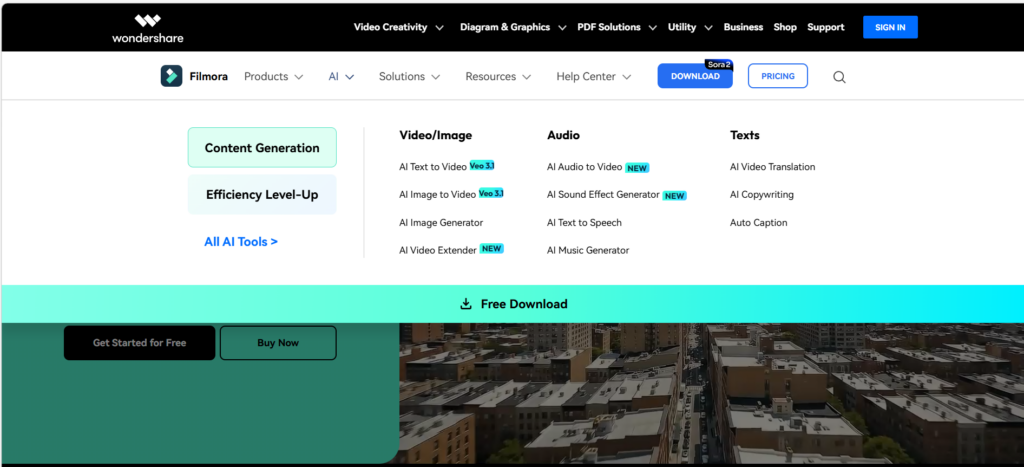
👉 https://filmora.wondershare.com
If the website address looks slightly different, stop immediately.
I personally verify all download links before sharing them.
What Is Filmora Video Editor?
Filmora is:
- A beginner-focused video editor
- Designed for ease of use
- Available for Windows and Mac
- Built with templates and visual effects
When you open Filmora, you’ll notice something immediately:
It looks modern.
Large buttons.
Clean timeline.
Drag-and-drop functionality.
Built-in effects and transitions are ready to use.
- Compared to DaVinci Resolve, it feels lighter.
- Compared to OpenShot, it feels more polished.
- Compared to CapCut, it feels more “desktop professional.”
That’s intentional.
Is Filmora Video Editor Really Free?
Here’s the big thing you need to know: Filmora lets you download and use it for free, which sounds great—until you get to the export stage. If you’re using the free version, any video you make will have a watermark slapped right across it.
If you want to get rid of that watermark, you’ll need to pay for a license or a subscription. Many beginners only notice after editing.
Pros and Cons of Filmora Video Editor
✅ Pros
Filmora is great for beginners. A clean and modern interface that is easy to just drag and drop clips, and you get built-in effects and music right away.
Plus, it works smoothly on both Windows and Mac. In my experience, it’s way less intimidating to learn than, say, DaVinci.
❌ Cons
Here’s the not-so-great stuff: the free version puts a big watermark on everything you export, so if you want clean videos, you’ll have to pay. Updates only come with a subscription, there are some upsells sprinkled in, and if you’re looking for all the bells and whistles of pro-level software, Filmora just isn’t quite there—but for most folks starting out, that’s usually not a dealbreaker.
It’s designed to feel simple — and it does.
But long-term use usually requires payment.
What Computer Do You Need to Run Filmora video editor?
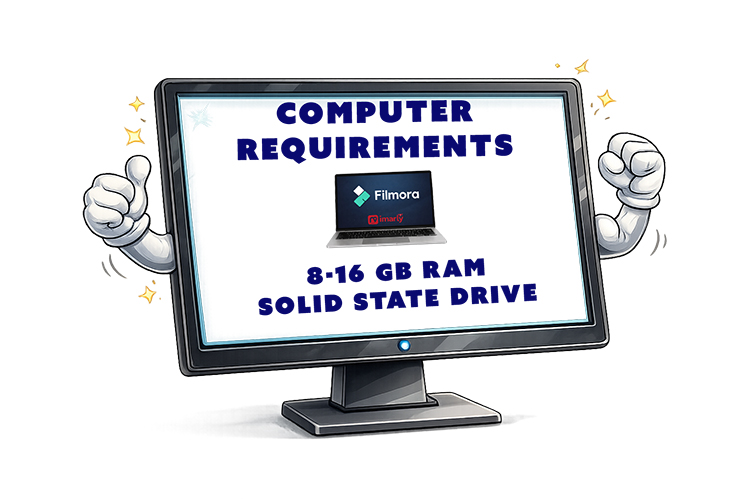
Filmora runs on:
- Windows
- Mac
It does not require extremely powerful hardware like DaVinci Resolve.
Most modern computers with:
- 8–16GB RAM
- Solid-state drive
Will handle HD editing comfortably.
For heavy 4K drone footage, performance depends on your system.
Who Should Use Filmora?
Best for:
If you do not want complicated menus and prefer a polished, modern interface, Filmora may be for you. It works great for quick video projects.
Not ideal for:
Filmora probably isn’t the best fit if you need something totally free, want advanced tools for cinematic color grading, or just don’t like dealing with subscriptions.
My Honest Recommendation
To me, Filmora is kind of like the “training wheels” of polished video editing—it takes away a lot of the intimidation and just makes things easier, but it’s not truly free if you want to export without a watermark.
If you’re okay with paying for convenience, it’s a super comfortable choice. But if you’d rather not spend anything, Shotcut or OpenShot will do the trick, and if you want to grow your skills with pro-level tools, DaVinci Resolve could be worth the learning curve. For quick phone edits, CapCut is hard to beat.
There’s no single “best” video editor out there. The best one is the one that fits your comfort, your computer, and what you actually want to do.
📊 Not Sure Which Editor Is Right for You?
This review is part of my complete guide to Free Video Editing Software.
If you’d like to see all six programs compared side-by-side — including what’s truly free and what has limits — visit the full comparison guide here:
👉 Free Video Editing Software: Final Comparison and Safety Guide